Blog · Video editing
Two Ways to Add Captions to a Video in the VoxStudio Video Editor
Add synced captions to any video in VoxStudio for Mac: drag a session that already has subtitles from the Sessions panel onto the timeline, or generate on-device captions from an audio track.
By David, Product Specialist at VoxStudio · · 5 min read
Key takeaways
- Path A — already transcribed it? Drag the session from the Sessions tab onto the timeline. Its subtitles arrive as a new subtitle track, together with the session audio. Nothing is transcribed again.
- Path B — open Captions, set Source to the audio track you want, and click Generate Local Captions. VoxStudio transcribes on your Mac and adds a caption track.
- Use Path A when a transcription, recording or dub session with subtitles already exists; use Path B when the voice is only in the timeline.
- Both results are ordinary timeline clips, so you can trim, move, restyle and export them like anything else.
Captions make a video watchable with the sound off, easier to follow in a second language, and easier to find in search. In VoxStudio for Mac there are two ways to put them on the timeline, and the faster one depends on whether the speech has already been transcribed somewhere in the app.
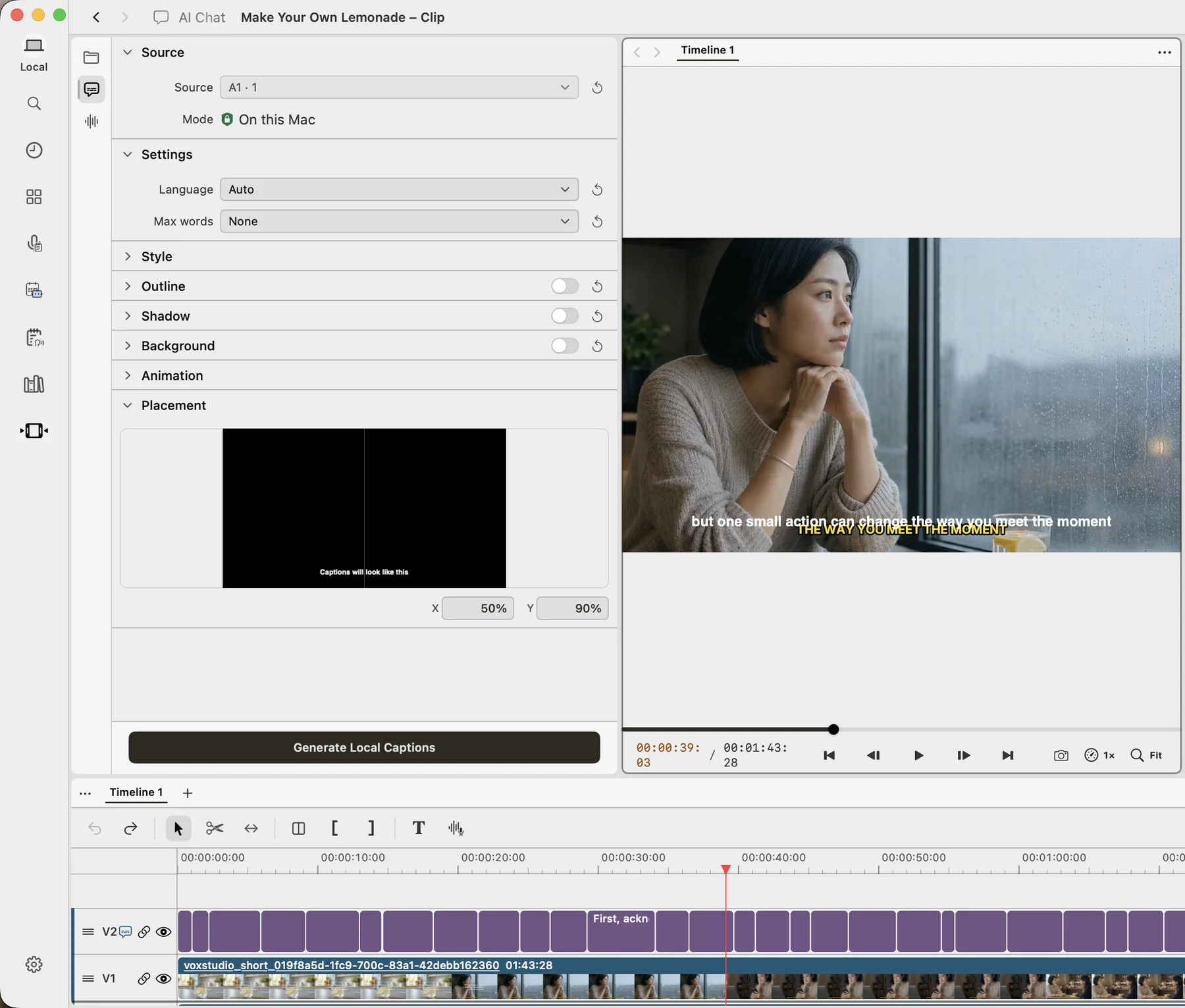
I will show both on a real project — a short "Make Your Own Lemonade" clip — with the panels and buttons you will see.
Pick your path
Both paths end the same way: captions on the timeline, in sync with the speech. They start from different material.
Path A: Drag a session that already has subtitles
Every transcription, recording and dub session in VoxStudio keeps its subtitles. Drag one onto the timeline and those subtitles come with it.
Best for: Meetings, interviews and files you already transcribed, recorded or dubbed in VoxStudio. Result: A new subtitle track with the session's subtitles, plus the session audio.
Open the Sessions tab in the video editor
In your project, switch the left panel from Library to Sessions. Every session on this Mac is listed with its type and status. Look for one marked Ready; you can search or filter the list.
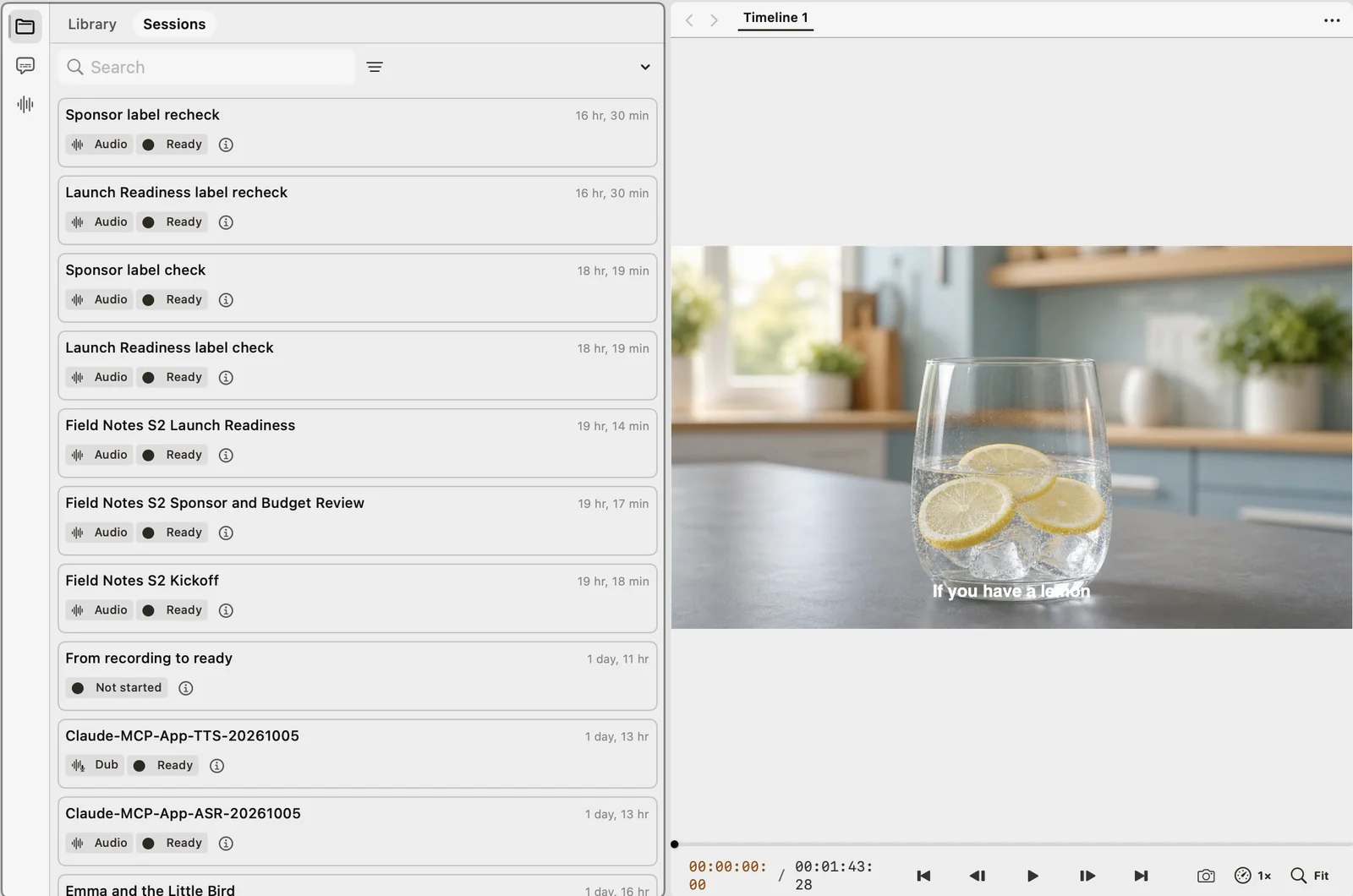
The Sessions tab sits next to Library in the left panel of the video editor. Drag the session to the timeline
Drag the session card and drop it where it should start. VoxStudio adds its subtitles as a new subtitle track (S3 here) and places the audio with it, so you do not need to transcribe anything again.

After the drop, the session subtitles land on their own track, aligned to the audio.
Screen recording: dragging a transcribed session from Sessions into the timeline.
Path B: Generate captions from an audio track
Start from audio that is already on the timeline. VoxStudio transcribes it on your Mac and creates a caption track that follows it.
Best for: Narration or clips recorded outside VoxStudio — any audio already in the project. Result: A new caption track aligned to the selected audio, ready to style.
Open Captions and choose the source
Click the Captions icon in the left rail of the video editor. Under Source, pick the audio track you want to caption instead of Auto — for example "A1 · 1 clip". Mode shows On this Mac, which means transcription runs locally.
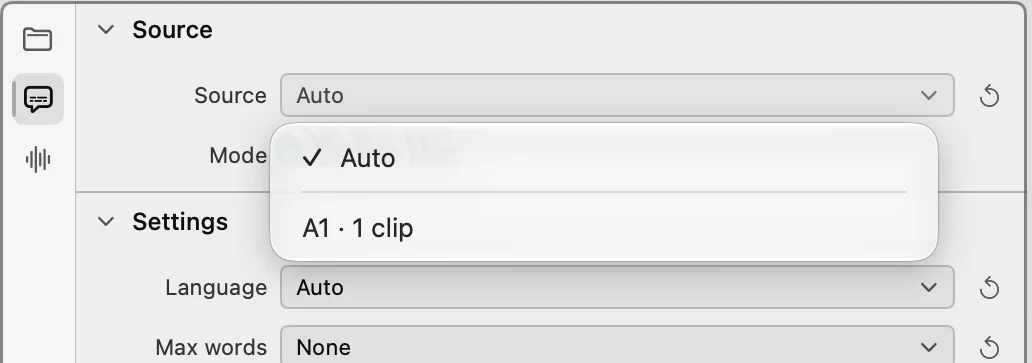
Source lists every audio track that holds clips. Pick the one that carries the voice. Adjust settings and style (optional)
Set the Language, or leave it on Auto, and use Max words to keep each caption short. Style, Outline, Shadow, Background, Animation and Placement control how the captions look; the placement preview updates as you change them.
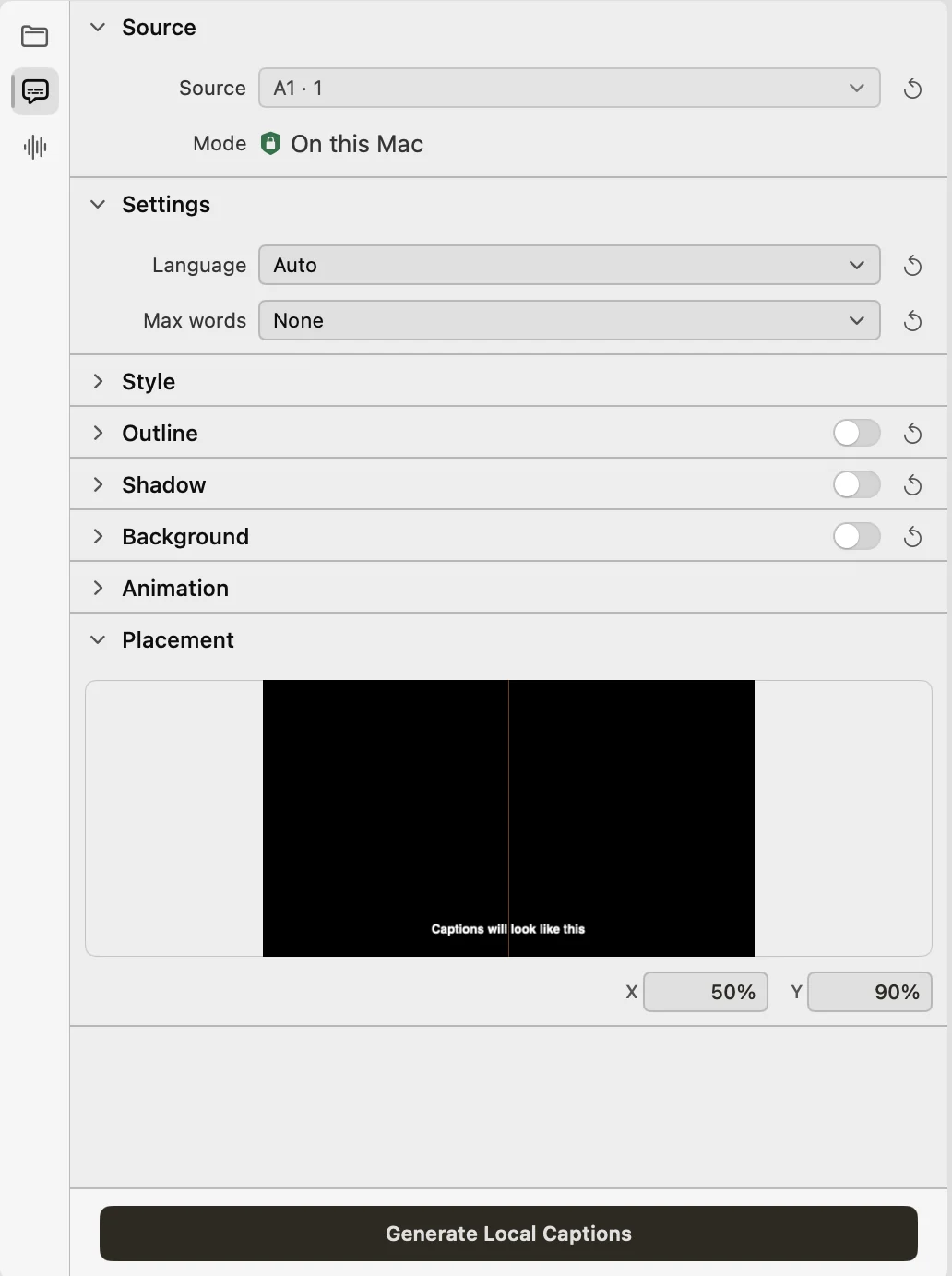
Everything for captions lives in one panel, ending with Generate Local Captions. Click Generate Local Captions
VoxStudio transcribes the selected track and adds a caption track above the video. Each caption is a clip you can trim, move or edit in place.

The generated caption track: one clip per caption, aligned to the speech.
Which path should you use?
| Path A: drag a session | Path B: generate captions | |
|---|---|---|
| Starts from | A session that already has subtitles | An audio track already on the timeline |
| Adds to the timeline | A subtitle track + the session audio | A caption track |
| Transcription | Not needed — reuses the session subtitles | On-device, on your Mac |
| Best when | You transcribed, recorded or dubbed it in VoxStudio | The voice only exists in this project |
| Clicks | One drag | Choose source, then Generate |
Tips from daily editing
- Fix the transcript once — With Path A, corrections you made in the session transcript come along, so edit names and terms there before you drag.
- Drop where the speech starts — Drop the session where the speech should begin; you can still nudge the whole track later.
- Short captions read better — Use Max words in Path B to keep captions to one comfortable line, especially for vertical videos.
- Captions for a voiceover — Dragging a voiceover session brings its subtitles too — see the voiceover guide for that workflow.
FAQ
How do I add captions to a video in VoxStudio?
Either drag a session that already has subtitles from the Sessions tab onto the timeline, or open Captions, set Source to an audio track and click Generate Local Captions. Both add a caption track to the timeline.
Can I reuse an existing transcript as captions?
Yes. In the video editor, switch the left panel to Sessions and drag the transcription session onto the timeline. Its subtitles are added as a new subtitle track along with the session audio, without transcribing again.
Are VoxStudio captions generated on my Mac?
Yes. The Captions panel shows Mode: On this Mac, and Generate Local Captions transcribes the selected track locally on your Mac.
Can I edit the captions after adding them?
Yes. Captions are regular clips on a caption track, so you can trim, move and edit them, and change style, outline, shadow, background, animation and placement in the Captions panel.
Caption your next video in minutes
VoxStudio for Mac includes the video editor, transcription and on-device captions in one app. Download VoxStudio for Mac
David — David works on the VoxStudio product team and spends most days inside the video editor, turning real customer workflows into faster ones.