Cut on the words. Find the moment. Keep the captions.
Cut talking-head video on whole words, search a Mac timeline by what was said or shown, turn a long recording into short clips, and review captions before export.
For people editing interviews, lessons and other talking-head video on a Mac.
Download for Mac · Compare plans & trial
Apple silicon · macOS 15 or later · 14-day Mac trial
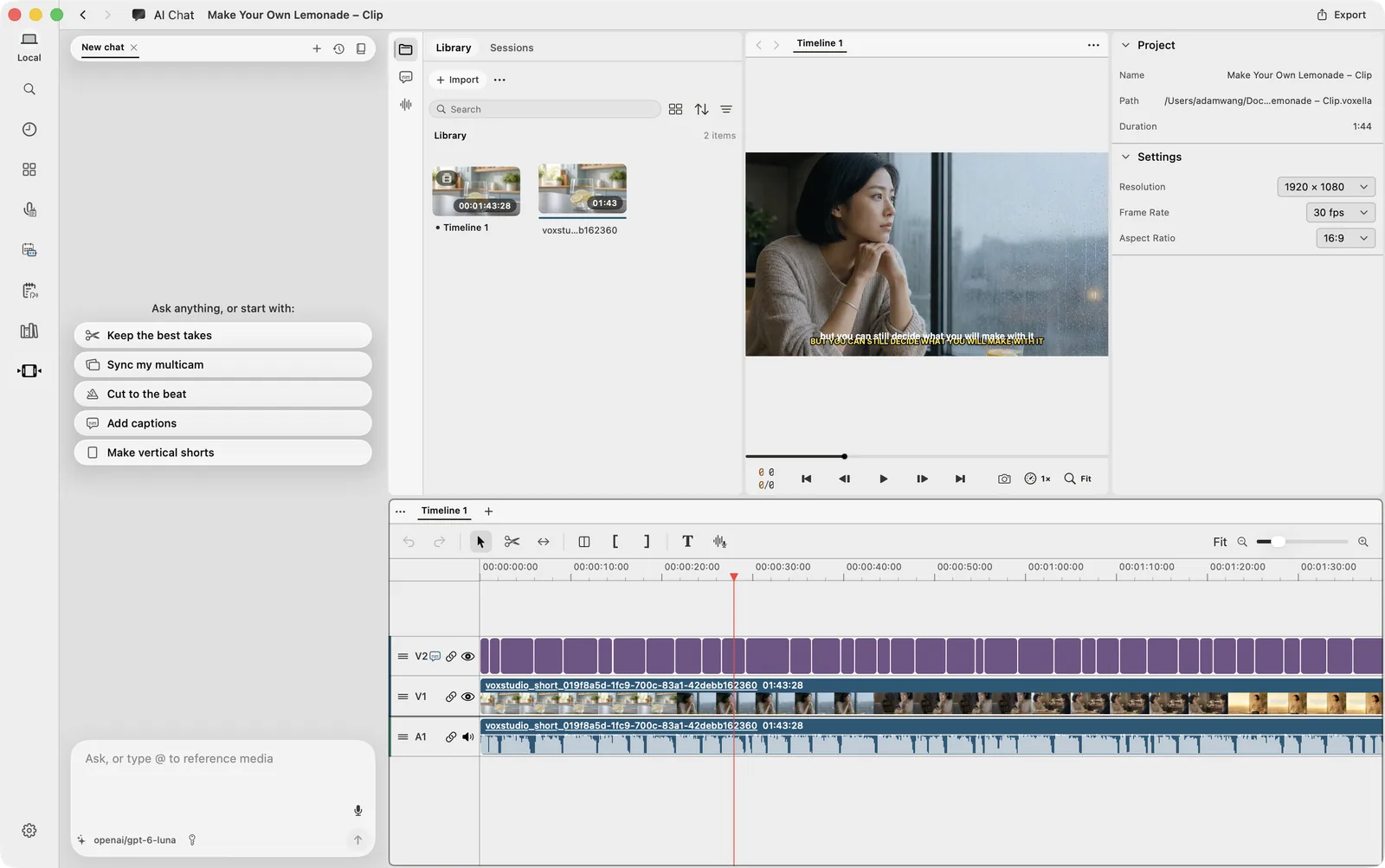
See the words at the cut
In the Mac video editor, the razor shows the subtitle split into the words before and after the cut point. A click splits the video, audio and subtitle together, so the cut follows the line instead of a guess by ear. The word-level cutting guide shows the tooltip and the split.
Find a moment without scrubbing
Open the magnifier in the timeline and type what was said, or describe what was on screen. Exact subtitle matches are available immediately. Meaning and on-screen matches use a model downloaded to your Mac, and the frame index stays on this Mac. Click a result and the playhead moves to that moment.
Turn a long recording into short clips
Describe the clip in AI Chat on the Mac, or from ChatGPT or Claude through MCP. The app finds the moments from word-level timestamps, places them on a new timeline and exports. The short-clip guide shows a request with one idea, a length and a last line.
Add captions from the transcript or the timeline
If a transcript is already reviewed, bring that session into the edit instead of transcribing again. If the speech starts on the timeline, generate captions locally, then check the wording, timing and placement before export.
Local search and AI edits are separate
Timeline search and local captions run on your Mac after the required models are downloaded. AI Chat and an external assistant use the service you select, such as VoxStudio Cloud or your own API provider, and send the content that request needs.
Questions, answered
Can I cut without splitting a word?
The razor tooltip shows which words fall before and after the cut, and the split includes the subtitle. The word-level cutting guide shows the gesture.
Does timeline search upload the video?
No. Exact matches use the subtitles on the timeline. Smart search uses a model downloaded to your Mac, and the frame index and subtitle vectors are stored locally.
Follow the guides
- Stop Cutting by Ear: See the Exact Words at Every Cut Point — Hover the razor in VoxStudio and see the subtitle split into "before | after" at the exact cut point. Word-level timestamps explained for people who edit talking-head video.
- Cut Clips From a Long Video Without Listening to It Again — Finding clips in a long video means listening, scrubbing and listening again. In VoxStudio for Mac you describe the clip in a chat, and it finds the moments from word-level timestamps, places them on a new timeline and exports.
- Search Your Timeline by Words and Pictures, Not by Scrubbing — Type what was said or describe what was on screen. VoxStudio for Mac blends exact-word, meaning and visual search to put the playhead on the right moment in a long edit.
- Add Captions on Mac Without Repeating the Work — Already reviewed the transcript? Bring it straight into the edit. Starting with timeline audio? Generate local captions in VoxStudio and style them before export.
Blog topics
More Mac workflows
- Offline Transcription for Mac
Transcribe audio and video on your Mac with local speech models, speaker labels and timed captions. Built for Apple silicon and macOS 15 or later.
- Meeting Recorder for Mac, Without a Bot
Record meetings locally on your Mac without a bot joining the call. Transcribe recordings, follow live speech and review notes in VoxStudio.
- AI Knowledge Base for Recordings & MCP
Search across meeting recordings and ask questions with cited sources. Use VoxStudio knowledge in the app, ChatGPT or Claude through Mac and Cloud MCP.
- System-Wide Dictation for Mac
Hold a shortcut, speak, and VoxStudio types at the cursor. Recognition runs on your Mac. Lifetime is one-time access to the Mac app; cloud features and your own API are separate.