Offline Transcription on Mac: A Tested Audio-to-Text Guide
Import a recording, check local processing and storage, review the words, and export TXT and SRT. Includes English and Mandarin public samples, original results and test limits.
By VoxStudio Team, Product team · · 10 min read

Key takeaways
- Prepare the correct models and verify both processing and storage.
- Turn an existing recording into text, then replay and fix names and omissions.
- Check TXT and timed captions separately; download the evidence to reproduce the test.
Can you transcribe audio offline on a Mac?
Yes. With VoxStudio’s required local speech models already installed, an Apple silicon Mac running macOS 15 or later can turn a local recording into an editable transcript. Export TXT for reading and SRT for timed captions. Installation, model downloads and some account or optional AI operations still need internet. This guide uses the publicly downloadable Mac app, version 7.0.44 (130), tested on 21 October 2026.
Important: this release automatically attempts a summary when an external LLM is configured. Local processing and storage badges do not block that request, and turning translation off does not turn summaries off. If no transcript content may leave the Mac, finish model preparation first and remain offline for import, review and export. Our isolated process test denied outbound requests; it is not proof that a normally connected installation sends nothing.
This is for an audio file you already have: an interview, lecture or saved meeting recording. Importing a file differs from recording a live meeting or dictating into another app. Our examples are assembled public read-speech samples, not interviews or meetings. We are the VoxStudio product team; the downloadable results below expose both the output and its mistakes.
1. Prepare the models before going offline
Open Settings → Local Features while connected. Prepare the speech models for your input language and any optional local features you need. Wait until the app reports them ready; choosing a language alone does not download a missing model. Keep space for the model, source recording and exports. Required space varies by language and features: use the sizes and readiness checklist in your installed app rather than a single storage estimate.
Our test used an Apple M5 MacBook Pro with 32 GB memory and macOS 27.0.1 (26A434). English selected the Parakeet engine; Mandarin selected Qwen. Models were present before testing. That does not establish the download size, setup time or speed on another Mac. Check the current pricing page for trial and access conditions before planning a trip without internet.

2. Check both processing and storage
Processing location and storage location are separate decisions. If your account offers both controls, choose This Mac for each. In the signed-out Local mode used in this release, our import dialog did not offer these selectors. We confirmed the resulting session’s two badges separately: “Processing on This Mac” and “Session stored on This Mac”. Do not use one badge as evidence of the other.
We relaunched only the official test instance inside a macOS sandbox denying outbound network connections; the rest of the Mac stayed online. Prepared models could still be read. Translation stayed off. Optional summaries or AI answers can fail offline or use an external service when connected; local speech recognition does not make those services offline.

3. Import the file and choose its actual language
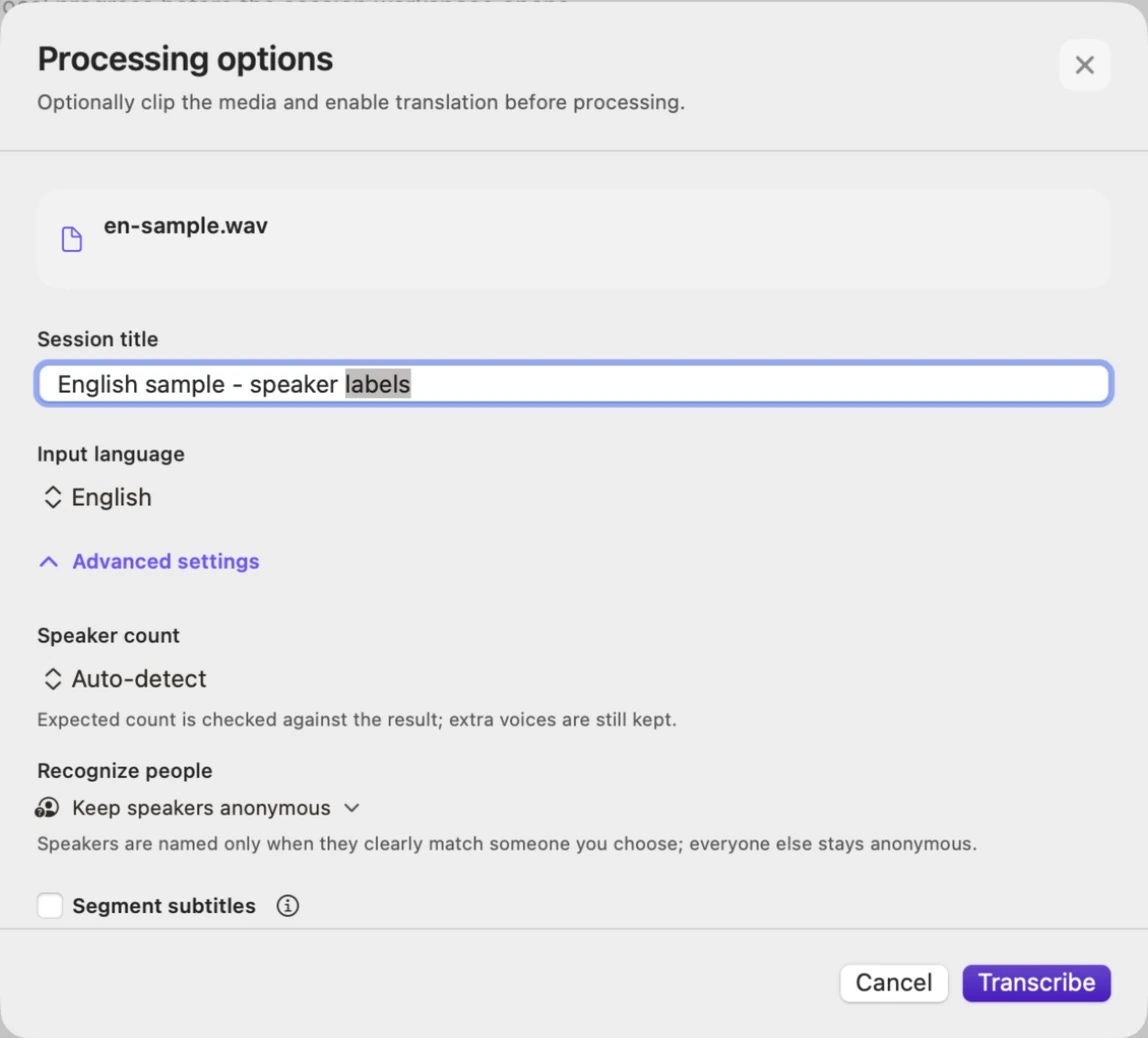
Open Transcribe → Import files → Choose media. Select your local file and give the session a recognizable title. Under Input language, choose English or 简体中文 for these samples. Open Advanced settings. Keep speakers anonymous unless you have deliberately configured recognition. For a subtitle workflow, enable Segment subtitles. Leave Enable translation off for this local-only exercise, then click Transcribe.
4. Replay and correct what was actually said
Wait for speech recognition to finish, then use Play from this segment to hear the corresponding passage. Pause, choose Edit text, change the transcript and save. Keep the raw output first so you can compare it with your edits. Check names, numbers, punctuation and missing words rather than trusting a fluent-looking sentence.
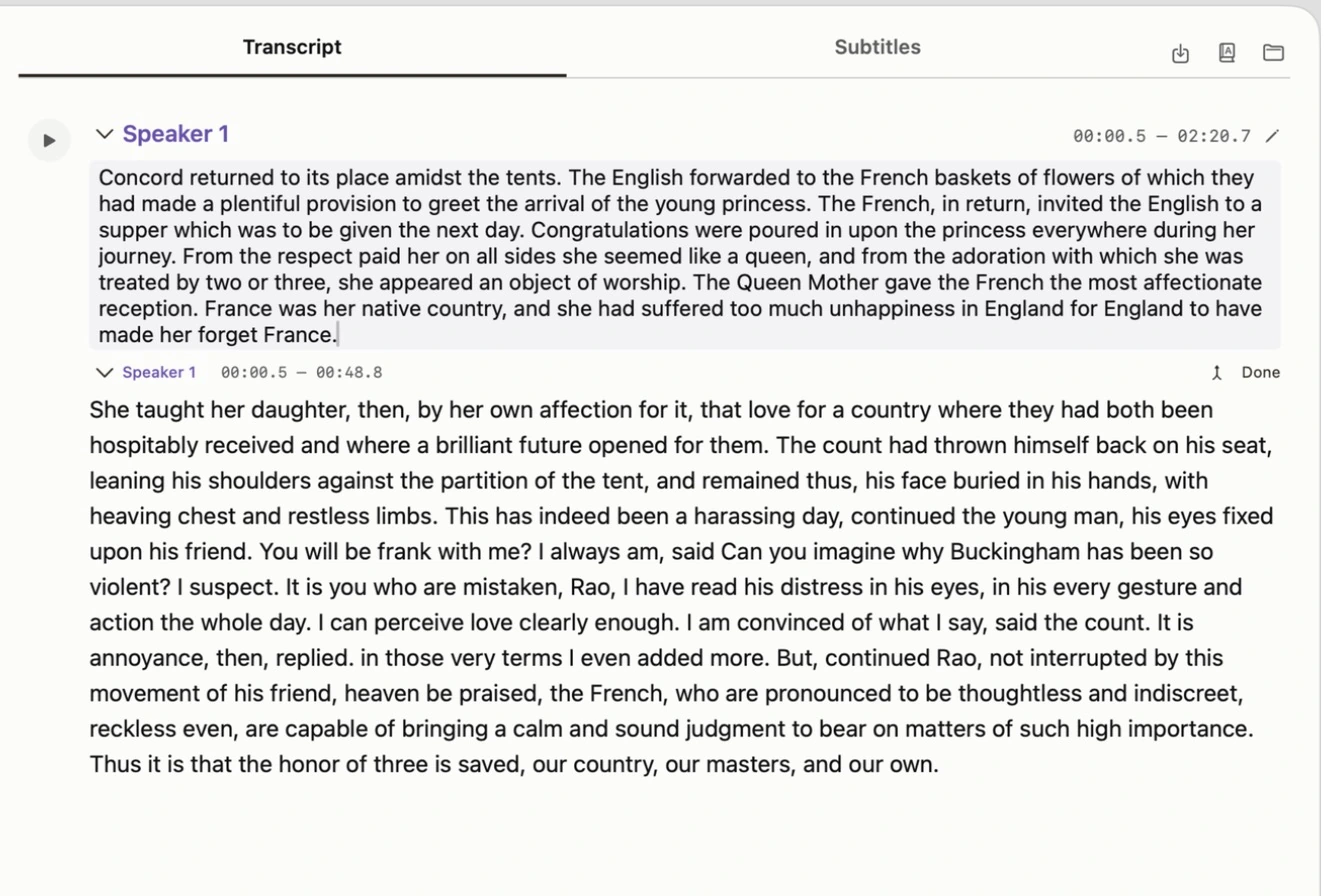
Our actual GUI edits added commas to “The French, in return, invited” and quotation marks to the Mandarin professor’s statement. Both originals remain available. Mandarin also produced “讨探讨”, “贸易的和” and a final “问” missing “题”; English still needs Raoul corrected. The reviewed downloads are selective demonstrations, not fully proofread final transcripts. Editing transcript text does not automatically rewrite subtitle cues.
Our English result wrote “Rao” where the LibriSpeech reference says “RAOUL”; it also contained “a brilliant future opened for them” where the reference says “opened before them”. The Mandarin result needs the same scrutiny for foreign names and punctuation. The reference includes parenthetical English spellings that are not necessarily spoken: do not insert them just to match the written dataset. These are examples of review work, not a claimed accuracy score.
5. Speaker labels: check them, then rename
VoxStudio groups similar-sounding stretches of audio under labels such as Speaker 1 and Speaker 2. A label is a voice group, not an identity: it does not know who your interviewee is, and it can be wrong. Replay a few passages under each label, then rename it.
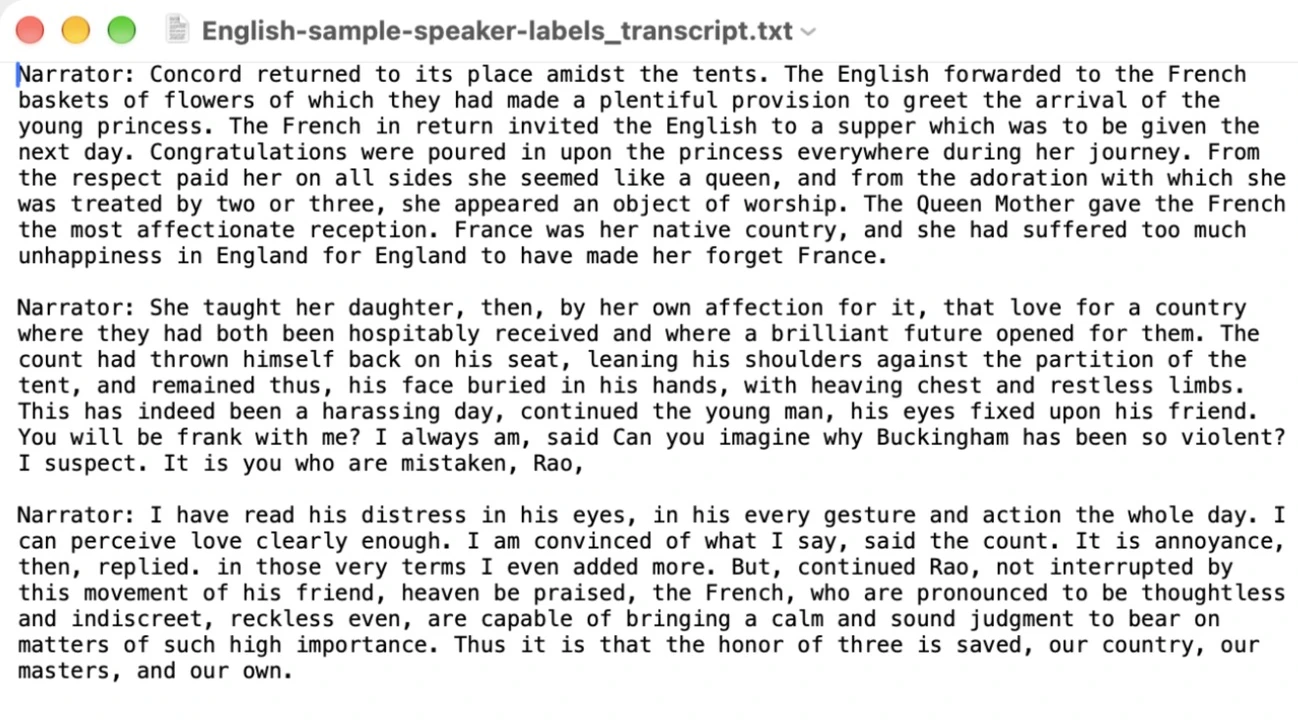
Our English test file is a single reader. All 16 clips come from one LibriSpeech speaker (6930), according to the manifest in the evidence pack. The app returned one label, Speaker 1, which matches that ground truth. That is a small, favourable case. It tells you nothing about how well the app separates two overlapping voices; for that, the Mandarin test file produced three labels for eleven clips and has no per-person ground truth, so we make no claim about its accuracy.
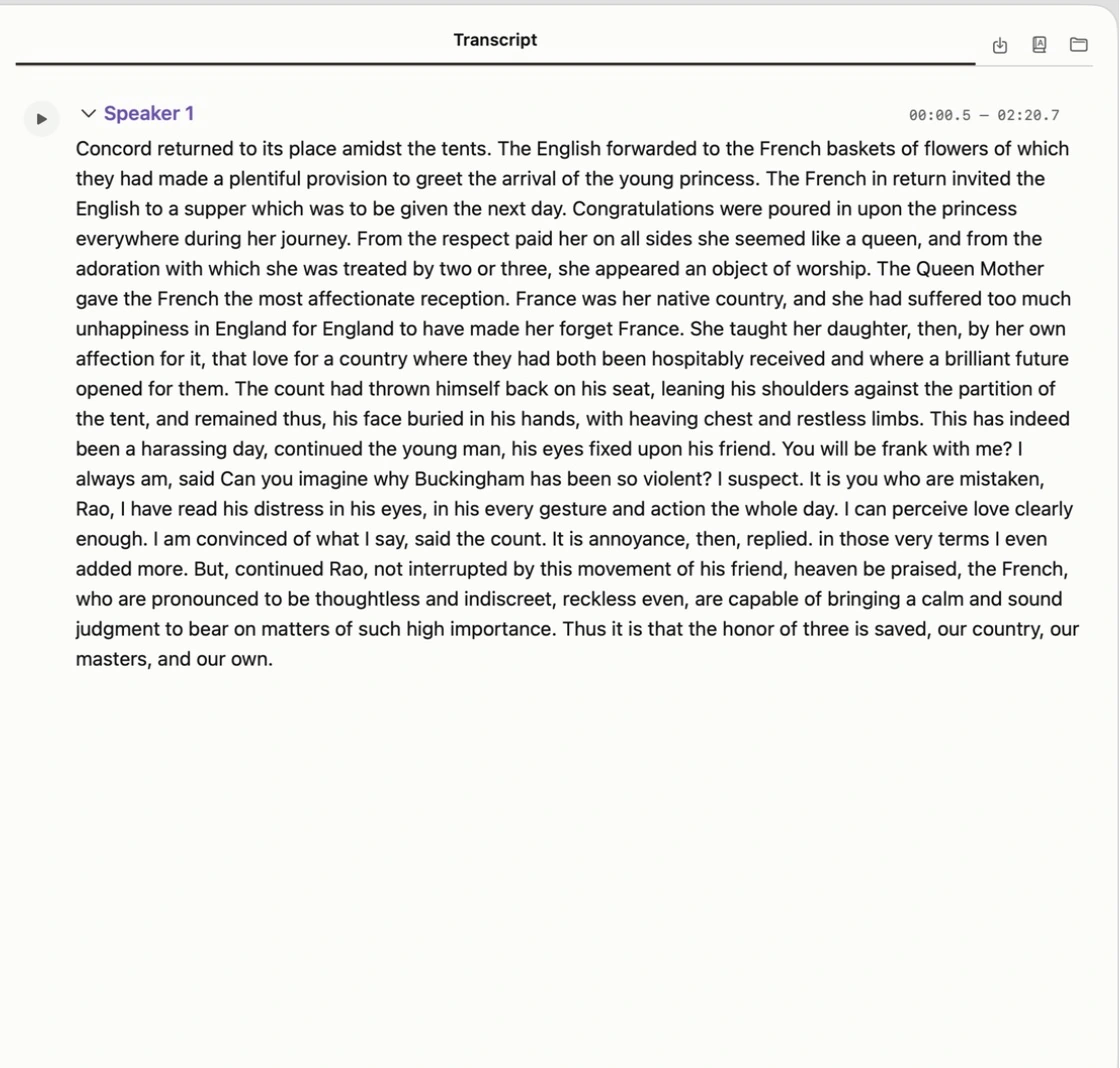
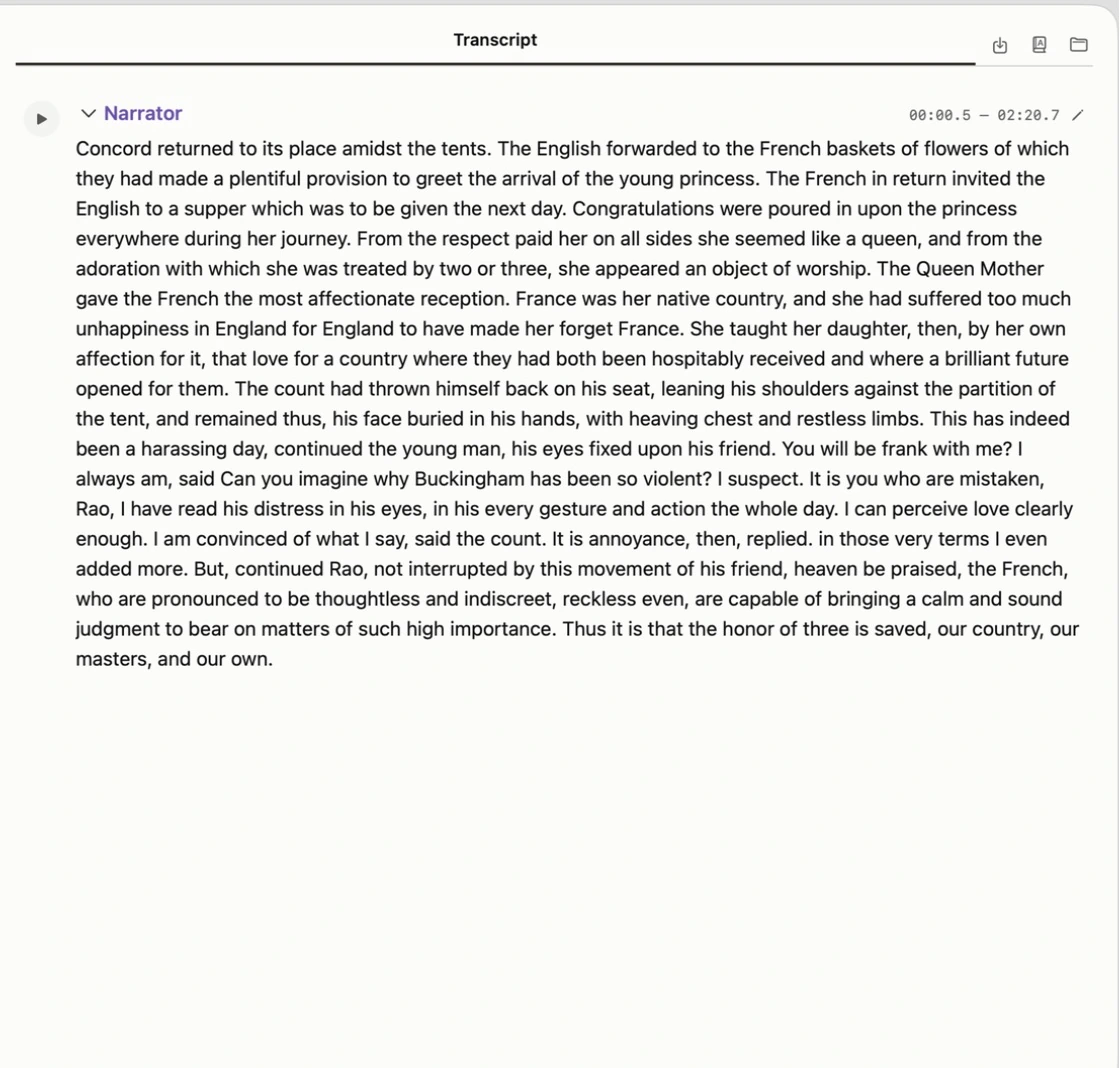
To rename a label, click it in the transcript, choose Rename Speaker 1…, type the new name and confirm. The change applies to every block with that label. We renamed ours to “Narrator”.
When to doubt a label
- Two people, one label — Similar voices, a noisy microphone or a remote call can merge speakers. Replay the places where the conversation changes hands.
- One person, several labels — A change in volume, distance or emotion can split one voice. Rename the extra labels to the same person.
- Blocks are not turns — A text block follows the session’s segments, not necessarily a change of speaker. Our file had three blocks, all labelled Narrator; in a real interview a block can start or end mid-turn.
- Short replies — One-word answers and interruptions are the easiest to mislabel. Check them one by one before you quote anyone.
6. Export TXT and SRT as different deliverables
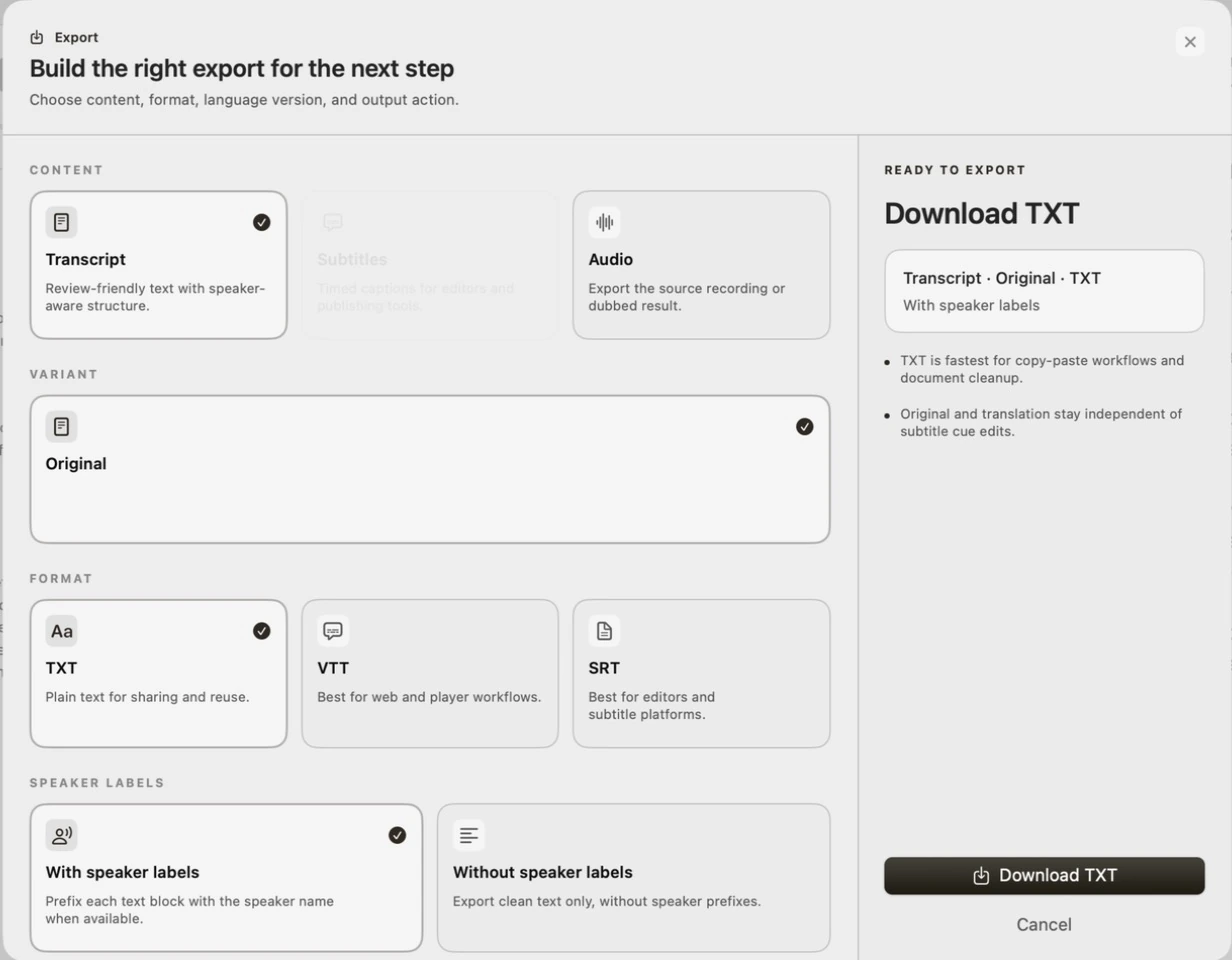
Use the Export button above the player. Choose Transcript → TXT → Original, decide whether to include speaker labels, then Download TXT. Open the saved file in a text editor and check its encoding and corrected wording. A TXT file is a readable transcript; it does not contain subtitle timing.

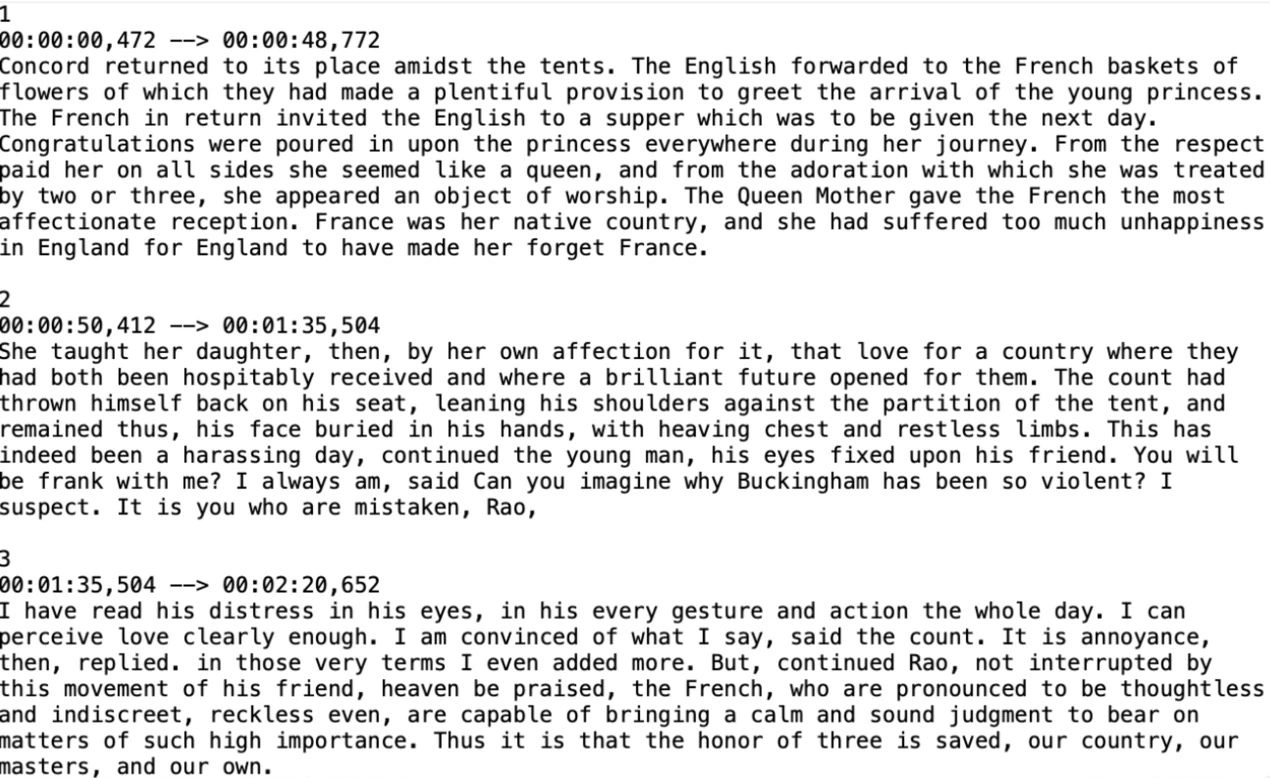
For captions, choose the timed subtitle content and SRT where available. If Subtitles is disabled, first enable or generate subtitle segmentation; our first English import had this exact issue because Segment subtitles was off. Transcript → SRT can also expose long transcript blocks: exporting an .srt extension alone does not guarantee readable captions. Check cue lengths and preview against the recording before publishing.
The same English file as SRT, before and after segmentation
| Transcript → SRT (no segmentation) | After Segment subtitles | |
|---|---|---|
| Cues | 3 | 38 |
| Cue length | 45.1 – 48.3 seconds | 0.7 – 5.7 seconds |
| Usable as captions? | No: each cue is a paragraph | Yes, after checking wording and timing |
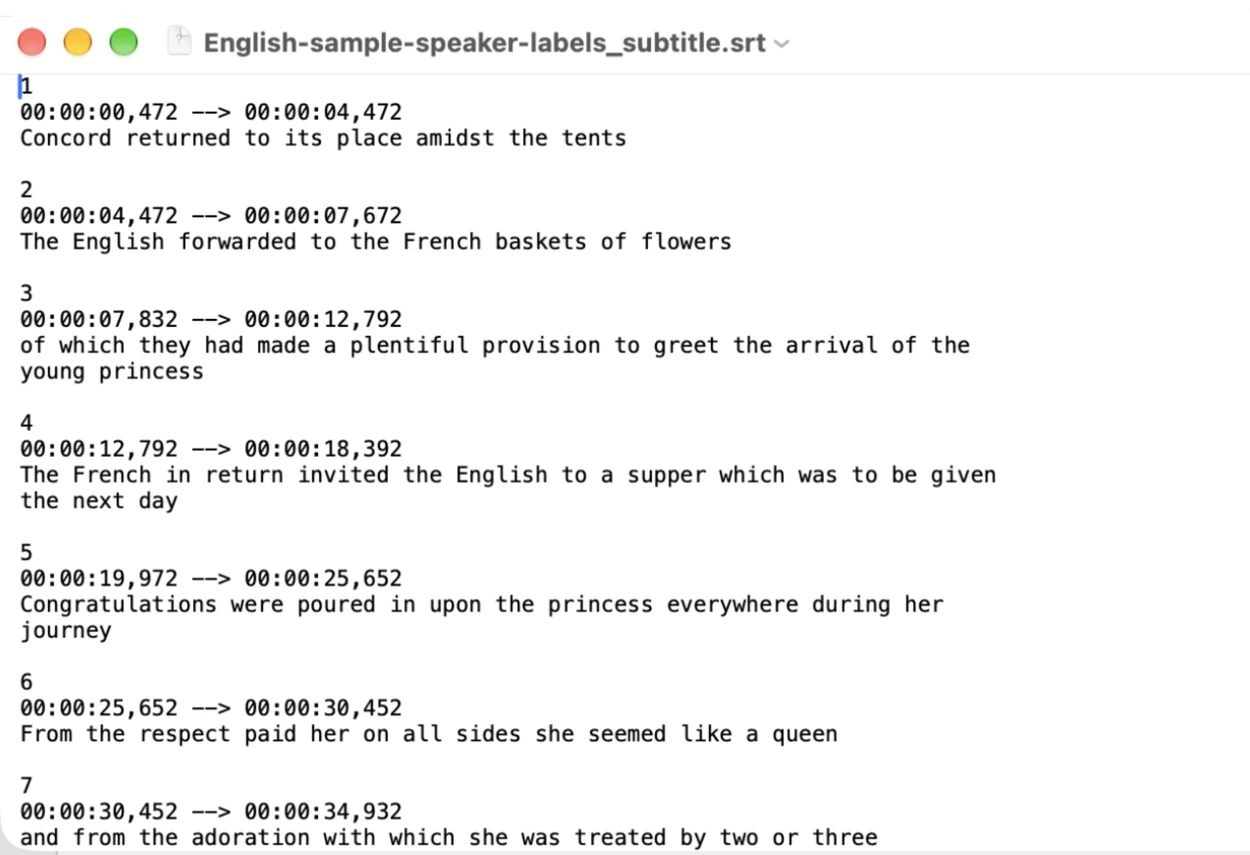
Open SRT as text: each cue needs a sequence number, a start and end such as 00:00:01,000 --> 00:00:03,000, caption text and a blank separator. Load it with the same audio or video in a player or editor and check the beginning, a middle cue and the end. Use VTT for a web player that expects WEBVTT and dot-separated milliseconds. Exporting captions does not burn them into a finished video.
What the offline measurements cover
Speech pipeline timings on our test Mac
| English | Mandarin | |
|---|---|---|
| Audio duration | 140.855 seconds | 139.000 seconds |
| First measured processing | 8.50 seconds | 20.22 seconds |
| Three later runs | 1.94 / 2.36 / 2.05 seconds | 14.01 / 14.88 / 13.11 seconds |
| Median of those three | 2.05 seconds | 14.01 seconds |
These timings come from the official executable’s offline experiment entry point, using its local speech pipeline with outbound network denied. They exclude model download, human review, GUI import, subtitle generation and export. English had an additional 2.47-second warm-up before the three reported repeat runs. “First measured” is not a guarantee of a cold OS cache. The GUI workflow was tested separately. Clean read speech, repeated Mandarin sentences and this machine’s caches limit generalization; no comparison with another app or word-error-rate claim is implied.
When the result is empty, wrong or poorly timed
Checks that change the outcome
- Missing model — Reconnect, prepare the selected language in Local Features, wait for readiness, then retry. Do not interpret a model download failure as a transcription result.
- No speech or wrong language — Listen to the original, confirm an audible voice and choose the matching input language. Music, noise and silence are not useful accuracy tests.
- Unexpected speaker labels — Our Chinese file combines multiple public speakers. Labels identify detected voice groups, not verified people. Review them; short clips and edits can confuse grouping.
- Long or offset captions — Check segmentation, silence at the start and whether the subtitle file belongs to the untrimmed source. Correct wording and cue boundaries separately.
- AI step cannot finish offline — Translation, summaries and answers have different dependencies. Complete the transcript without them and check their provider before using them when online.
Reproduce this test
- Test method, sources and licences
- English test audio · 2m21s
- Mandarin test audio · 2m19s
- English sample IDs and reference
- Mandarin sample IDs and reference
- English original transcript
- Mandarin original transcript
- English revision notes
- Mandarin revision notes
- English exported TXT
- Mandarin exported TXT
- English exported SRT
- Mandarin exported SRT
- English speaker-label rerun: TXT with labels
- English rerun: SRT without segmentation
- English rerun: SRT after Segment subtitles
- Timings and verification scope
- Check exported captions at the start, middle and end
Sources and next steps
FAQ
Does a speaker label tell me who is talking?
No. It groups similar voices. Replay each label, then rename it to the real person. Short replies and interruptions are the most likely to be wrong.
Is every feature offline?
No. Model downloads, account operations and some optional AI features need internet. This guide separates prepared-model local speech processing from those dependencies.
Does SRT export create a finished video?
SRT is timed text for a player or editor. To make a video with burned-in captions, continue in the video editor, check the captions and export the video.
Explore the Mac workflows
- Offline Transcription for Mac
Transcribe audio and video on your Mac with local speech models, speaker labels and timed captions. Built for Apple silicon and macOS 15 or later.
- Meeting Recorder for Mac, Without a Bot
Record meetings locally on your Mac without a bot joining the call. Transcribe recordings, follow live speech and review notes in VoxStudio.
Start with one recording
Prepare the models and check the workflow with a short, non-sensitive file before processing a longer recording. See the current pricing page for access and trial terms. Download for Mac · Compare plans & trial
VoxStudio Team — We build VoxStudio. This guide records our own tests, their limits and the files needed to reproduce them.