Blog · Productivity
Voice Input on Mac: Press Control + Option + Space, Talk, Paste Anywhere
VoxStudio Voice Input turns speech into text from any app on your Mac. Press Control + Option + Space, talk, and press Return to copy the text and close the window.
By David, Product Specialist at VoxStudio · · 3 min read
Key takeaways
- Press Control + Option + Space in any app to open Voice Input.
- Click the mic and talk. When you stop, the audio is transcribed locally on your Mac.
- Press Return to copy the text and close the window, then paste it anywhere. Shift + Return adds a new line; Esc closes.
- You can also type or edit in the same box before copying.
Most of what we write in a day is short: a reply, a status update, a note to a teammate. Typing it is slower than saying it. Voice Input is a small window you can call up from any app, talk into, and paste from — without switching to another app.
From speech to text in four steps
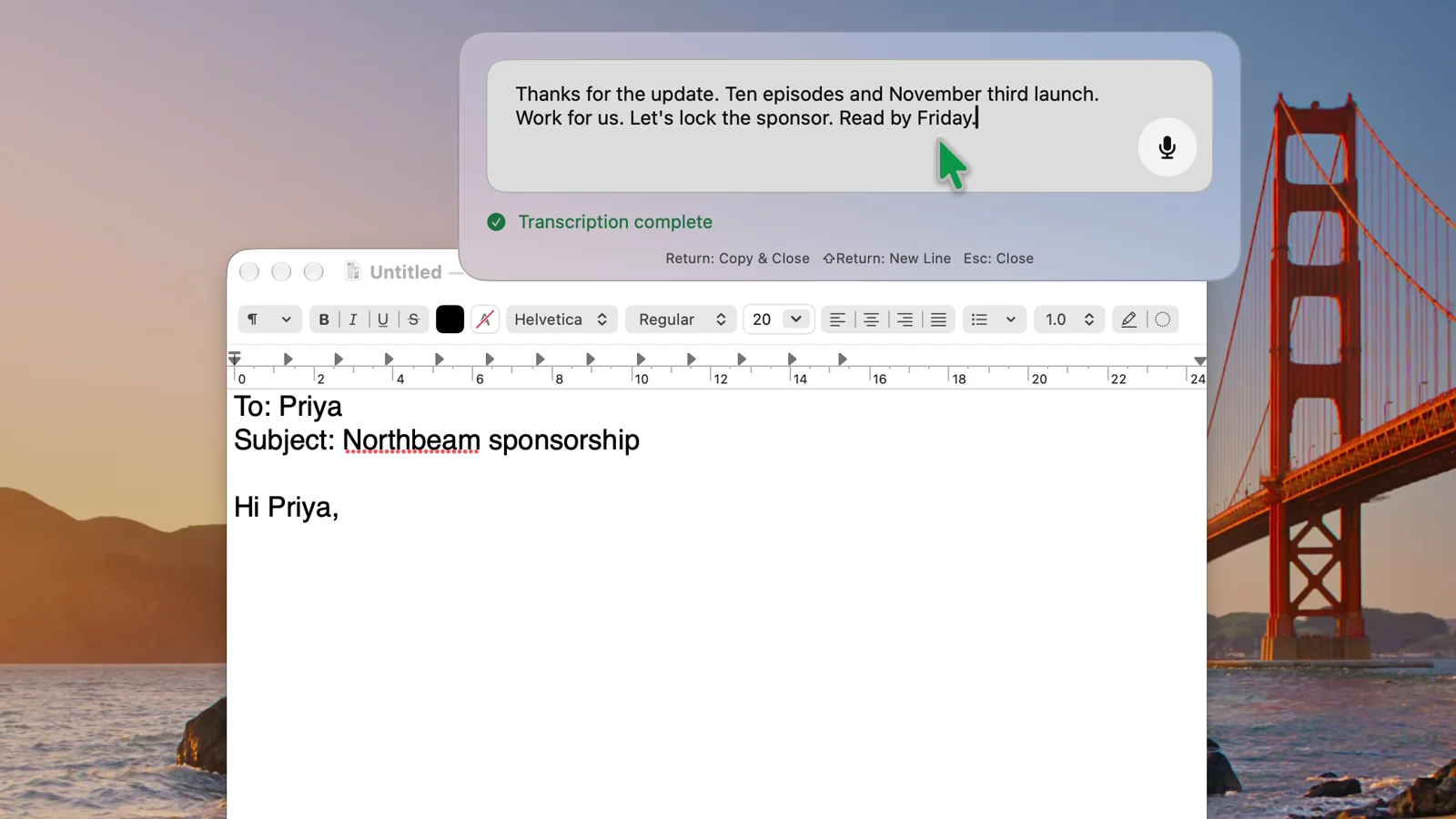
Here it is on a real reply to a sponsor, recorded in one take.
Voice Input: Talk instead of typing
One shortcut opens it, one key copies the result.
Best for: Email replies, chat messages, notes and prompts — anywhere you can paste text. Result: Your words as text on the clipboard, ready to paste.
Press Control + Option + Space
The Voice Input window opens at the top of the screen, over whatever app you are in. The box says "Speak or type…".
Click the mic and talk
A live waveform and timer show that VoxStudio is listening. Speak naturally; click the stop button when you are done.
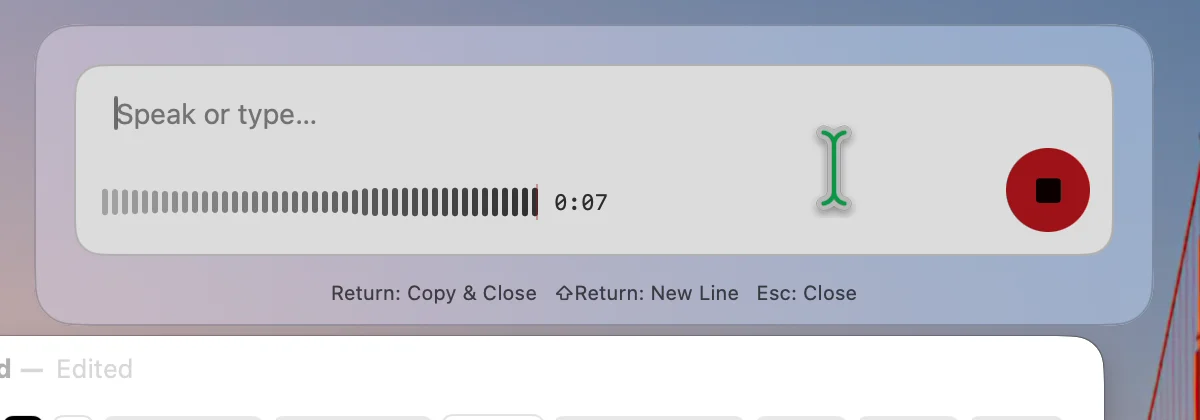
While you talk, the waveform and timer confirm the mic is live. Check the text
VoxStudio decodes the audio locally and shows the text with "Transcription complete". You can edit it right in the box.
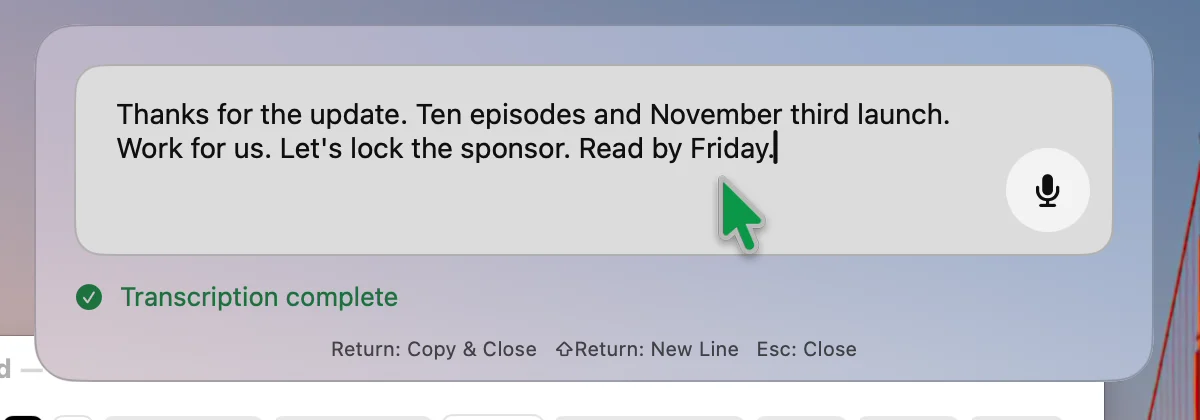
The hints at the bottom are all you need: Return copies and closes, Shift + Return adds a line, Esc closes. Press Return, then paste
Return copies the text and closes the window. Paste it wherever your cursor is — here, straight into the email.
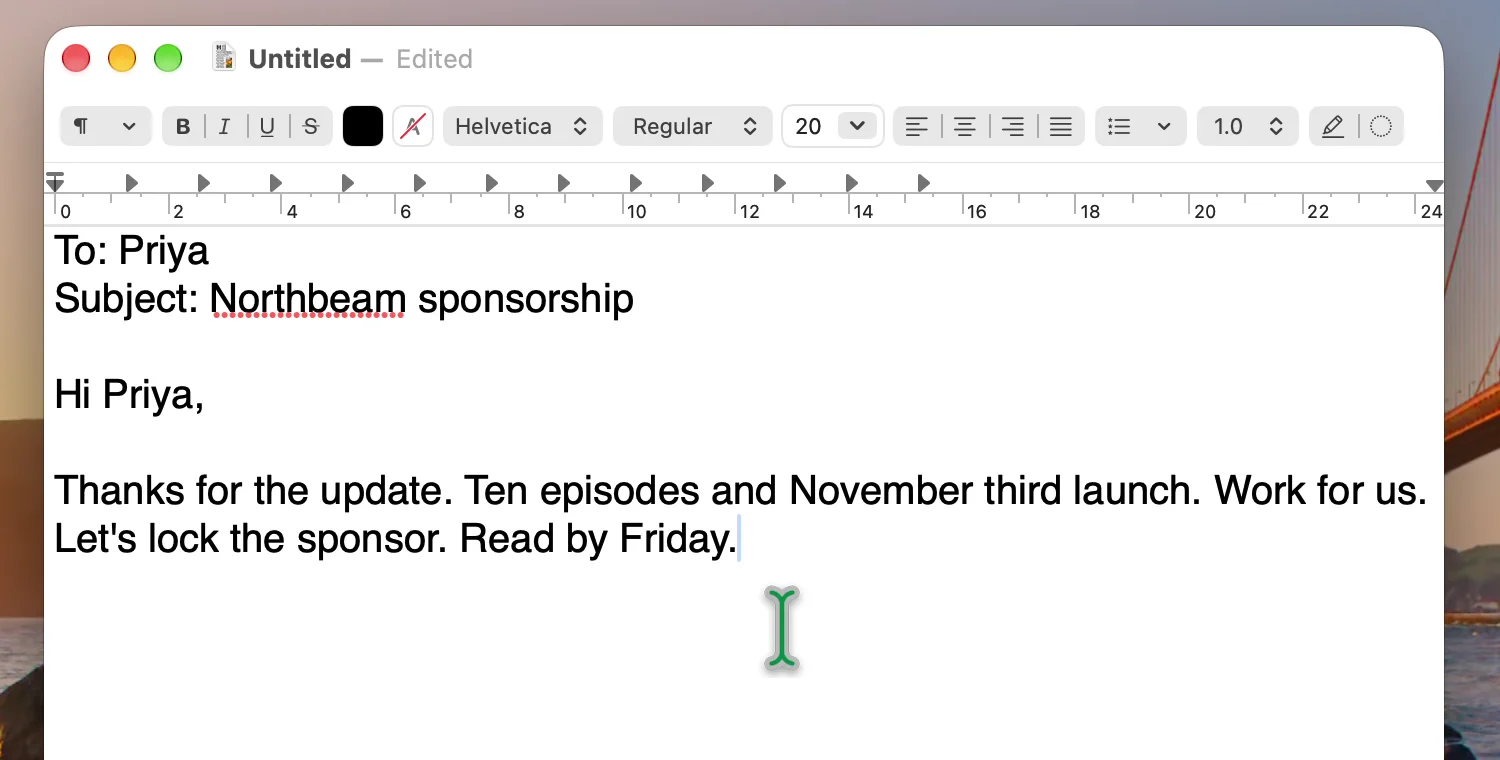
The reply lands in the draft with one paste.
Screen recording (speech section sped up): open with the shortcut, talk, Return to copy and close, paste.
Tips for faster dictation
- Keep your hands on the keyboard — Shortcut to open, Return to copy and close, Cmd + V to paste. The mouse is only needed for the mic.
- Say it as you would write it — Speak in full sentences; numbers and dates like "ten episodes" and "November third" come through as text you can use.
- Edit before you copy — Fix a name or add a line with Shift + Return before pressing Return.
- Changed your mind? — Esc closes the window without copying.
FAQ
What is the VoxStudio Voice Input shortcut?
Control + Option + Space opens Voice Input from any app on your Mac.
How do I copy the dictated text?
Press Return. VoxStudio copies the text to the clipboard and closes the window, so you can paste it anywhere with Cmd + V.
Is the speech transcribed on my Mac?
Yes. After you stop recording, Voice Input decodes and recognizes the audio locally on your Mac.
Can I add a new line or cancel?
Shift + Return adds a new line, and Esc closes the window without copying.
Stop typing short replies
Voice Input comes with VoxStudio for Mac, together with transcription, a knowledge base and the video editor. Download VoxStudio for Mac
David — David works on the VoxStudio product team and spends most days inside the video editor, turning real customer workflows into faster ones.