Blog · Meetings
Live Assistant for Mac: Live Transcribe, Notes and Answers While You Record
Live Assistant shows a transcript as people speak, turns your shorthand into notes grounded in what was just said, and answers questions about the meeting so far, all in one window on your Mac. Here is how it works, and what stays on your Mac.
By David, Product Specialist at VoxStudio · · 5 min read
Key takeaways
- Live Assistant opens next to a recording in its own window: a live transcript, a shorthand notes pad, and a Live Q&A panel.
- Start it from the Record panel, from the floating recording controls, or from the Meeting Recorder's "Record with live assistant" button.
- Press Return after each shorthand line and VoxStudio expands it into a note using the transcript around that moment, with a timestamp that points back to the source.
- Speech is recognized on your Mac. Only text, such as transcript lines and your notes, goes to the AI model when you use Live Enhance or ask a question.
- The live transcript is for following along. The recording still gets its full transcription after you stop.
A meeting or a lecture asks for three things at once. You have to listen, jot down the few words you do not want to forget, and remember what was said ten minutes ago when someone asks a question. Live Assistant is built for that moment. It runs on your Mac while you record and keeps the transcript, your notes and the answers in one window, so you spend less time scrolling back and more time in the conversation.
What you see while recording
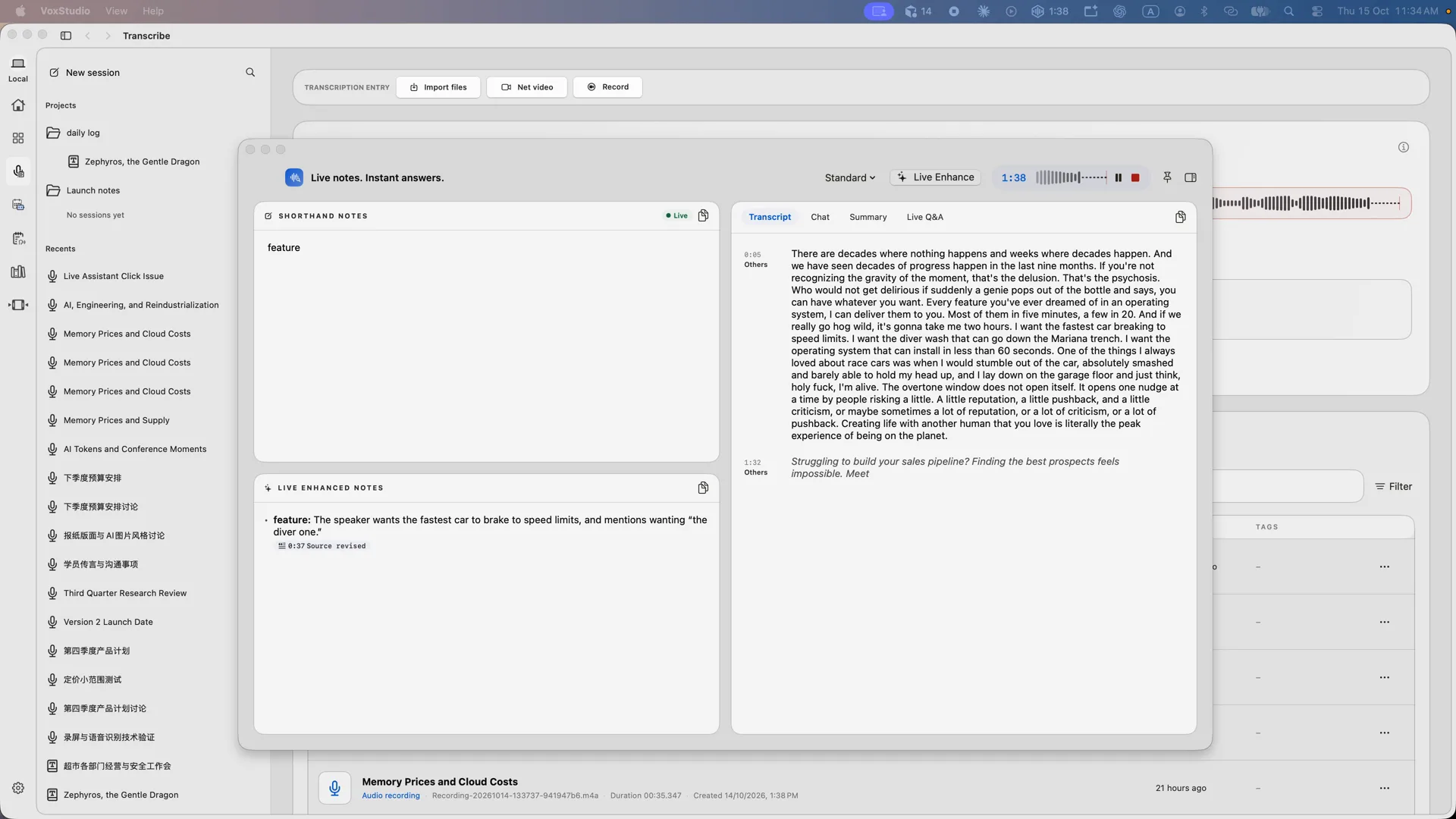
Live Assistant opens as its own window, so it stays separate from the main app and can sit beside the call or the slides. The left side is a shorthand pad, labelled SHORTHAND NOTES, where you type fragments. The right side has four tabs: Transcript, Chat, Summary and Live Q&A. A bar across the top shows the recording time, a live waveform, and the pause and stop controls.
Live Transcribe: follow along as people speak
The transcript builds one sentence at a time. Each line has a timestamp and a speaker label. Me is your microphone and Others is the system audio, so a Zoom call or a video playing on your Mac is kept apart from your own voice, and no bot has to join the call. A sentence that is still being spoken appears in italics, then settles into regular text once it is complete.
Recognition uses the same on-device speech models as offline transcription, so there is nothing new to upload. The language is detected automatically, and the speech models only need to be downloaded once in Settings. If you open the window partway through a recording, it picks up the audio that was captured before it opened. While a recording is live, queued background transcription waits, so the live transcript keeps pace with the speaker.
Shorthand notes that expand as you go
Type the way you would in a paper notebook: a keyword, a name, a number. Pressing Return commits the line. With Live Enhance on, VoxStudio waits until the sentences around that moment have reached the transcript, then asks the AI model to expand the line into a short note grounded in what was said. Lines committed close together go out in one request, so a burst of quick notes does not mean a burst of AI calls.
Each enhanced note carries a timestamp that points back to the transcript it came from, such as 0:37. When you review the meeting, that timestamp is the quickest way to check a note against the source. If you edit a line, it is enhanced again after a short pause. Turn Live Enhance off and notes are kept exactly as you typed them; turn it back on and the notes you took while it was off are enhanced then. The note style menu offers Standard, Interview and Lecture, so the enhanced notes can match the kind of conversation you are having.
Live Q&A: answers from the meeting so far
The Live Q&A tab does two jobs. First, you can type a question in the box, such as what was decided about pricing, and get an answer drawn from the transcript so far, with the lines it relied on. Second, Detect questions listens to the other side of the call and lists questions it hears as cards you can answer or dismiss. Detection uses a decision model that estimates whether a question was asked, so it does not rely on a keyword list for each language. Auto-answer is a separate switch: it drafts an answer as soon as a question is found, and it uses AI credits, so it is off unless you turn it on.
Use the Also search your knowledge base option by the question box to let answers draw on your VoxStudio knowledge base as well as this meeting. The Summary tab keeps a running summary of the meeting, refreshed every few minutes, so a long conversation stays easy to catch up on.
Tips for your first live session
- Open it from the controls — The live assistant button sits in the floating recording controls and in the Record panel. You do not have to decide before you press record, and you can open it at any point during the recording.
- Write fragments, not sentences — A keyword such as "pricing, Q3" is enough. The expansion reads the transcript around that moment, so the fragment only has to point at the right part of the conversation.
- Check the timestamp — When an expanded note looks surprising, use its timestamp to find the matching lines in the transcript before you rely on it.
- Start Detect questions for calls — For a call where you need to answer others, turn on Detect questions. Keep Auto-answer for times you are happy to spend AI credits on drafts.
What stays on your Mac
Audio never leaves your Mac for Live Transcribe. The speech recognition runs locally, and the live transcript is stored with the recording. Notes enhancement and Live Q&A are different: they send text to the AI model you have set up in Settings. That is the transcript lines around a note or question, your shorthand, and the running summary. Audio is not sent. If you want no AI at all, leave Live Enhance and Detect questions off; the transcript and your own notes still work.
FAQ
Does Live Assistant need a bot in my meeting?
No. Live Assistant records the microphone and the system audio on your Mac, so nothing joins the call and nobody sees a bot in the participant list.
Is the live transcript the final transcript?
It is the live view. When you stop the recording, VoxStudio runs its full transcription on the recording as usual, and that is the transcript you keep in the session.
Which languages does Live Transcribe support?
Live Transcribe uses the on-device speech models in VoxStudio, and it detects the language automatically. The languages available match what those models support for transcription.
Does my audio leave my Mac during a live session?
No. Speech recognition runs on your Mac. Only text is sent to an AI model, and only when you turn on Live Enhance, Detect questions or ask a question.
Follow the meeting and take notes in one window
Live Assistant is part of VoxStudio for Mac, alongside recording, transcription, dubbing and the video editor. Download VoxStudio for Mac
David — David works on the VoxStudio product team and spends most days inside the video editor, turning real customer workflows into faster ones.