VoxStudio Web: Online Transcription, Meeting Notes and Media Editing
Transcribe audio, video and meetings online, review subtitles and AI notes, search cloud recordings, and create voiceovers or edited media in VoxStudio Web.
By David, Product Specialist at VoxStudio · · 5 min read
Key takeaways
- Upload media, record in the browser or use a meeting bot where supported.
- Review transcripts, subtitles, action items and slide evidence before sharing.
- Reuse cloud sessions for knowledge search, voiceovers and browser editing.
Upload audio or video, record in Chrome, or send a meeting bot
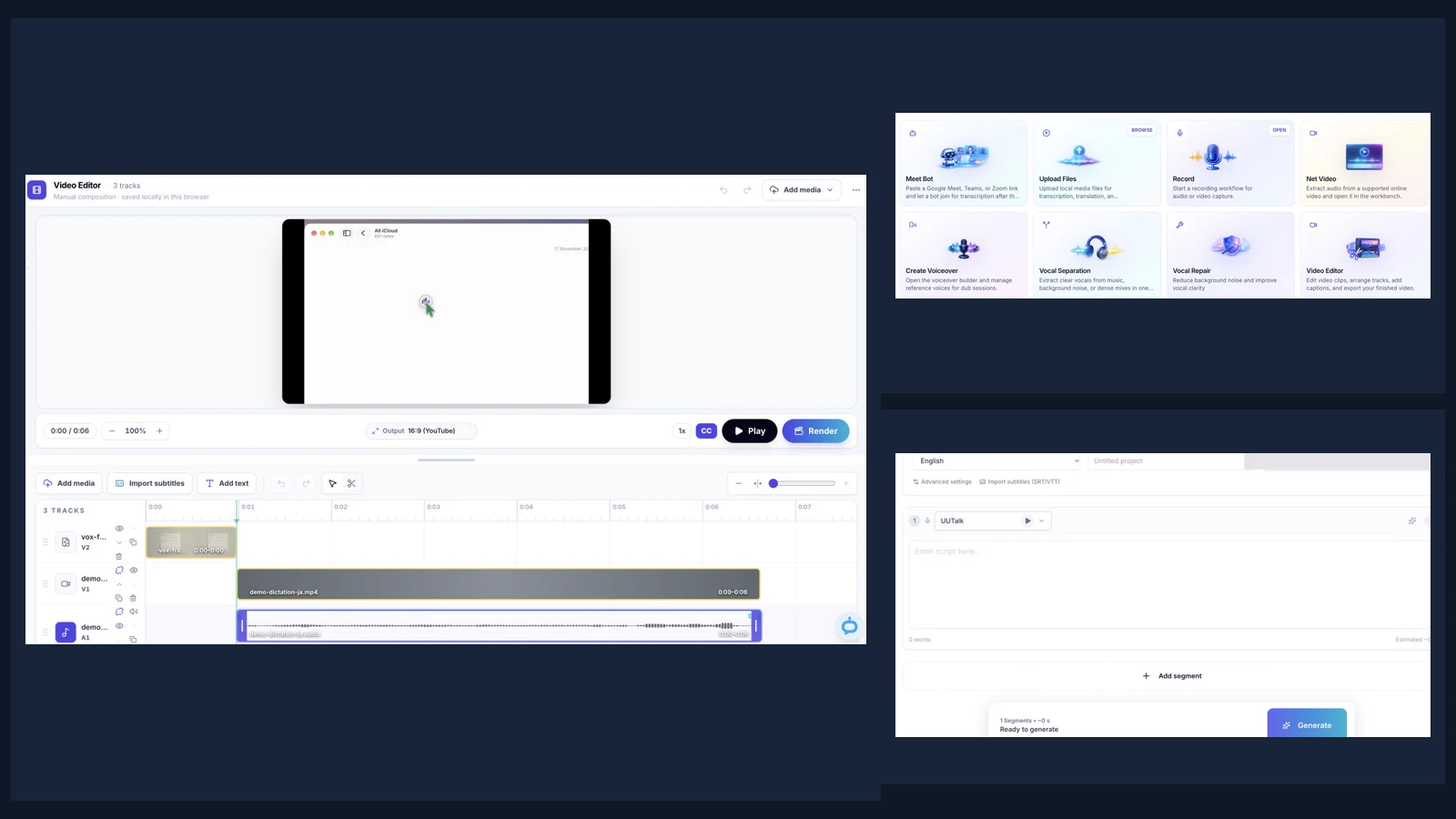
VoxStudio Web is a browser workspace for turning recordings into searchable transcripts, meeting notes, subtitles and edited media. In the dashboard choose Upload Files for existing media, Net Video for a supported public link, or Record for screen, camera and microphone capture. System audio depends on the browser and the shared surface. Check the recording preview and permissions first. When you stop a supported capture, the result goes into the transcription pipeline.
Capture setup in VoxStudio Web
Use Meet Bot for supported Google Meet, Microsoft Teams or Zoom calls. The bot has to be admitted when the platform or host requires it. Use the account’s integration settings for Zoom and supported calendar connections, and check the event link, bot status and start time before relying on automatic capture.
Review the transcript and translate or export timed subtitles
Open the completed session. In Transcript, play the original, correct words and speaker labels, and merge or split segments. In Subtitles, check cue text and timing. Use Translate for a target language and choose an available original, translated or bilingual variant in Export. The export choices depend on which text and media artifacts exist. For interviews, save useful passages as quotes and export a quote sheet for review with timestamps.
Turn meeting evidence into notes, action items and slides
Open Summary to write notes or generate a draft with a template, then review action items against the recording. Check each owner, deadline and decision before sharing. For a meeting deck, open Slides when available, generate a draft, adjust it in the editor and follow evidence links back to the transcript. A ready deck can be shared with a time-limited link. Sessions have their own share controls, so check which artifact you are sharing and revoke access when needed.
Search cloud recordings and check cited answers
Organize sessions with projects and tags. Index sources in Knowledge Base, then scope a question to one source or All knowledge. Ask for the decision and its evidence, open the cited passage and replay the corresponding timestamp. If a session is missing, check indexing status and your selected scope. Cloud MCP lets a supported external assistant access authorized cloud sources. The assistant may process returned material through its own service.
Generate a voiceover, clone an authorized voice or dub a video
Open Create Voiceover from a transcript or start with a script or supported subtitle file. Set the language, choose a reference voice you have permission to use and assign segment voices as needed. Listen to names, rhythm and timing before exporting audio or placing it in an edit. Voice Library lets you save, preview and reuse voice references. Vocal Separation produces separate stems for reuse, while Vocal Repair is for improving a noisy or damaged voice recording.
Mix audio or edit a video in the browser
Use Studio’s Audio Editor for a multitrack mix. Add local files or completed session audio, trim and split clips, adjust gain and export the mix. In Video Editor, combine media, images, text and subtitles, preview the timeline and render MP4. There are also standalone browser tools for tasks such as audio editing, subtitle preview and audio extraction. Check each tool’s data handling before choosing between local-file editing and cloud session processing. Uploads for cloud transcription and other hosted AI jobs are processed by a service.
The audio mix runs in the current browser tab. Export it before closing or refreshing the tab, and choose a format your browser can encode, such as WAV or FLAC. The video editor saves its draft in the browser and submits an MP4 render job. Keep the source files available, and check the aspect ratio, hidden tracks and gaps before submitting.
Try it with a two-minute team update
Start with a recording you have permission to process. Upload it, wait for the session, then check one name and one decision against playback. Generate a short recap and verify its action item against the source. Export captions or share the reviewed session. If processing stalls, check the session status and account usage before submitting the same source again.
Detailed guides
FAQ
Do I need to install the Mac app to use VoxStudio Web?
No. Open VoxStudio Web in your browser. Cloud workspace features may require sign-in and available plan quota or credits.
Can the web app record a meeting without a bot?
Browser recording can capture the surfaces and audio your browser exposes. Check permissions, system audio and recording consent first. Meet Bot joins a supported meeting as a participant and depends on admission.
What is the difference between VoxStudio Web and VoxStudio for Mac?
Web provides cloud sessions, meeting bots, share links, cloud knowledge and browser editors. The native Mac app offers on-device workflows after model setup, along with Mac recording, dictation and timeline editing.
Explore the Mac workflows
Open VoxStudio Web
Start from a recording, a public video link or a completed cloud session. Open VoxStudio Web · Compare plans & trial
David — David works on the VoxStudio product team and spends most days inside the video editor, turning real customer workflows into faster ones.