Transcribe a Video on Mac, Then Translate It: A Step-by-Step Guide
Import a video in VoxStudio for Mac, transcribe it with local speech recognition, translate the transcript with the translate icon, and export the language version you need.
By VoxStudio Team, Product team · · 5 min read
Key takeaways
- Translate either while transcribing (Advanced settings in the import options) or afterwards with the translate icon.
- Speech recognition runs on your Mac; translation uses the AI provider you configured.
- Switch between Original and the translated version, then export Original, Translation or Bilingual.
Can you transcribe a video on Mac and translate it?
Yes. In VoxStudio for Mac you import a video or audio file, let local speech recognition produce the transcript, then translate that transcript into another language from the same session. There are two ways to translate: switch translation on in the import options so the transcript arrives already translated, or transcribe first and translate afterwards with the translate icon. The video below walks through both. It is a 76-second narrated walkthrough assembled from real screenshots of our test run, not continuous screen capture and not a speed test.
Be clear about what stays on your Mac. Local speech recognition does not need an internet connection once the models are installed, but translation is an AI step. In our run it used our own OpenAI key configured in Settings, so the transcript text was sent to that provider. Treat this as a local transcript plus an online translation, not an end-to-end offline workflow.
1. Import your media
Open Transcribe in the sidebar, click Import files, then Choose media and select a video or audio file you have permission to process. The Processing options window opens. Set Input language to the language that is actually spoken (or leave it on Auto), optionally add Hotwords for names and terms, and turn on Segment subtitles if you want subtitle-sized cues. Click Transcribe.
Route A, translate while transcribing: before you click Transcribe, expand Advanced settings and scroll down. Below Speaker count, Recognize people and the optional Clip setting you will find Enable translation (“Translate the transcript to the selected language when enabled”). Tick it, open Target language and choose a language; Transcribe stays greyed out until you do. Click Transcribe, and when the session opens the Transcript tab already shows the translation. Route B, below, covers sessions you have already transcribed.
2. Wait for the transcript
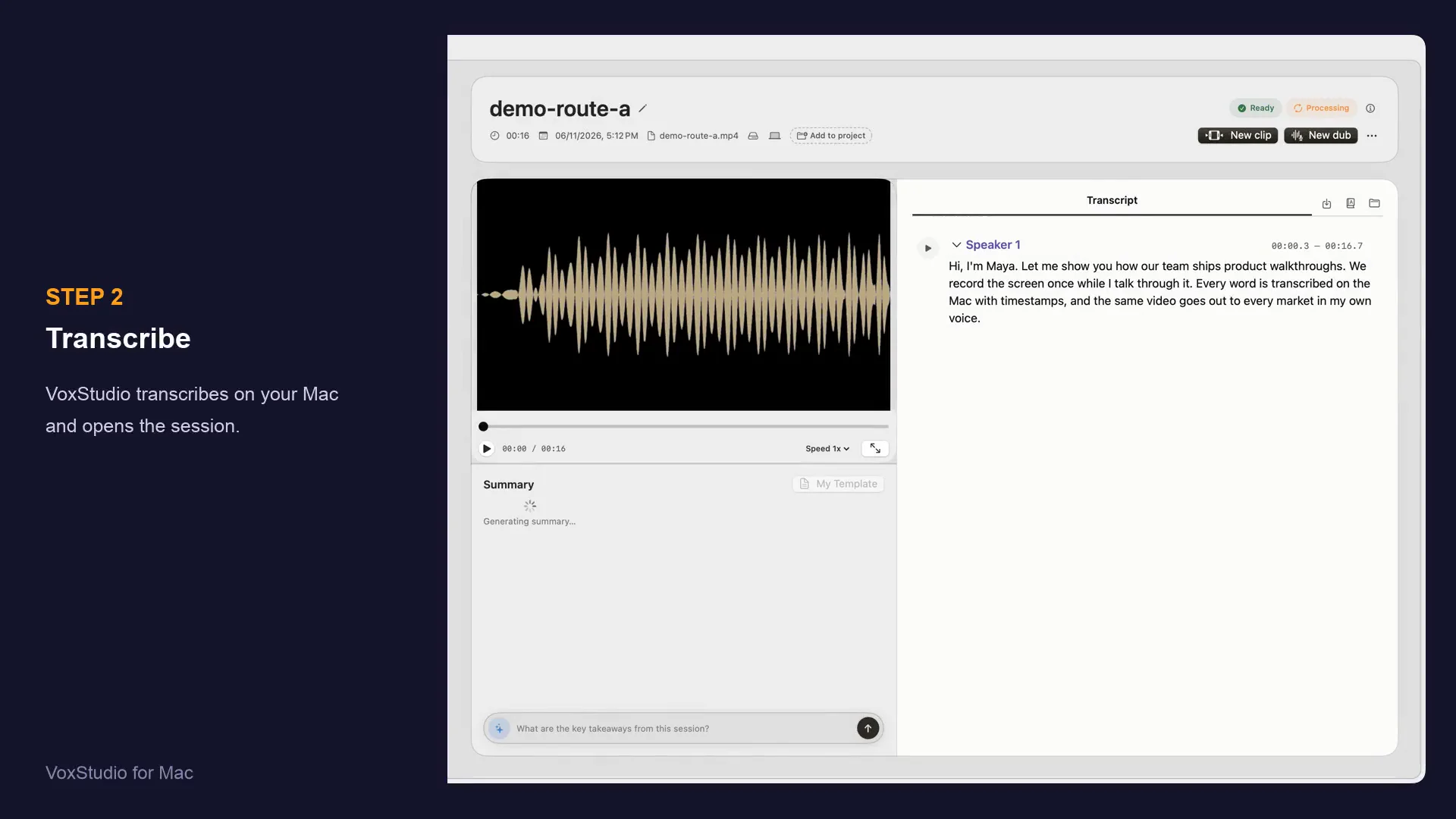
VoxStudio opens a new session and starts processing. When it finishes, the Transcript tab shows the original text with speaker labels and timestamps, and an automatic summary may be generated. Replay a few passages and fix names or numbers before translating, because translation works from this text.
3. Route B: translate after transcribing with the translate icon
Beside the Transcript tab there are three icons. From left to right they are Export, Translate (a book with the letter A) and Open folder. Click the middle one. The Translate session window asks you to select a target language and notes that subtitle cleanup and timing alignment are preserved. Open the Target language menu, pick a language, and click Continue. The list in our build included English, Simplified Chinese, Traditional Chinese, Cantonese, Japanese, Korean, Spanish, French and German.
Our 16-second sample finished in about ten seconds and produced five cues. Longer files take longer and, as noted above, depend on the AI provider you configured.
4. Review and switch language versions
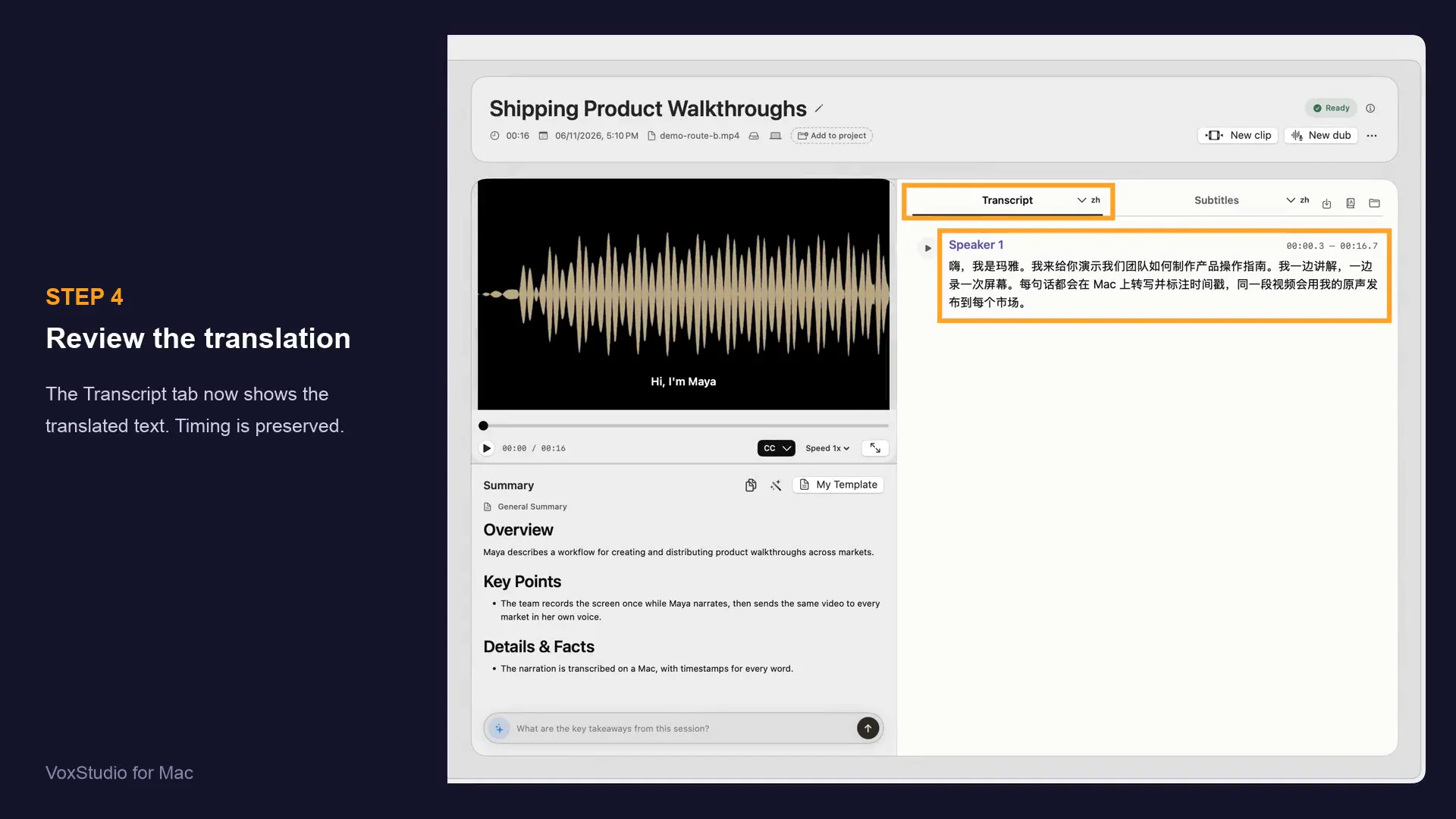
When translation completes, the Transcript tab shows the translated text and a language tag appears next to the Transcript and Subtitles tabs. Use the language menu beside the tab to move between Original and the translated version. Read the translation against the original: names, numbers, idioms and technical terms are where machine translation most often drifts, and timing may need a look if the translated line is much longer.
5. Export the version you need
Click the Export icon to open the Export window. Choose the Content (Transcript, Subtitles, Audio or Quotes), then the Variant: Original, Translation or Bilingual. Pick the target language and a format; TXT, VTT and SRT were visible in our run. Click Download, then open the file and check the text and timing before you publish or send it.
What to check before you rely on it
This was one run on a development build with a short, synthetic English narration, so it says nothing about accuracy on your recordings. Menus and options can differ between versions. If translation fails, check the AI provider and key in Settings. Only process material you have the right to use, and remember that any text sent to a translation provider leaves your Mac.
FAQ
Does translation work offline on a Mac?
Local speech recognition can run without internet once models are installed, but translation uses the AI provider you configure in Settings, so the transcript text is sent to that service.
Where is the translate button?
In a transcribed session, it is the middle of the three icons beside the Transcript tab: Export, Translate (book with the letter A) and Open folder.
Can I export a bilingual file?
The Export window offers Original, Translation and Bilingual variants. Availability depends on the session and the content you choose.
Explore the Mac workflows
- Offline Transcription for Mac
Transcribe audio and video on your Mac with local speech models, speaker labels and timed captions. Built for Apple silicon and macOS 15 or later.
- Meeting Recorder for Mac, Without a Bot
Record meetings locally on your Mac without a bot joining the call. Transcribe recordings, follow live speech and review notes in VoxStudio.
- System-Wide Dictation for Mac
Hold a shortcut, speak, and VoxStudio types at the cursor. Recognition runs on your Mac. Lifetime is one-time access to the Mac app; cloud features and your own API are separate.
Try it on one short file
Import a short, non-sensitive video, translate it, and compare the result with the original before using it for real work. See the current pricing page for access and trial terms. Download for Mac · Compare plans & trial
VoxStudio Team — We build VoxStudio. This guide records our own tests, their limits and the files needed to reproduce them.