Dictate Into Any Mac App: Hold a Shortcut, Speak, Release
Dictate into any Mac app with VoxStudio. Hold Control + Option + Space, speak, and the text is transcribed locally and pasted at your cursor. Setup, hold versus tap, and when it copies instead.
By David, Product Specialist at VoxStudio · · 6 min read
Key takeaways
- Choose Dictate into the current app once under Settings → General → Dictation, and allow Accessibility access.
- Hold the shortcut and speak, then release. Or tap it once to keep recording and tap again to finish.
- The text is recognized on your Mac and pasted at your cursor. When it cannot type, it copies the text and the bar says why.
What system-wide dictation does
The VoxStudio dictation shortcut already opens a small window where you speak, review and copy the text. System-wide dictation is a second way to use the same shortcut: skip the window and write straight into the app you are using. Hold Control + Option + Space, speak, release. VoxStudio transcribes the recording on your Mac and pastes the text at the cursor of the app that was in front when you started.
Nothing changes until you ask for it. The shortcut keeps opening the dictation window by default, as described in the dictation window guide. The new behavior is one setting away.
Set it up once
1. Open VoxStudio Settings, choose General and scroll to Dictation.
2. Next to Shortcut action, choose Dictate into the current app. The shortcut is the one you already use: Control + Option + Space by default, with Control + Option + V and Control + Shift + Space as alternatives.
3. Allow Accessibility access. VoxStudio asks when you pick the new action. If you dismissed the prompt, click Open Settings in the Accessibility access row and switch VoxStudio on under Privacy & Security → Accessibility. When it works, the row reads “Allowed. Dictation types into the app you’re using.”
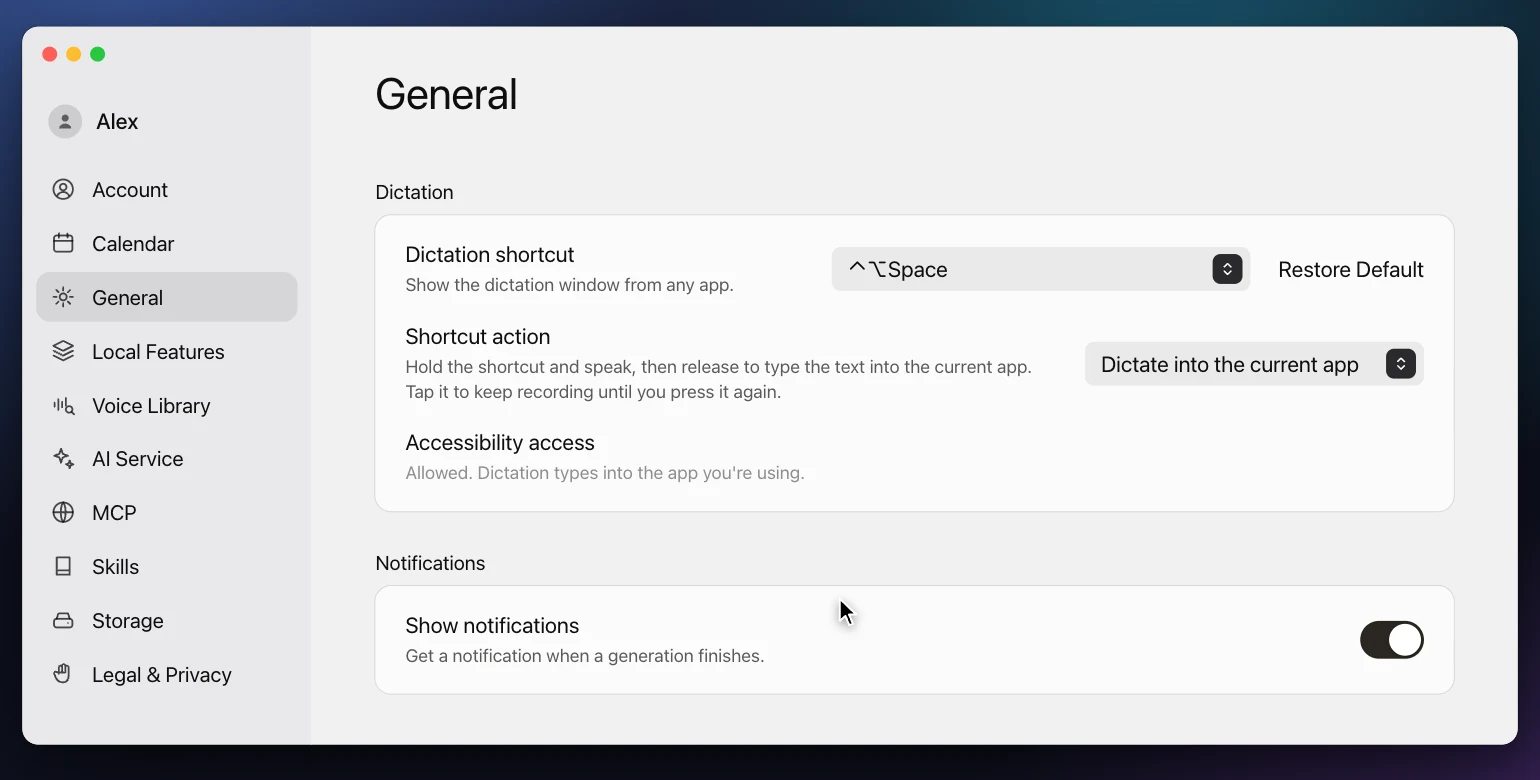
Why Accessibility? macOS lets an app paste into another app only with this permission. Without it, dictation still records and transcribes, but the text is copied to your clipboard for you to paste with Cmd + V. The Mac App Store version of VoxStudio is sandboxed and cannot post a paste into other apps, so it always copies; the Accessibility row does not appear there.
Hold to talk, for a sentence or two
Press and hold the shortcut. Once you have held it for about a third of a second it acts as push-to-talk: recording runs while the keys are down, and releasing them ends the recording and inserts the text.
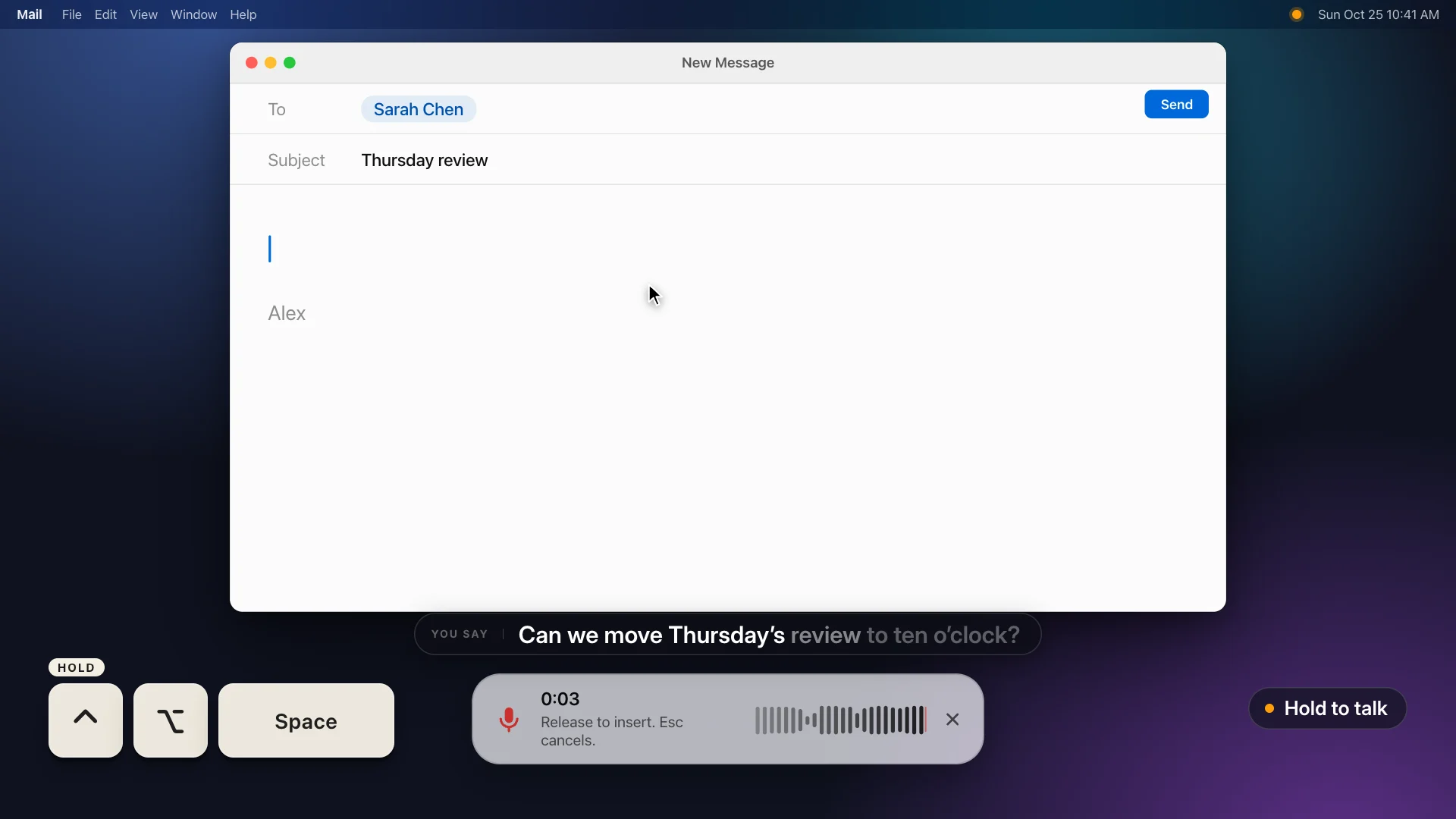
A small bar appears at the bottom of the screen. It never takes keyboard focus, so the app you are writing in keeps its cursor. It says “Release to insert. Esc cancels.” After you let go it shows Transcribing…, then Inserted.
Tap to keep recording, for longer thoughts
Tap the shortcut quickly instead of holding it. Recording latches on, so you can take your fingers off the keys and think out loud. The bar changes to “Press the shortcut again to insert. Esc cancels.” Press the shortcut once more to stop and insert.
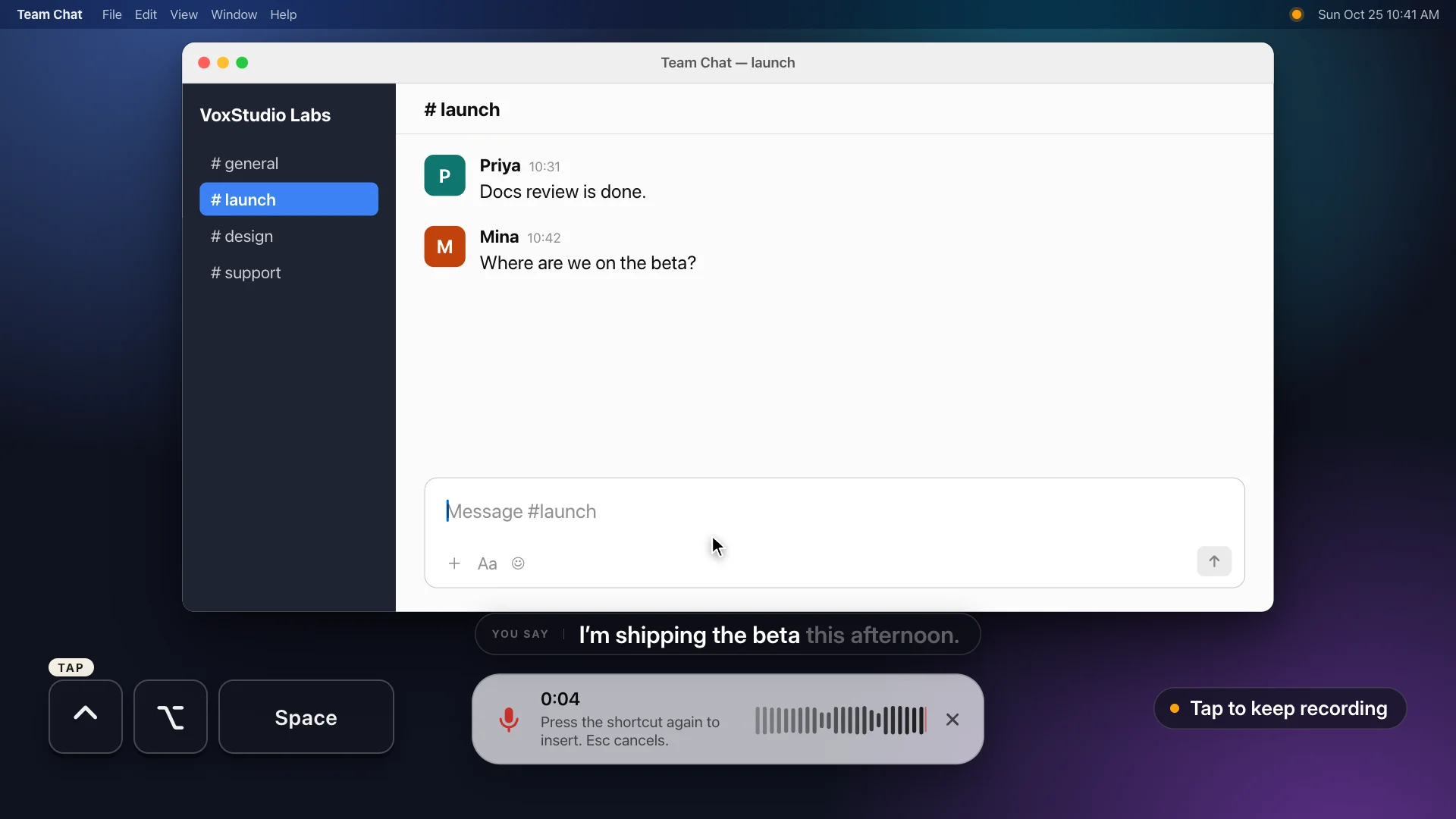
To abandon a take, press Esc or click the × on the bar. Nothing is inserted. Esc works from any app once Accessibility is allowed; the × button works either way.
Where the text lands
VoxStudio remembers which app was in front when you started and pastes the finished text there, at the cursor, as a single paste. It appears at once rather than being typed letter by letter, and it works wherever Cmd + V works: a mail draft, a chat box, a note, a text field in the browser.
To paste, VoxStudio briefly puts the text on the clipboard, then puts your previous clipboard contents back shortly afterwards, unless something else was copied in the meantime.
When it copies instead of typing
- Accessibility is not allowed — The text goes to the clipboard and the bar asks you to allow Accessibility access for VoxStudio. Allow it in Settings and the next dictation types.
- You switched apps — VoxStudio only pastes into the app you started in. If you switch while it transcribes, the text is copied instead, and the bar says so.
- A password field has focus — macOS turns on secure input in password fields and does not accept a synthetic paste there. VoxStudio copies the text and says that secure input is on.
- You use the Mac App Store version — It always copies. The bar reads “Copied. Press ⌘V to paste.”
In every case the text is on the clipboard, so Cmd + V finishes the job. A dictation is never thrown away because it could not be typed.
Dictation window or system-wide dictation?
| Dictation window | Dictate into the current app | |
|---|---|---|
| Shortcut action | Open the dictation window (default) | Dictate into the current app |
| What happens | A small window opens; you speak, then review and edit the text | You speak; the text is pasted at your cursor |
| Review | Before the text leaves the window | In the app, after it lands |
| Best for | Replies and prompts where every word matters | Drafting in the app you are already in |
| Accessibility access | Not needed | Needed to paste automatically |
Transcribed on your Mac
Dictation uses the same on-device recognition as the dictation window. The audio is recorded to a temporary file, recognized locally, and discarded once the text is inserted or you cancel. Only the finished text leaves VoxStudio, and only into the app you chose by putting your cursor there.
Habits that make it reliable
- Put the cursor first — The text goes to the cursor of the frontmost app. Click where it should land, then press the shortcut.
- One or two sentences per hold — Short takes are easy to check. Use a tap for longer thoughts, and read the result once it lands.
- Check names and numbers — As with any transcript, glance at proper names, figures and dates before you send.
- Know your plan’s limit — Depending on your plan, one dictation can have a maximum length. When it is reached, recording stops and the text captured so far is transcribed and inserted.
Related guides
FAQ
How do I dictate into any app on a Mac with VoxStudio?
In VoxStudio Settings, General, Dictation, set Shortcut action to Dictate into the current app and allow Accessibility access. Then hold Control + Option + Space in any app, speak, and release. The text is pasted at your cursor.
Is the speech transcribed on my Mac?
Yes. Dictation uses the same on-device recognition as the dictation window. The temporary recording is discarded once the text is inserted or you cancel.
What is the difference between holding and tapping the shortcut?
Holding for about a third of a second is push-to-talk: release to insert. A quick tap keeps recording until you press the shortcut again. Esc or the × on the bar cancels either way.
Why was my text copied instead of typed?
Accessibility access is off, you switched apps while it transcribed, a password field had focus, or you use the Mac App Store version. The bar tells you which, and the text is on the clipboard for Cmd + V.
Does dictation overwrite my clipboard?
It borrows the clipboard to paste and then restores what was there, unless you copied something else in the meantime. When it copies instead of typing, the text stays on the clipboard on purpose.
Can I change the shortcut?
Yes. In the same section, choose Control + Option + Space, Control + Option + V or Control + Shift + Space. The shortcut works while VoxStudio is running.
Explore the Mac workflows
- Offline Transcription for Mac
Transcribe audio and video on your Mac with local speech models, speaker labels and timed captions. Built for Apple silicon and macOS 15 or later.
- Meeting Recorder for Mac, Without a Bot
Record meetings locally on your Mac without a bot joining the call. Transcribe recordings, follow live speech and review notes in VoxStudio.
Draft where you already are.
Turn on Dictate into the current app in VoxStudio for Mac and try it on your next reply. See the current pricing page for access and trial terms. Download for Mac · Compare plans & trial
David — David works on the VoxStudio product team and spends most days inside the video editor, turning real customer workflows into faster ones.