Import Old Recordings to Mac in Bulk and Chat With Them
Import a backlog of meeting videos, interview recordings and voice memos into VoxStudio for Mac, transcribe them in one batch, then ask questions across all of them and check each answer’s source.
By VoxStudio Team, Product team · · 8 min read

Key takeaways
- Choose as many audio or video files as you need in Transcribe → Import files, or drop files and folders onto the VoxStudio window. One processing-options sheet applies to the whole batch.
- Files are processed one at a time on your Mac. Put a batch into a project so the archive stays organized.
- Open Knowledge to ask across every session or only the ones you select, then open the cited transcript to confirm each answer.
- Batch import needs the full version or its trial. The free Basic version takes one file at a time, up to the first 15 minutes of each.
If you have a folder of old Zoom recordings, interview files or voice memos, you do not need to open them one by one. In VoxStudio for Mac you can import many audio and video files in a single batch, turn each into a time-aligned transcript, then use Knowledge to ask a question across all of them. The answer comes with sources, so you can open the exact transcript passage and replay the recording before you rely on it.
This guide follows the VoxStudio for Mac interface as of November 2026. The limits and options below come from the app’s current import flow and screens; they are not speed or accuracy benchmarks, which depend on your Mac, the speech model and the audio.
Before you import
VoxStudio for Mac needs macOS 15 or later on Apple silicon. For on-device transcription, download the required speech models first; the sheet that appears before processing offers to prepare them. Collect the files you want in one place and a very large archive can go into one batch. If you want the sessions grouped, create a project first, for example “Interviews 2025” or “Customer calls”.
Check your plan too. Batch transcription belongs to the full version, including its 14-day trial. The free Basic version submits one file at a time and transcribes the first 15 minutes of each file; the full audio is kept, and unlocking the full version lets you transcribe all of it.
Import many files at once
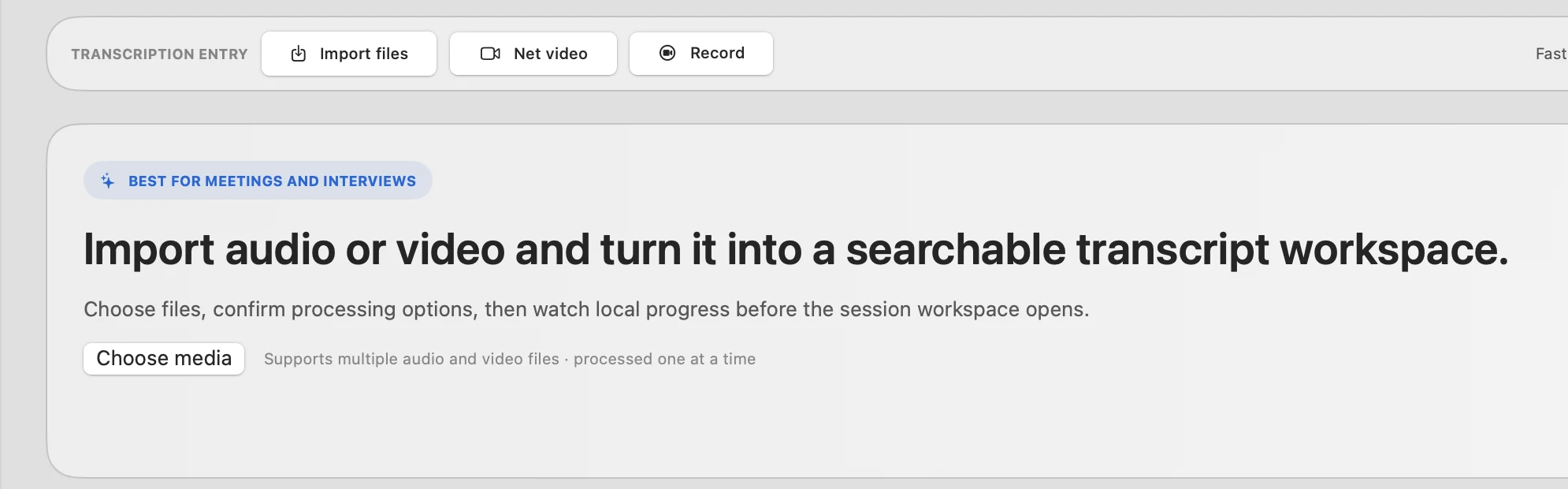
Open Transcribe, choose Import files and click Choose media. In the macOS file panel, select several audio or video files with Shift or Command and click Open. You can also use the New session menu and choose Import media. The panel selects files, not folders.
To bring in a folder, drag it onto the VoxStudio home window together with any loose files. VoxStudio looks one level into the folder, skips hidden files and anything that is not audio or video, and shows a notice such as “Skipped 3 items that are not audio or video.” Subfolders are not searched, so drop each subfolder as well.
Which import method to use
| Method | Accepts | Good for |
|---|---|---|
| Transcribe → Import files → Choose media | Multiple files, no folders | A hand-picked set, with no file-count limit |
| Drag onto the VoxStudio home window | Files and folders (one level deep) | An archive folder with a few mixed files |
| New session → Import media inside a project | Multiple files, no folders | Putting the sessions straight into one project |
On the full version and during the 14-day trial, a batch has no file-count limit. VoxStudio works through the files one at a time, so a very long batch simply takes longer to finish.
Confirm the options once for the whole batch
After you choose the files, the Processing options sheet opens. Your choices apply to every file in the batch, so group files that share a language and purpose.
What to set for a mixed backlog
- Input language — Leave it on Auto when the archive mixes languages. If every file is in one language, setting it avoids detection mistakes.
- Speakers — Auto works for most meetings. For interview folders where you know the count, set it; on this Mac the range goes up to eight speakers.
- Hotwords — Add names, products and jargon that recur across the archive. Hotwords apply to on-device transcription.
- Storage and processing — Local is the default. Choose cloud storage or processing only if you want those sessions available beyond this Mac.
- Translation and cleanup — Turn on Advanced options such as translation, subtitle segmentation or AI correction only when you need them; they add work to every file.
Start with a small test: import two or three files first, read a few transcript passages, then run the rest with the settings that worked. When you click Transcribe, VoxStudio queues the files and works through them one at a time to protect GPU memory. Open the sessions list to watch each one move from Queued to Processing to ready. If your Mac is under heavy thermal pressure, VoxStudio asks you to wait and try again with fewer or shorter files.
Keep the archive organized
Sessions imported from inside a project land in that project. Files dropped onto the home window arrive in your general library; select them and use Move to project afterwards. Give sessions recognizable titles, such as the date and the person or meeting name, because titles and project filters are how you narrow Knowledge later.
Before you ask questions, replay a few moments and correct names, numbers and product terms. A transcript is a searchable draft, and a wrong name in a transcript will show up in answers.
Ask questions across the whole archive
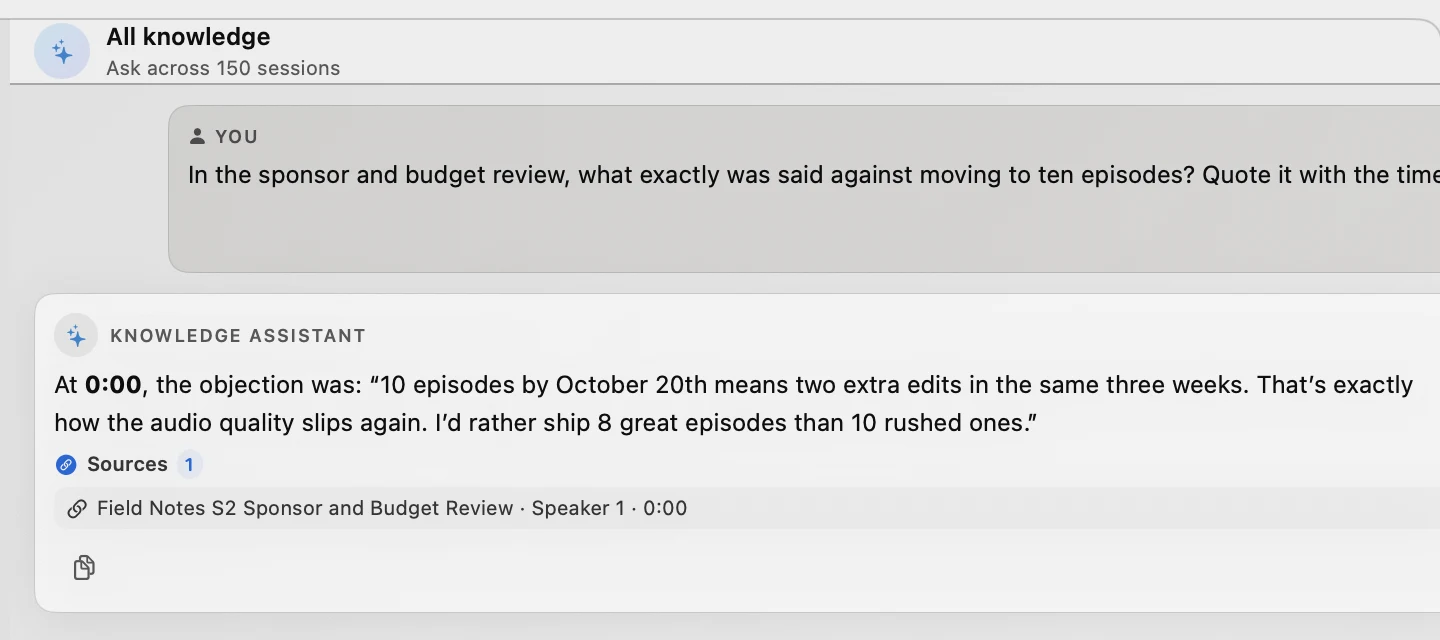
Open Knowledge. The top entry, All knowledge, asks across every session in your library; the header shows how many it covers. To limit the scope, select specific sessions (the button reads “Ask across N selected sessions”) or use the type, status and origin filters. Sessions without a transcript are skipped. The first time, Knowledge may ask you to prepare local search resources so that sessions can be matched by meaning.
Type a question in your own words and be specific. “What did we decide about pricing in the March customer calls?” works better than “summarize everything”. The built-in prompts such as Find key decisions or List action items are a quick start for a selected set of sessions.
Every answer lists its Sources. Click one to open the matching transcript passage, then replay the recording when exact wording or timing matters. If an answer looks thin, narrow the scope to the right project or ask about a distinctive phrase.
What stays on your Mac and what is sent for answers
Importing and on-device transcription run on your Mac after the speech models are downloaded. Asking a question is a separate step. Knowledge uses the answer service selected in the panel. With the hosted Cloud option, relevant transcript excerpts and your question are sent to the cloud service to generate the answer, and usage follows your plan and cloud credits. With your own API key (BYOK) the request goes to your chosen provider and is billed by it.
If a recording must not leave your Mac, do not send its transcript to a cloud answer provider; read it in the transcript view instead. Access to Knowledge depends on your plan or trial and on available AI credits, so check the plan screen in the app.
If something does not work
Common cases
- Some files were skipped — Only audio and video files are imported. The notice shows how many items were skipped; convert unsupported formats or check that the file opens in QuickTime Player.
- A large batch takes longer — Files run one at a time. Split a big archive into projects by topic if you want to review results sooner.
- Batch transcription needs the full version — The free Basic version accepts one file at a time. Choose a single file, or start the trial or unlock the full version.
- Knowledge says there is no transcript — Transcribe the session first. Sessions without a transcript are not searched.
- An answer cites the wrong session — Open the source, check the passage, then narrow the scope to the right project or session and ask again.
Prefer to ask from ChatGPT or Claude instead of the Knowledge panel? VoxStudio can connect to those assistants, and the guide below explains the setup and what each side can see.
Continue with these guides
- Search across meeting recordings and check the source
Use focused questions and inspect the passages behind an answer.
- Offline transcription on Mac: the tested file workflow
Model setup, local processing and transcript export.
- Transcribe an interview on Mac with speaker labels
Separate speakers and name them before you search an interview archive.
- Recording knowledge base for Mac, ChatGPT and Claude
Compare the local library, cloud sessions, cited answers and MCP connections.
FAQ
How do I import many recordings into VoxStudio at once?
Open Transcribe → Import files → Choose media and select several audio or video files, or drag files and folders onto the VoxStudio window. Confirm the processing options once and VoxStudio transcribes the files one at a time.
Can I import a whole folder of recordings?
Drag the folder onto the VoxStudio home window. The app imports the audio and video files directly inside it, skips hidden and non-media files, and does not open subfolders. The file panel selects files only.
How many files can I import at once?
On the full version and during the 14-day trial there is no file-count limit. Files are processed one at a time; the free Basic version takes one file per submission.
Can I batch transcribe with the free version?
No. Batch transcription needs the full version or its 14-day trial. The free Basic version takes one file at a time and transcribes the first 15 minutes of each file.
How do I ask questions across all my recordings?
Open Knowledge and use All knowledge to ask across every session, or select sessions and use Ask across N selected sessions. Sessions need a transcript to be included.
Can I check where an answer came from?
Yes. Each answer lists its sources. Open a source to see the matching transcript passage and replay the recording to confirm wording and timing.
Do my recordings leave my Mac when I chat with them?
Import and on-device transcription run locally. A Knowledge answer uses the selected answer service; with Cloud, relevant excerpts and your question are sent to the cloud service, and with your own API key they go to your provider. Do not ask about recordings that must stay on your Mac.
Explore the Mac workflows
- AI Knowledge Base for Recordings & MCP
Search across meeting recordings and ask questions with cited sources. Use VoxStudio knowledge in the app, ChatGPT or Claude through Mac and Cloud MCP.
Turn your recording backlog into something you can ask.
Import two or three old recordings into VoxStudio for Mac, then ask one question and open its source. Download for Mac · Compare plans & trial
VoxStudio Team — We build VoxStudio. This guide records our own tests, their limits and the files needed to reproduce them.