How to Transcribe an Interview on Mac with Speaker Labels
Import a two-voice recording, check the speaker settings, read each labelled block and export a TXT with speaker labels. Includes two tested files, the errors we saw and their limits.
By VoxStudio Team, Product team · · 9 min read
Key takeaways
- Set the speaker options before you transcribe, then check every labelled block.
- A label is a voice group, not a name. Replay the audio before you attach a name.
- On our two-voice English file every utterance was labelled correctly; the Mandarin file produced an extra label, so check it by hand.
Can VoxStudio label speakers in an interview on Mac?
Yes, for a file you already have. VoxStudio groups similar-sounding turns into Speaker 1, Speaker 2 and so on, with a time range for each block. A label is a voice group, not an identity: the app does not know the interviewee’s name, and it can be wrong. This guide uses VoxStudio 7.0.45 (build 131), a pre-release build, tested on 21 October 2026 on an Apple M5 MacBook Pro with 32 GB memory and macOS 27.0.1. The same test was also run on a 16 GB M2 Mac with macOS 27.
Our test files are read-speech recordings assembled from public corpora, not real interviews. The English file has two voices with known speaker IDs; VoxStudio labelled all 16 utterances correctly in three runs. The Mandarin file has two voice tags and produced three labels, so we do not publish an accuracy figure for it.
1. Use a recording you are allowed to use
Use an interview you recorded with permission, or a public dataset whose licence allows reuse. Keep the interview in one file. Our English sample runs 2 minutes 9 seconds; the Mandarin sample runs 2 minutes 53 seconds.
2. Set the speaker options before transcribing
In the processing options, set Input language to the spoken language. Under Advanced settings, Speaker count defaults to Auto-detect. The interface says the expected count is checked against the result and that extra voices are still kept, so the setting does not force a fixed number of labels. Recognize people defaults to Keep speakers anonymous: no name is attached unless you choose one. Segment subtitles stays off for a transcript. We only measured Auto-detect with anonymous labels. To name a known person automatically, see the voice-library guide in the sources list below.
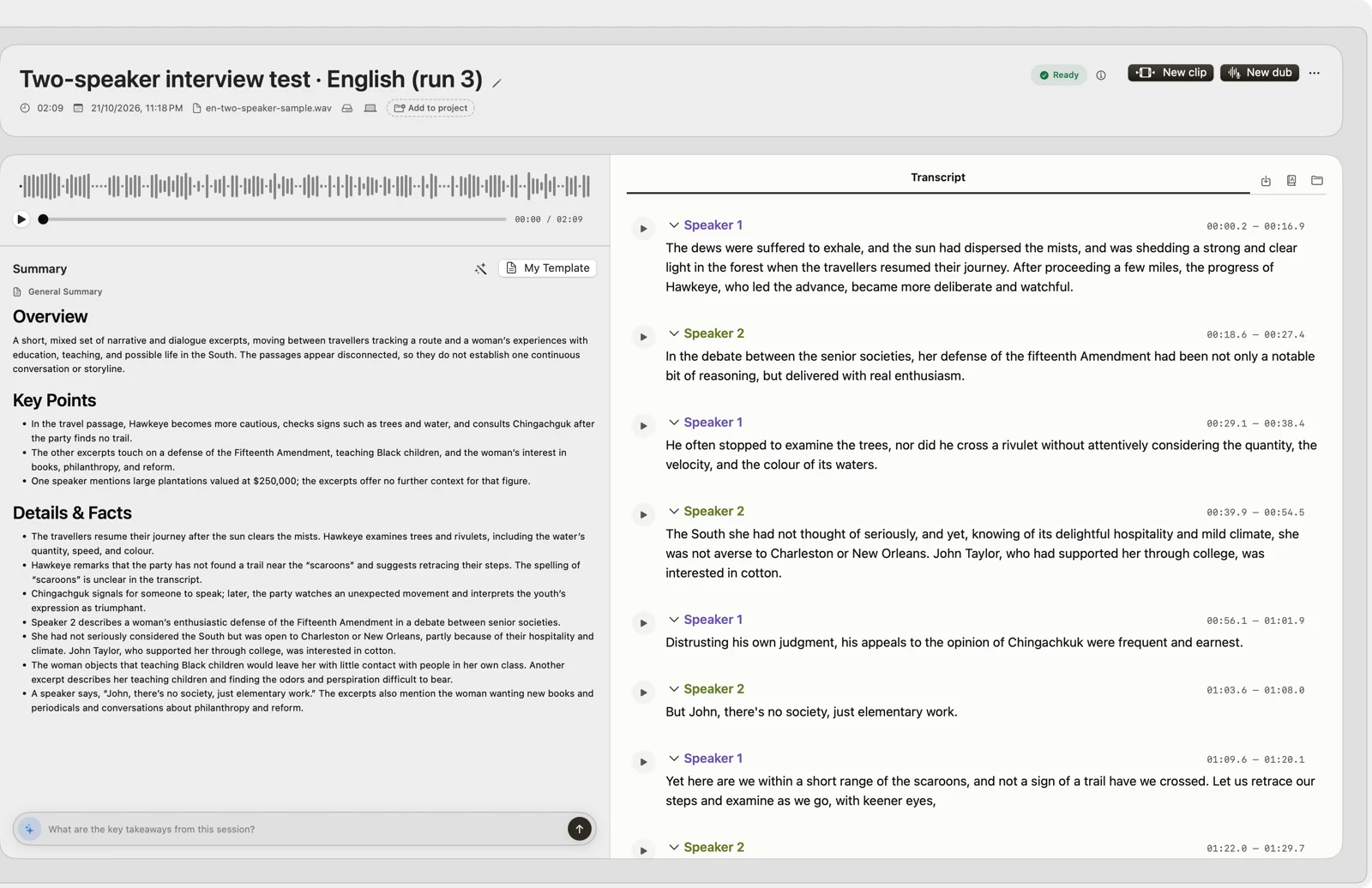
3. English result: two labels across twelve blocks
The labels alternated correctly through all twelve turns. Some blocks hold two sentences from the same voice; the first block contains both sentences of the opening turn. When you quote one sentence, check the block’s time range first.
Three runs gave identical text and labels, compared line by line. A repeat run is a cheap check before you rely on labels for quotes.
4. Export TXT with speaker labels for quotes
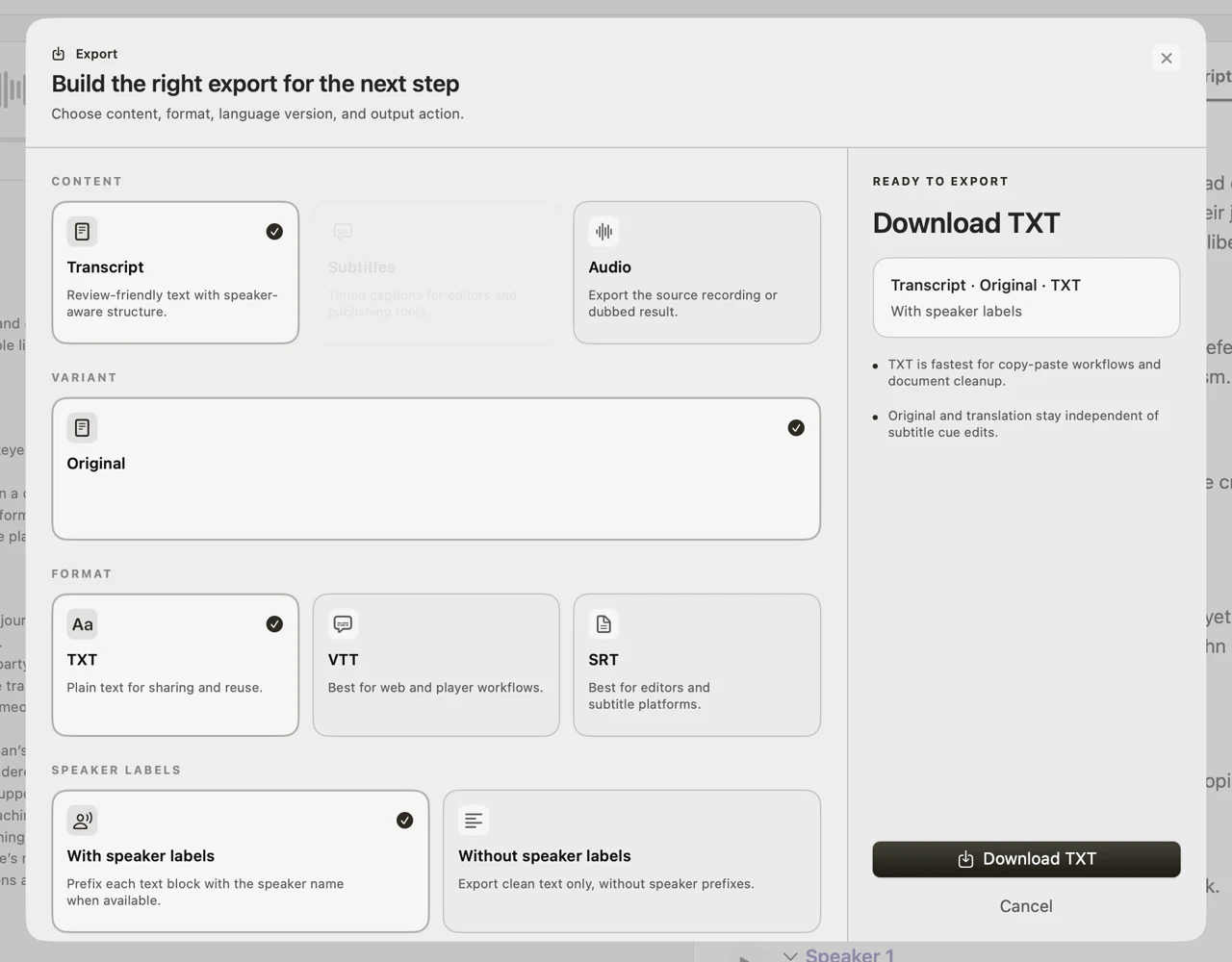
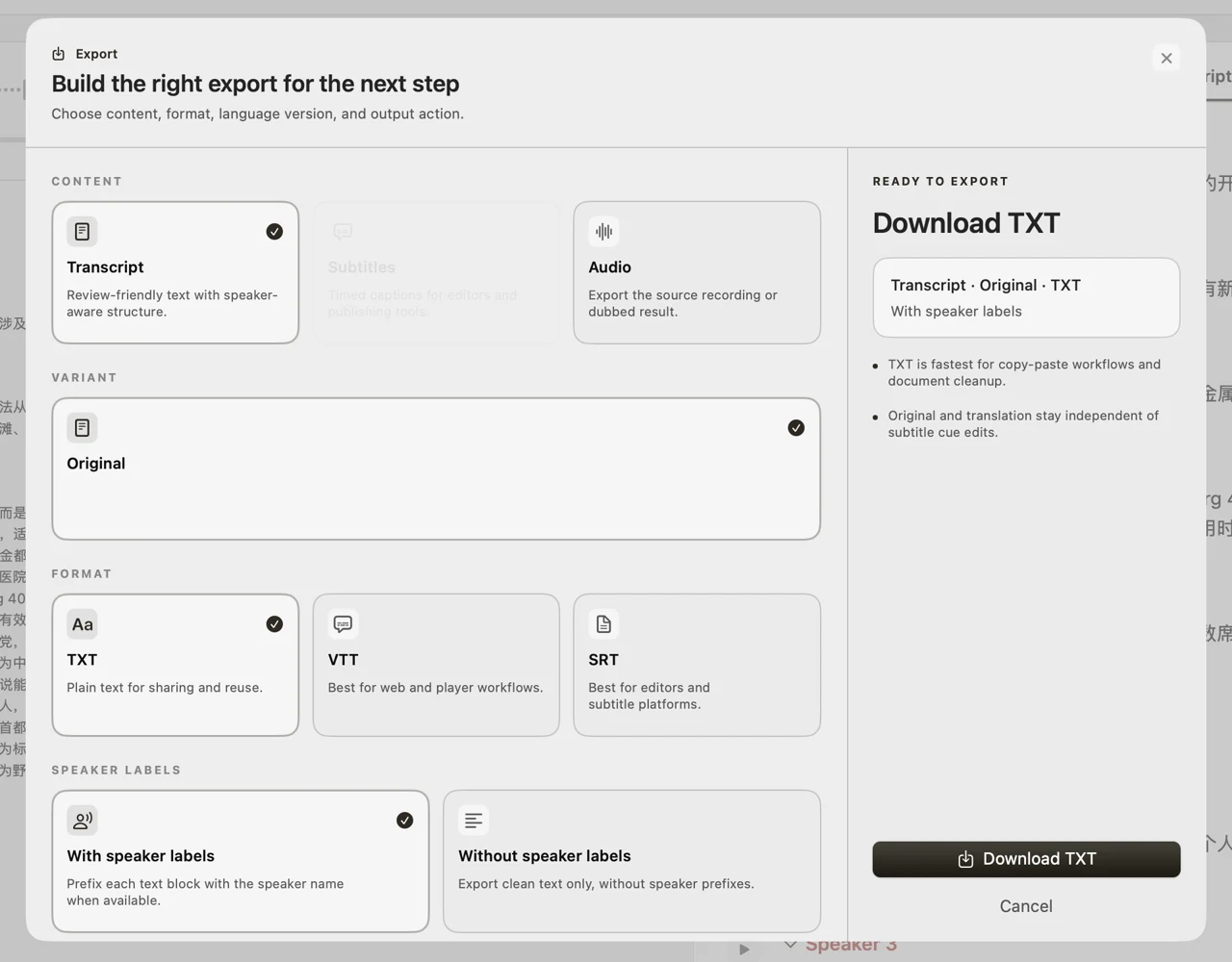
Open Export, choose Transcript · Original · TXT, then select With speaker labels. In this build, choosing SRT removed the speaker-label option from the panel, so do not rely on SRT captions to show who spoke.
5. Mandarin result: three labels for two voice tags
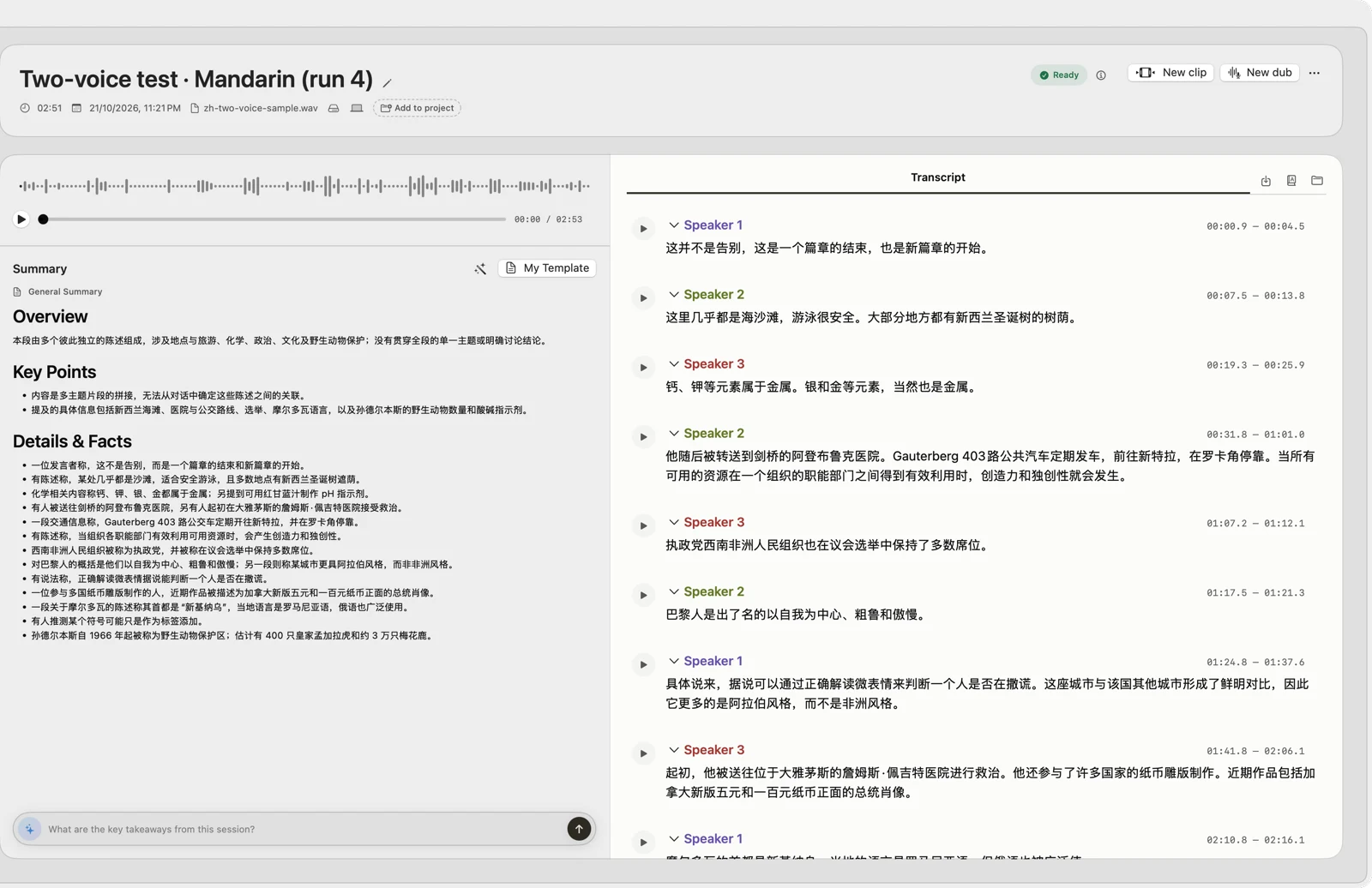
The Mandarin file produced three labels. Two blocks mix text from both reference voices, so one label cannot be trusted for every sentence. The text also has errors: the transcript writes “Gauterberg 403 路” where the reference reads “Scotturb 403 路”, and “但俄语也被广泛使。” where the sentence ends “使用。”. Treat Mandarin output as a draft and check it against the audio.
We cannot tell from our reference whether the third label is an error or a real third speaker. The FLEURS files carry gender tags, not speaker IDs, and several people can share one tag. A Mandarin accuracy test needs recordings with known speaker IDs.
6. Walkthrough: from import to labelled export
When to doubt a label
- Two voices, one label — Similar voices, a noisy room or a remote call can merge speakers. Replay the places where the conversation changes hands.
- One voice, two labels — In the Mandarin run, two sentences from the same reference voice received two labels at the start. Compare them by ear before you merge the labels.
- Blocks are not turns — A block follows the app’s segments, not always a change of speaker. Two Mandarin blocks held the words of both voices.
- Names and numbers — Names of places and people were wrong in the Mandarin output. Check each name against the audio before you quote it.
- Short replies and interruptions — We did not test overlapping speech. One-word answers and interruptions are the usual misses, so check them one by one.
Reproduce this test
Sources and next steps
FAQ
Does a speaker label tell me who is talking?
No. It groups similar voices. Replay each label, then rename it to the real person. Short replies and interruptions are the most likely to be wrong.
Did you test real interviews?
No. Both test files are read speech from public corpora with two voices and no overlap. Test your own recording before you rely on the labels.
Can SRT show who spoke?
In this build the SRT export panel did not offer speaker labels. Export TXT with speaker labels when you need to attribute quotes.
Explore the Mac workflows
- AI Knowledge Base for Recordings & MCP
Search across meeting recordings and ask questions with cited sources. Use VoxStudio knowledge in the app, ChatGPT or Claude through Mac and Cloud MCP.
Test one interview first
Start with a short recording you are allowed to use. Check every speaker block against the audio, then decide what to quote. See the current pricing page for access and trial terms. Download for Mac · Compare plans & trial
VoxStudio Team — We build VoxStudio. This guide records our own tests, their limits and the files needed to reproduce them.