Free Mac Video Editor with Automatic Captions | VoxStudio
Edit videos on Mac with automatic local captions and watermark-free MP4 export. Compare Free Basic and Lifetime, including the 15-minute file transcription limit.
By VoxStudio Team, Product team · · 12 min read
Key takeaways
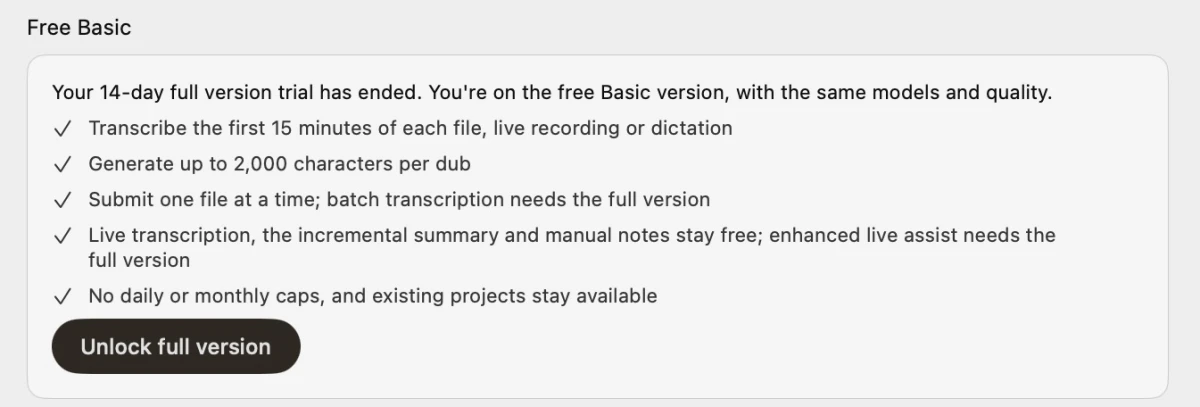
- The 14-day trial ends automatically. Free Basic keeps the same local speech models and basic output quality, with per-task limits and no daily or monthly allowance.
- Free Basic transcribes the first 15 minutes of each imported file or live recording, supports up to 15 minutes per dictation, and generates up to 2,000 characters per local voiceover task.
- Lifetime removes those software limits and unlocks batch transcription and enhanced live assistance. Existing recordings and results stay available on Free Basic.
- Video editing on Mac stays available on Free Basic, including multitrack timelines, caption editing, local search and standard video export.
On an Apple silicon Mac, VoxStudio Free Basic can automatically caption a tutorial and export a watermark-free MP4. For an interview, search the transcript for a quote, jump to the recording and cut a clip around it. You can keep using VoxStudio for Mac after the 14-day full-feature local trial. If you have no active paid access, the app switches to Free Basic automatically. The trial does not become a paid subscription. Free Basic is enough for short interviews, individual dictations, short voiceovers and reviewing long recordings. The decision to buy Lifetime usually comes down to how often you need a complete transcript of a long recording, several files in one submission or automatic help during a call.
Feature matrix: trial, Free Basic and Lifetime
| Mac feature | 14-day local trial | Free Basic after expiry | Lifetime local access |
|---|---|---|---|
| Local speech recognition and synthesis | Full local model selection | Same models and basic output quality | Same models and basic output quality |
| Offline interview transcription on Mac (audio or video files) | Full file | First 15 minutes per file | Full file |
| Recording and original media | Complete | Complete, even after live transcription stops | Complete |
| Live transcription | Full recording | First 15 minutes of the recording timeline | Full recording |
| Voice Input (dictation) | No plan-specific cutoff | Up to 15 minutes per input | No plan-specific cutoff |
| Local voiceover | No plan-specific character cap | 2,000 characters per complete task | No plan-specific character cap |
| Batch transcription | Available | One file per submission | Available |
| Incremental summary and manual notes | Available | Summary follows allowed transcript range. Manual notes continue throughout. | Summary can use the full transcript. Manual notes continue throughout. |
| Automatic note enhancement, question detection, auto-answers and live Q&A | Available with model setup | Previous results readable. New use requires full access. | Available with model setup |
| Search and jump to result, project folders, razor text-cut hints | Available | Available | Available |
| Saved templates and reference voices | No plan-specific quantity cap | No plan-specific quantity cap | No plan-specific quantity cap |
| Access, ordinary editing, saving and export of existing work | Preserved | Preserved. New processing follows current access. | Preserved |
| Task count, cooldown and daily or monthly totals | No cumulative plan cap | No cumulative plan cap | No cumulative plan cap |
| Cloud services, API charges and cloud credits | Separate | Separate | Separate |
| Video editor: tracks, trimming, cuts, subtitles, audio mixing and effects | Available | Available without a Basic-specific editing cap | Available |
| Generate Local Captions inside Video Editor | Available with speech model | Available with speech model. Does not use the file-transcription allowance. | Available with speech model |
| Standard video export | Available | Available without a Basic-specific duration, resolution or watermark restriction | Available |
Prepare the local models and check your plan
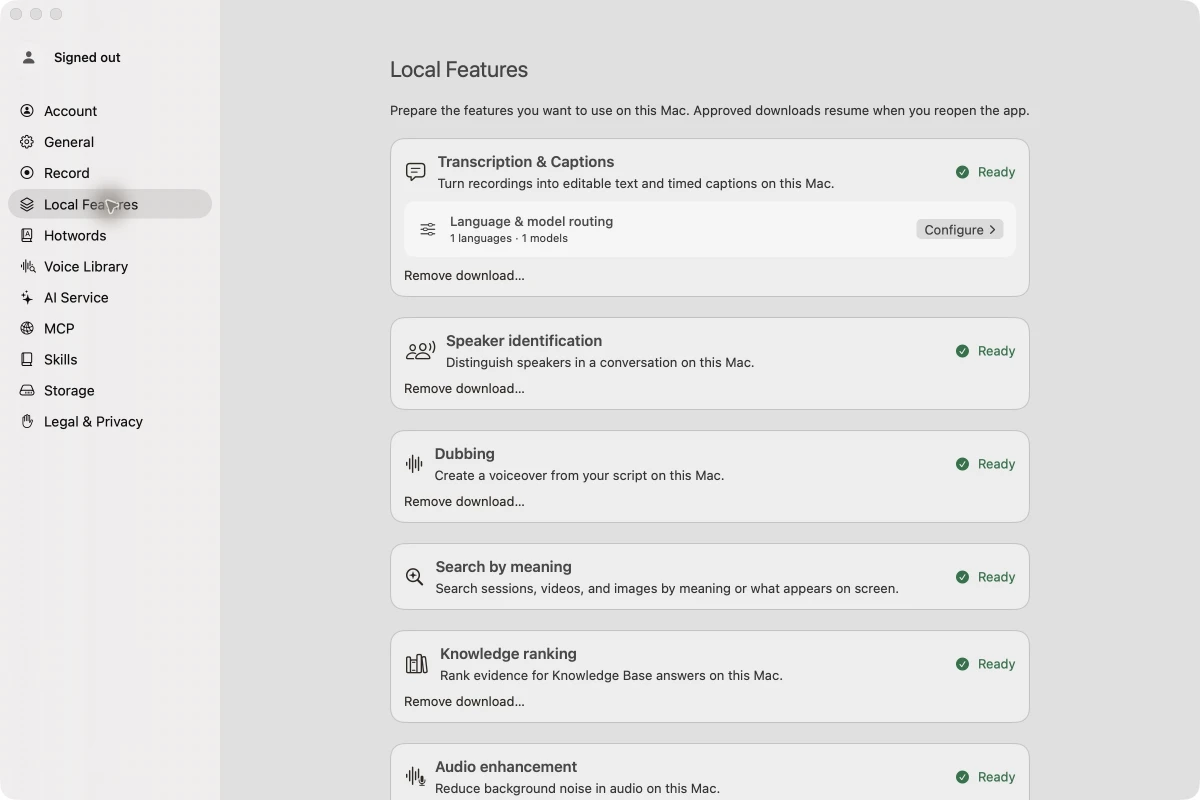
Open Settings → Account to see whether the Mac is on the trial, Free Basic or a paid entitlement. Then open Settings → Local Features and check that Transcription & Captions and Dubbing are Ready for the workflows you need. Download any required models first and verify language and model routing before processing a file.
Free Basic uses the same local speech recognition and speech generation models as full access. With the models prepared, supported local workflows can run offline. Downloads, purchase, activation, restoration and periodic verification may need a connection. Memory, storage and model constraints still matter on every tier.
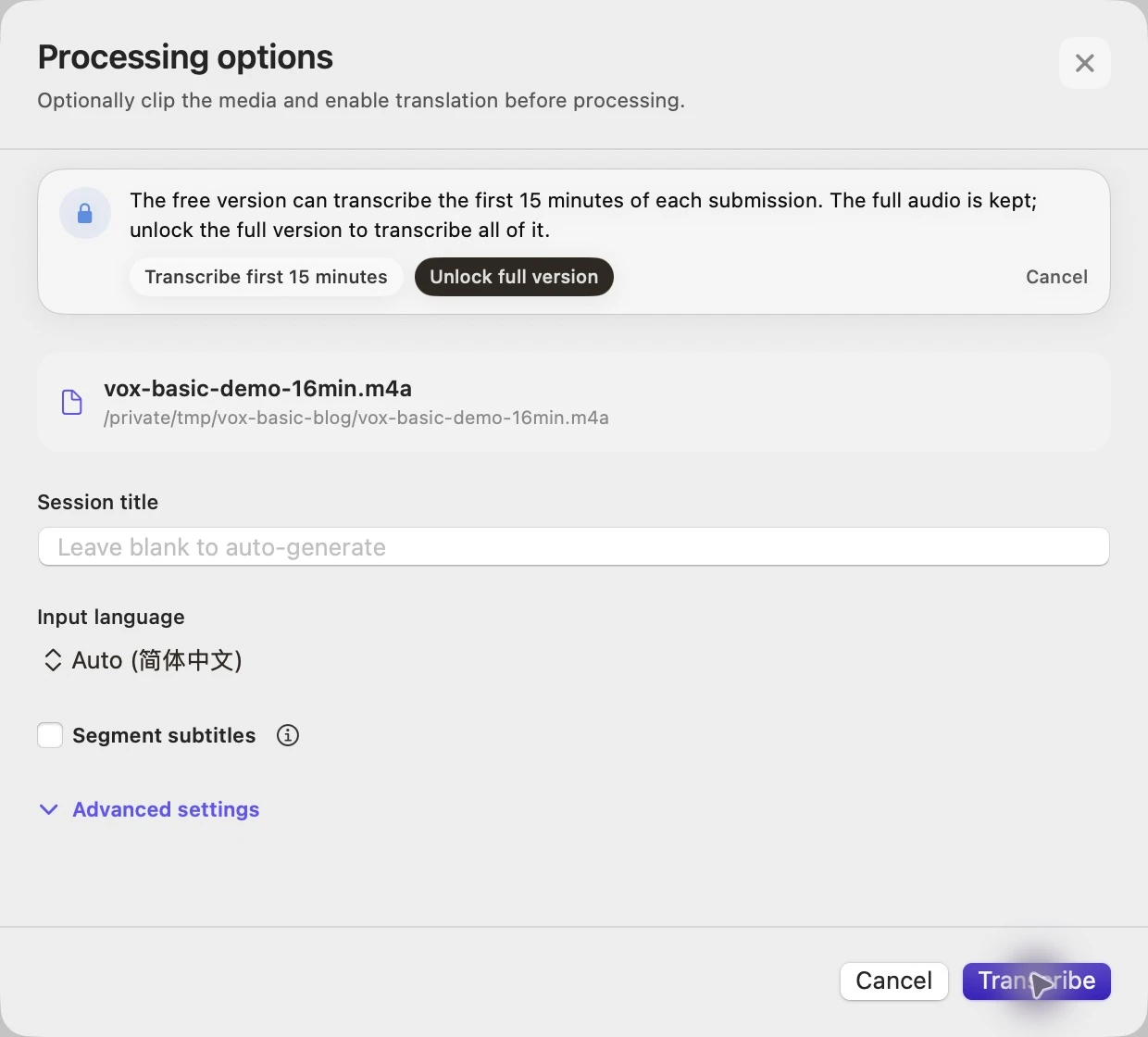
Transcribe an interview offline on Mac: the first 15 minutes per file on Free Basic
Open Transcribe → Import files → Choose media, select one audio or video file, review its language in Processing options, then choose Transcribe. A file at or below 15:00 fits in full. For a longer file, choose Transcribe first 15 minutes, unlock full access or cancel. The limit runs from the start of the submitted media, including silence. The source file remains complete.
For a 16-minute interview, expect text through the first 15 minutes and use the original media to review the final minute. If you then choose a different file in a separate submission, that file gets its own 15-minute window immediately. A file selection, drop or expanded folder with two or more distinct supported files counts as a batch and requires full access.
After processing, use the transcript to find a word, jump to its timestamp, compare the wording with playback and edit the result before exporting. If you need the complete transcript of long files routinely, Lifetime removes the Basic duration and batch limits.
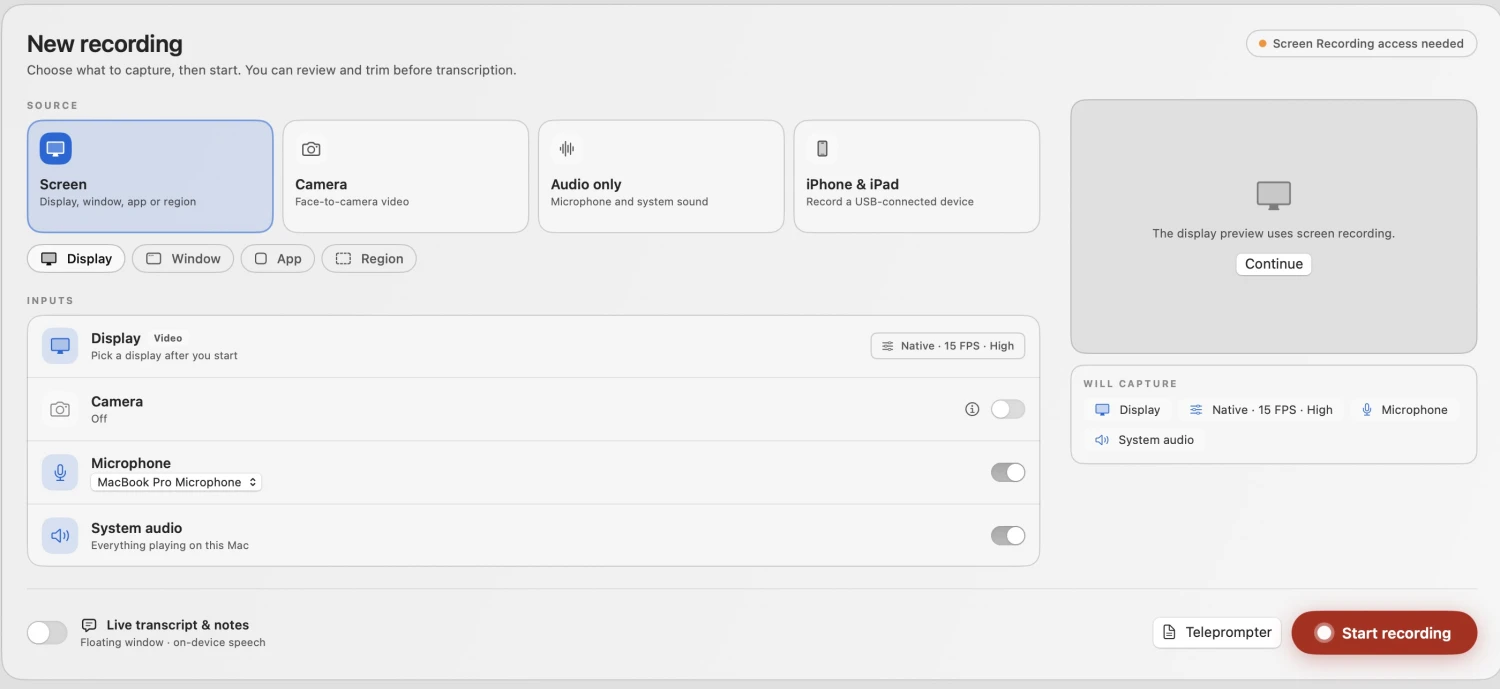
Record the whole meeting and understand what the live assistant covers
In Transcribe → Record, choose a capture source such as Audio only or Screen. Check the microphone and system-audio choices, grant the relevant macOS permissions, and enable Live transcript & notes if you want live text. For a 40-minute recording on Free Basic, the original can contain all 40 minutes while live text covers only 00:00–15:00.
Microphone and system audio share the same media timeline. Pausing, reopening the live window, switching models or enabling the assistant later does not extend that window. Incremental summaries can use the available transcript. You can keep creating, editing and saving manual notes for the rest of the call. When reviewing a partial result, compare its endpoint with the full recording duration.
Lifetime unlocks live transcription beyond the Basic cutoff, automatic note enhancement, live Q&A, question detection and automatic answers. Those enhanced actions also need a usable model configuration. Previous enhanced results remain readable after expiry. If you unlock during a recording, later live transcription can resume. For a complete transcript including missed portions, request a new full transcription after recording.
Use Voice Input for drafts and short bursts of work
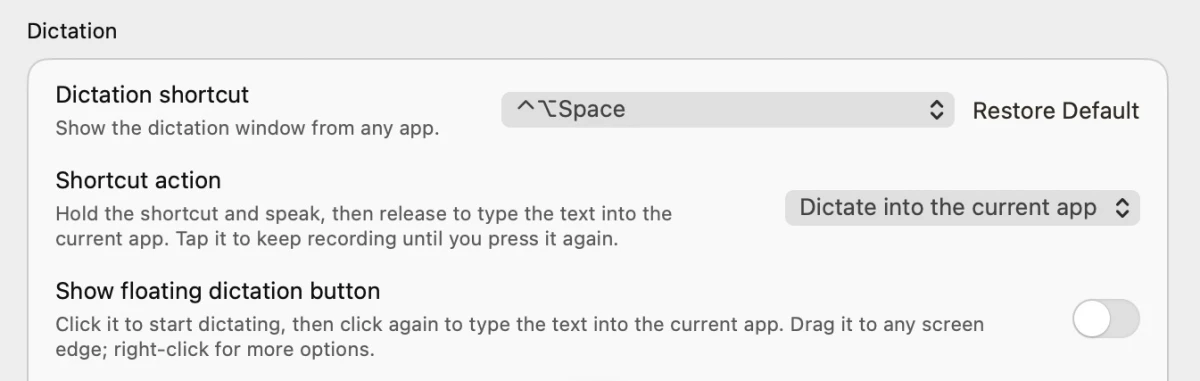
Open Settings → General → Dictation and check the configured shortcut and action. The dictation window lets you speak, review and copy text. Dictate into the current app can insert at the cursor after the relevant macOS permission is granted. With that action, hold the shortcut to speak and release to finish, or tap once to start and again to finish.
At 15 minutes, Free Basic ends that input and begins transcribing. Text you already had stays in place, and you can start another input immediately. For a long draft, speak one section at a time and check names, numbers and punctuation before sending. Lifetime removes the software cutoff per input.
Make local voiceovers up to 2,000 characters per task
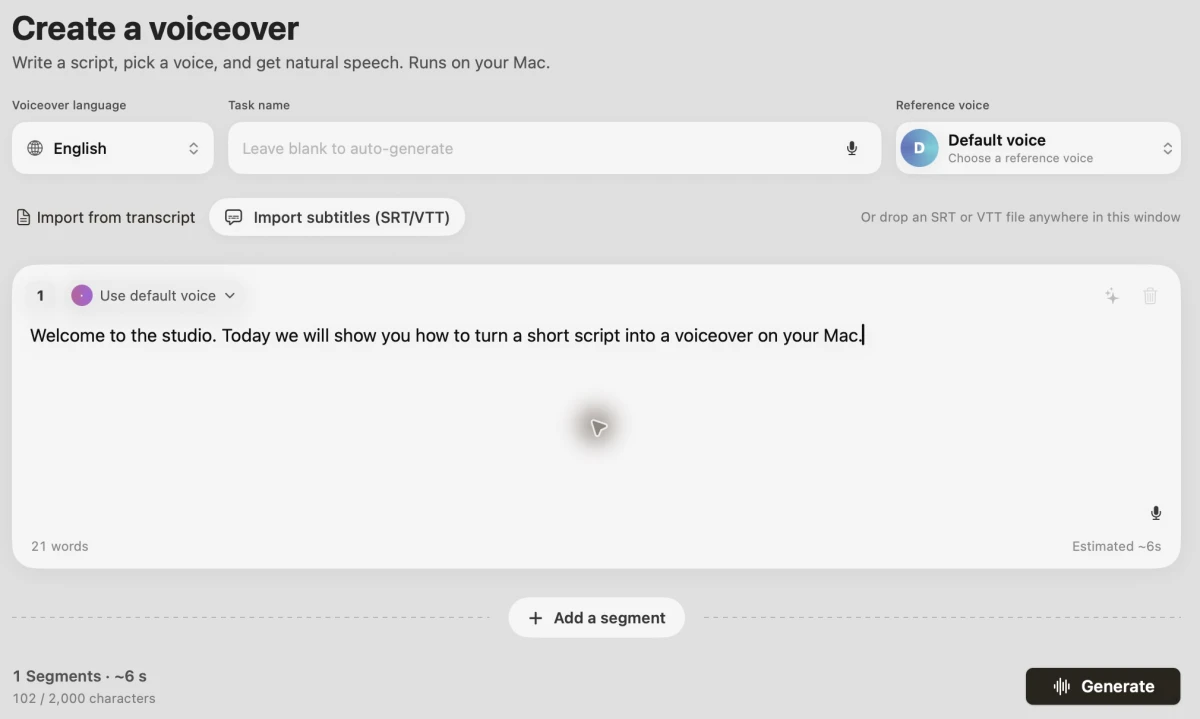
Open Voiceover, choose a language and voice, enter a script and check the character meter before choosing Generate. You can add segments and assign different voices. Free Basic adds up the spoken text across every segment in the task. It trims whitespace at each segment’s edges before counting user-perceived characters. Internal spaces, punctuation and line breaks count. Speaker labels and other unspoken metadata are outside the count.
A task of exactly 2,000 characters fits. If two segments contain 1,300 and 800 characters, the 2,100-character task exceeds the limit even if each segment fits by itself. Shorten it, prepare separate voiceover tasks or use Lifetime. An over-limit submission preserves the script and any previous audio. Once generated, listen for names and pauses before using the result.
Edit video on a multitrack timeline
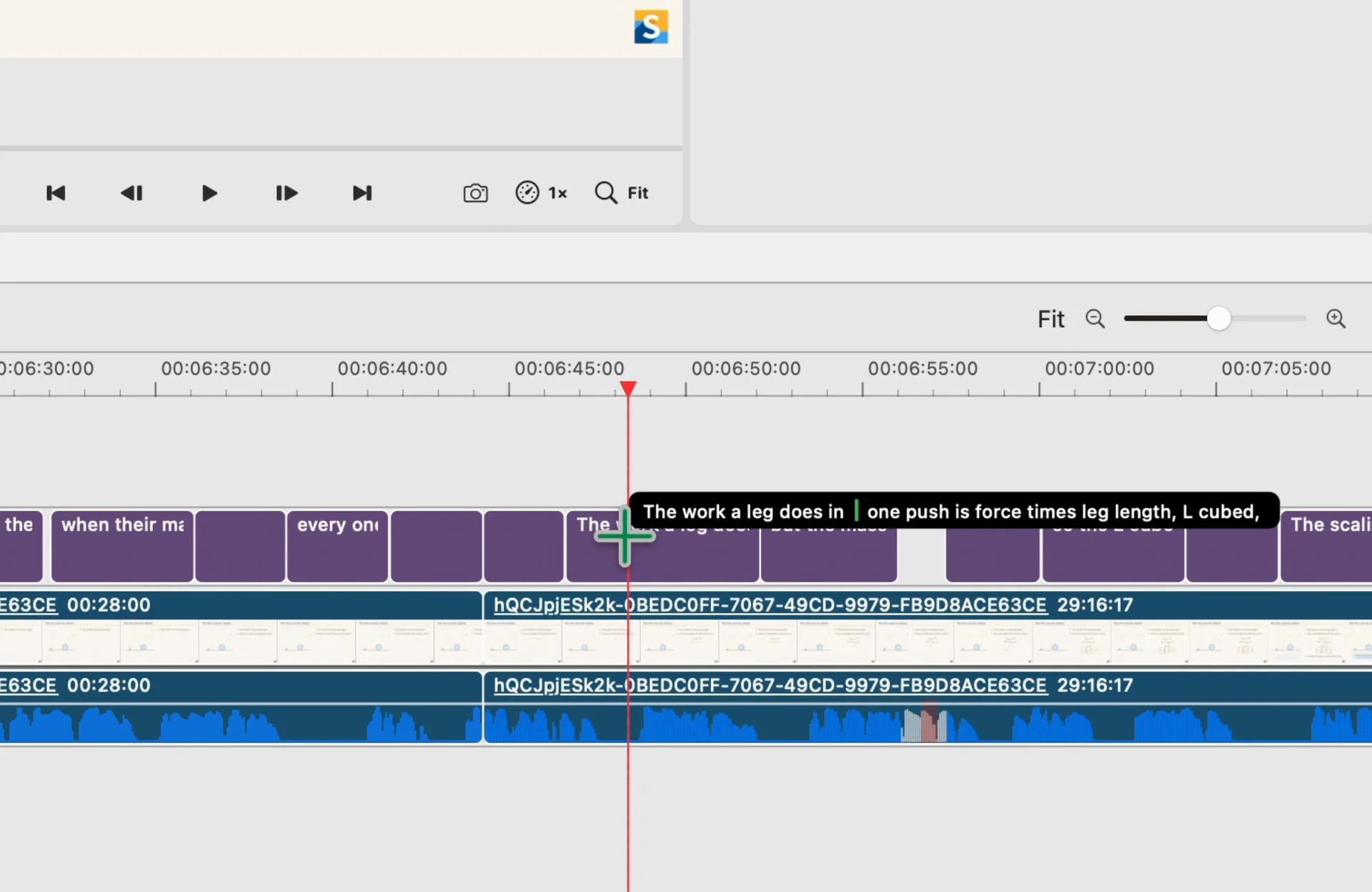
Open Video Editor and start a project, or open a recording and choose Create clip to bring it into the editor. Add video, music, narration, images and captions on separate tracks so you can move and adjust them independently. Use the playhead and timeline zoom for precise positioning, turn on snapping to line up edges, and lock tracks you want to protect.
Drag clip edges to trim. Use Razor (C) to split at a selected point. With linked video and audio, check that both stay in sync. Ripple delete can close a gap by pulling later clips forward. If the subtitle has word-level timings, the Razor hint shows which words fall on each side of the cut. You can also create another timeline in the project to try a different cut.
Select a clip to use the Inspector for operations such as adjusting picture position and scale, changing speed or color, and controlling audio level and fades. Layer text and images over video, and use keyframes on supported properties to change values over time. For example, put music under an interview, lower its volume under speech, and replay the edit around the joins.
Add and style captions without reprocessing existing text
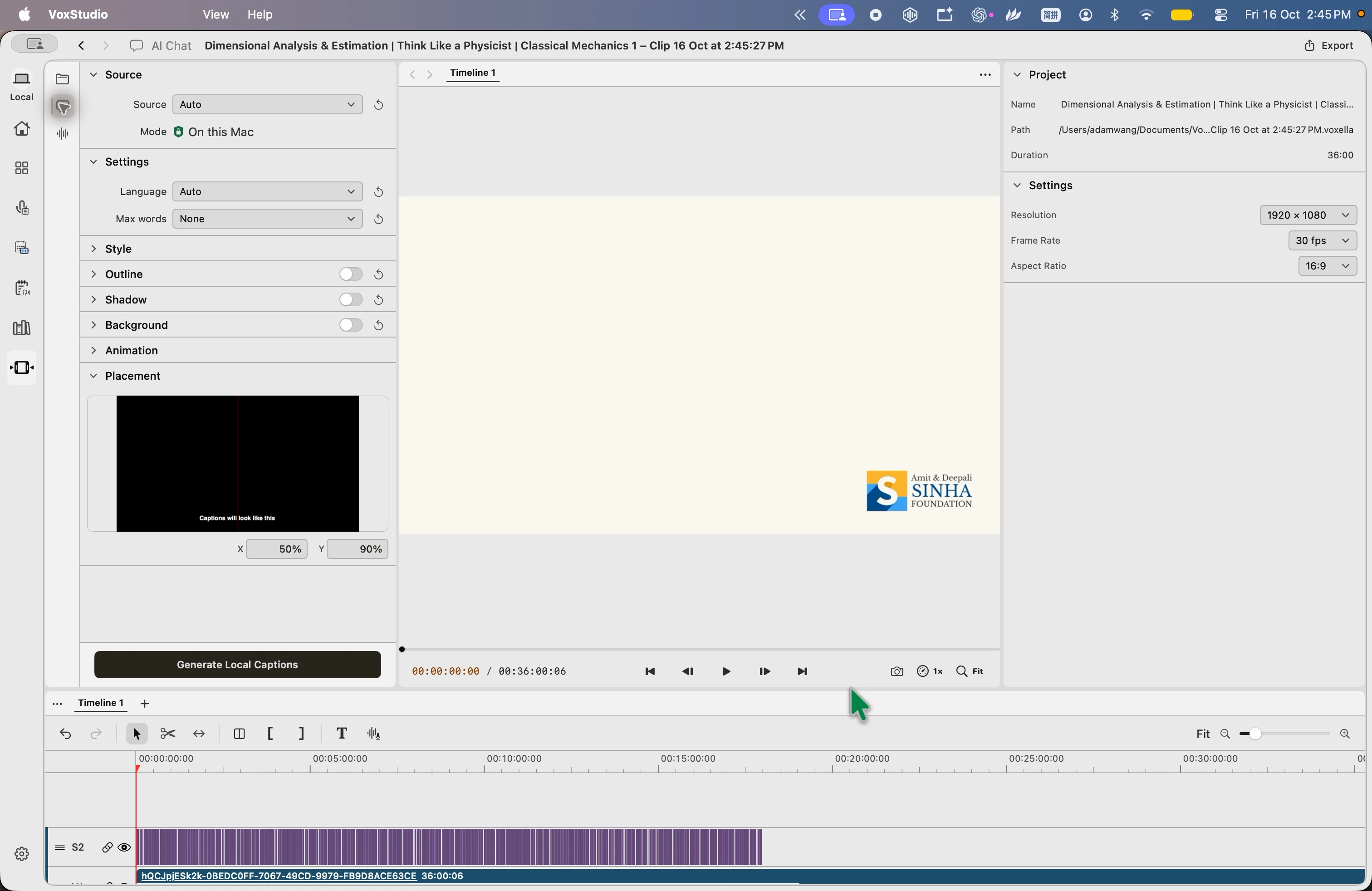
Drag a session with existing subtitles from Sessions onto the timeline, or use Captions to generate a new caption track from the relevant audio. In the editor, Generate Local Captions processes the timeline’s source audio through a separate local path. The current implementation does not apply the 15-minute limit that the Transcribe workspace applies to file submissions. A supported speech model is still required.
Edit caption text and timing on the timeline, then check line breaks, style and placement in the preview. Existing narration can be placed as ordinary audio. If you generate new local dubbing from the editor, the 2,000-character Basic limit still applies per generation task.
Find a quote in an interview and export a captioned clip
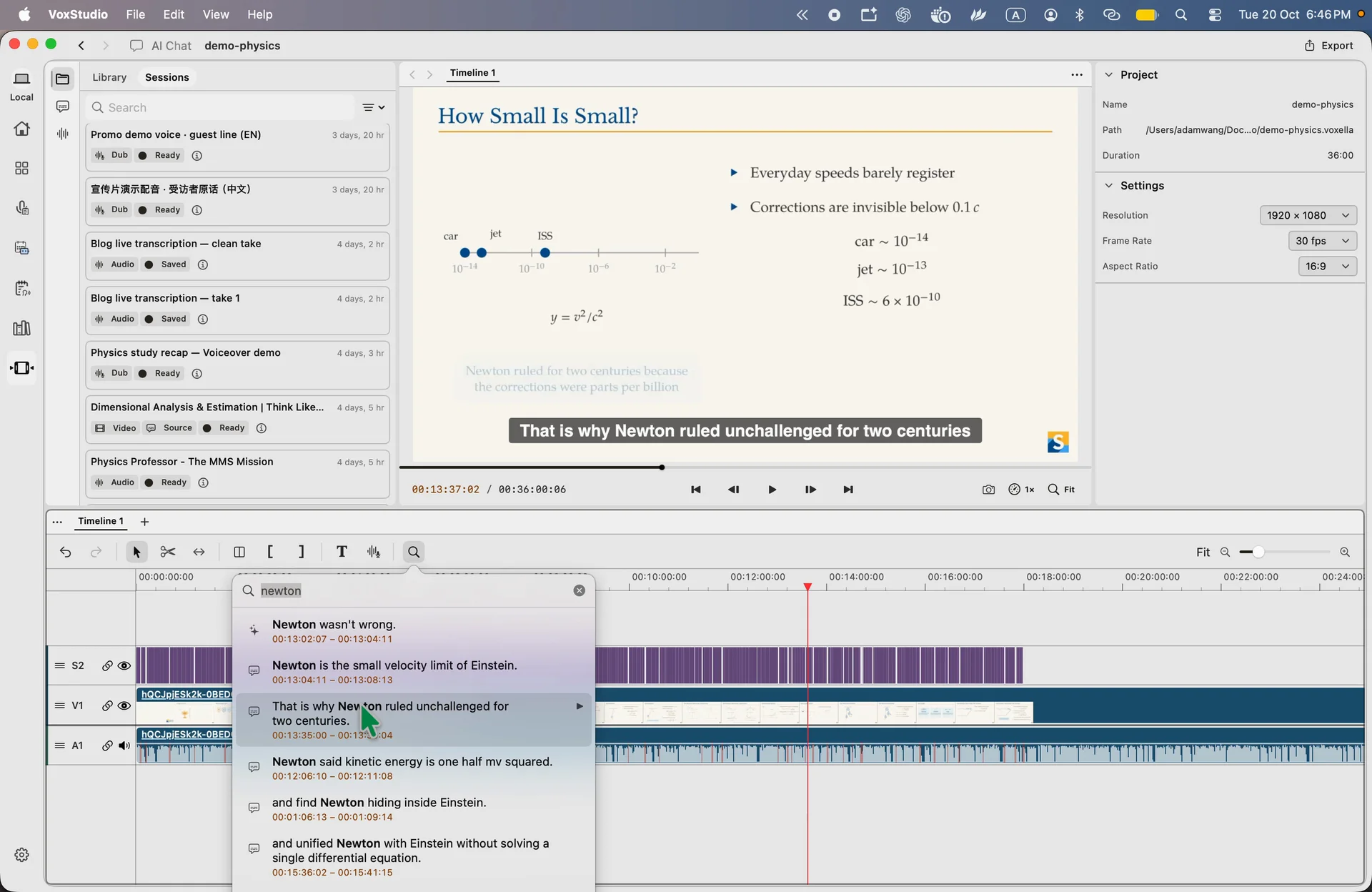
Open the magnifier in the timeline toolbar. Search for a name or phrase in the subtitles, then click a result to move the playhead. With the local smart-search model enabled and the relevant footage indexed, search can also match meaning and on-screen content. Play the original moment to confirm a match before cutting.
Use Export to render your edited timeline. Free Basic has no plan-specific cap on editing or standard video export duration or resolution, and adds no plan watermark. The editor offers H.264 and H.265 MP4, plus other formats where supported. Available choices and render performance depend on the project, codec, hardware and disk space. AI Chat and cloud generation have their own model, account and service requirements.
Reopen past work and check what needs a separate service
After the trial or a subscription ends, reopen existing audio, video, transcripts, voiceovers, notes and summaries. Search and seek to a result, organize sessions in project folders, use razor text-cut hints in the editor, and continue ordinary edits, saves and exports. Editing the words in an existing script and generating a replacement voiceover are separate actions. A new task follows your current entitlement. Work already running finishes under the entitlement it started with. Queued tasks check access when they execute.
Recording-detail and Knowledge Base Q&A have no additional Free Basic tier gate. They still need an applicable model and any required account or cloud configuration. A cloud model or external API can receive the inputs needed to answer, and may incur separate charges. Lifetime is a one-time local purchase under the terms shown at checkout. It does not add recurring cloud credits, and Meet Bot and calendar features have independent subscription requirements.
The matrix follows the Mac app’s entitlement implementation and Free Basic policy. The screenshots use the English Mac interface. We checked the long-file confirmation with a synthetic file and the voiceover meter with sample text. The longer recording and character-count scenarios above illustrate the rules.
FAQ
Can I transcribe a 12-minute interview offline on Mac for free?
Yes. With a compatible speech model prepared, Free Basic can transcribe the full 12-minute file on your Mac. File transcription covers the first 15 minutes per file.
Can I edit and export a video longer than 15 minutes?
Yes. Free Basic does not impose a video timeline or export length cap or add a plan watermark. The 15-minute rule applies to file transcription, live transcription and dictation as described above.
Do I have to pay after 14 days?
No. Free Basic starts automatically when the local trial ends without another active entitlement. The trial does not automatically bill you.
Is the 15-minute limit a daily quota?
No. Each file, recording or dictation has its own range. Free Basic has no cumulative daily or monthly quota and no cooldown.
Does the app stop recording at 15 minutes?
The recording can continue with its original media and manual notes. The first 15 minutes are the live transcription window on Free Basic.
Will my files disappear when I return to Free Basic?
Existing work remains available for ordinary editing, saving and export. New recognition and generation use the tier active when the task starts.
Which workflows benefit most from Lifetime?
Full transcription of long files or recordings, multi-file transcription, long dictations or voiceovers, and enhanced live assistance. Cloud plans and usage remain separate.
Explore the Mac workflows
- Offline Transcription for Mac
Transcribe audio and video on your Mac with local speech models, speaker labels and timed captions. Built for Apple silicon and macOS 15 or later.
- Meeting Recorder for Mac, Without a Bot
Record meetings locally on your Mac without a bot joining the call. Transcribe recordings, follow live speech and review notes in VoxStudio.
- System-Wide Dictation for Mac
Hold a shortcut, speak, and VoxStudio types at the cursor. Recognition runs on your Mac. Lifetime is one-time access to the Mac app; cloud features and your own API are separate.
Try VoxStudio for Mac
Start with one file, one recording or a short voiceover. You can check your current access in Settings → Account. Download for Apple silicon · macOS 15+ · Compare plans & trial
VoxStudio Team — We build VoxStudio. This guide records our own tests, their limits and the files needed to reproduce them.