How to Transcribe a YouTube Video on Mac
Paste a YouTube link into VoxStudio for Mac, import just the audio or keep an MP4 with sound, choose an available resolution, and transcribe the speech.
By VoxStudio Team, Product team · · 3 min read
Key takeaways
- Choose Audio to work from the spoken words alone.
- Choose Video if you want an MP4 with picture and sound. Open Advanced to see the available resolutions.
- After the download, confirm the transcription settings and check the result against the recording.
To turn a YouTube video into text on a Mac, open Transcribe → Net video in VoxStudio and paste a supported public YouTube link. Choose Audio for a smaller import or Video for a local MP4 with picture and sound. After the file downloads, choose how to transcribe it.
Decide whether you need the picture
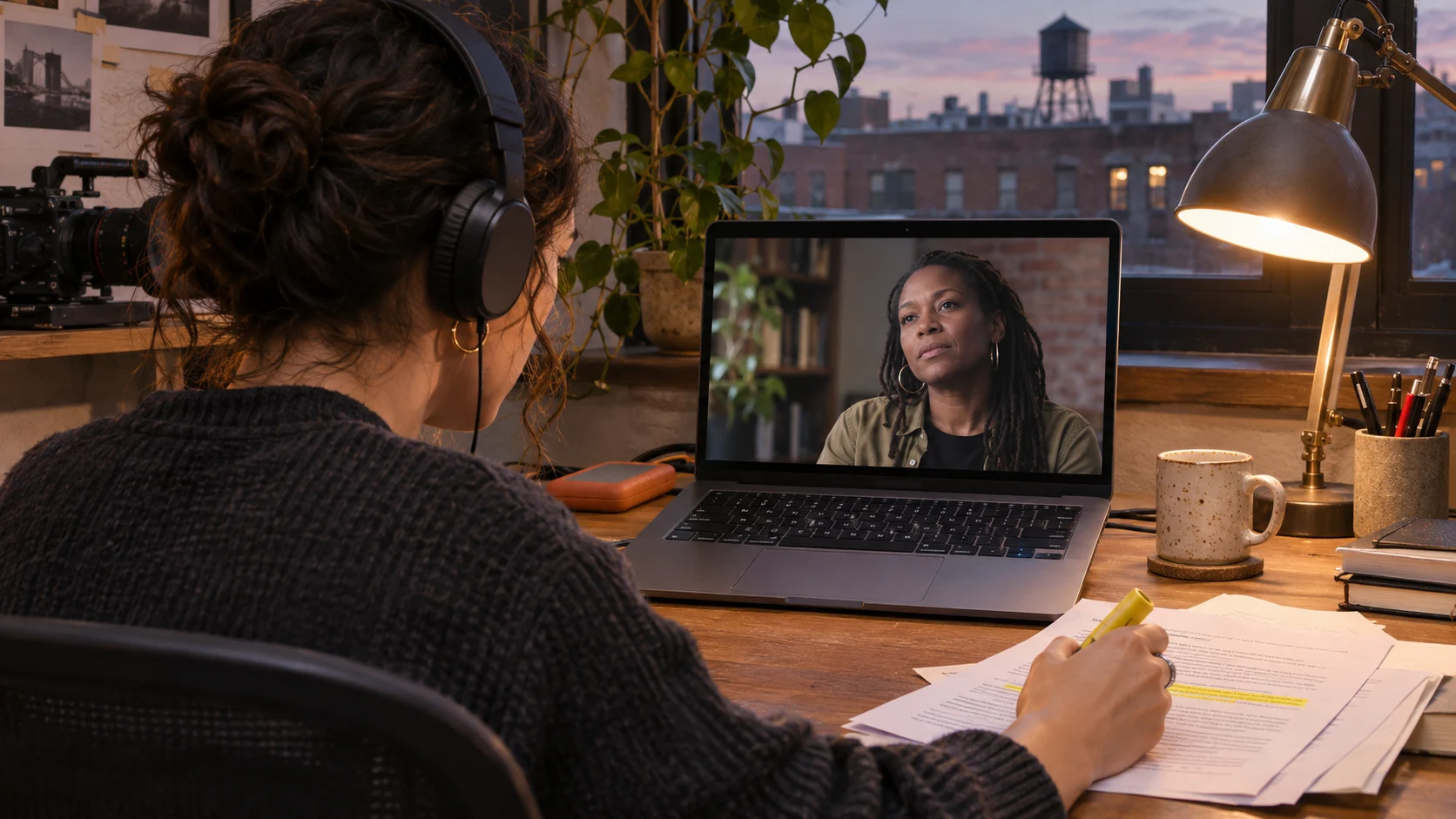
Say you have published an interview and need to pull a quote for an article. Audio gives you the speech to review without bringing in the picture. If you also need to check what the guest was pointing at, import Video so you can see that moment. In either mode, VoxStudio transcribes the speech from the imported media, so it works even when YouTube captions are unavailable.
Import the link and start transcription
1. In Transcribe → Net video, paste a public YouTube watch, Shorts or youtu.be link you are permitted to import. The download needs internet access and your app must have access to create new content.
2. Select Audio or Video. For Video, open Advanced after pasting the link. VoxStudio lists the resolutions it can use for that source. Auto aims for up to 1080p when available. Choose 720p if it is listed and you only need a reference picture, or a higher listed resolution if you need to read small on-screen details. If your requested stream becomes unavailable, the app can download a lower resolution and show a notice.
3. Use the download button, then confirm the spoken language and review the processing and storage choices. If you want processing and storage on your Mac, select the local choices and install any required speech models. Selecting cloud processing or storage changes where your data is handled.
Check the words against the original
Once transcription finishes, open the session and play the passage you plan to quote. Compare the text to the audio, especially names and numbers. With Video, also check the frame around the quote for gestures or graphics that change its meaning. This interview is an example workflow.
Before importing
FAQ
Do I need YouTube captions to transcribe the video?
No. VoxStudio generates a transcript from the speech in the imported audio or video file.
Will a higher resolution make the transcription more accurate?
Resolution controls picture detail. Choose it based on what you need to see. For the transcript, check that the speech is clear and the spoken language is set correctly.
What if the YouTube link will not import?
Check that it is a supported public video link and opens in your browser. If picture is optional, try Audio. If you have a permitted local copy or the original recording, use Import files in Transcribe.
Explore the Mac workflows
- Offline Transcription for Mac
Transcribe audio and video on your Mac with local speech models, speaker labels and timed captions. Built for Apple silicon and macOS 15 or later.
- Meeting Recorder for Mac, Without a Bot
Record meetings locally on your Mac without a bot joining the call. Transcribe recordings, follow live speech and review notes in VoxStudio.
- System-Wide Dictation for Mac
Hold a shortcut, speak, and VoxStudio types at the cursor. Recognition runs on your Mac. Lifetime is one-time access to the Mac app; cloud features and your own API are separate.
Turn your next interview into a transcript
Open VoxStudio for Mac and choose Transcribe → Net video. Download for Mac · Compare plans & trial
VoxStudio Team — We build VoxStudio. This guide records our own tests, their limits and the files needed to reproduce them.