Where Do AI Meeting Notes and Recordings Go on Mac?
Local capture, speech recognition and AI note enhancement can use different processing paths.
By VoxStudio Team, Product team · · Updated · 8 min read

Key takeaways
- Local recording, speech recognition and AI note enhancement are separate choices with separate data paths.
- With BYOK you can point note enhancement at a local OpenAI-compatible server, but check every task and fallback.
- Live note enhancement, Live Q&A and cross-session Knowledge Q&A do not all support the same providers.
How to set it up
Use local recording and supported on-device speech recognition if you want the recording and transcription workflow to stay on your Mac. Check the configured model before enabling Live Enhance or AI questions.
What to check
With a remote text model, the relevant text and prompts may be sent to that provider. Review cloud sync, exports and provider settings separately, and do not assume that local recording means every later step is offline.
Can note enhancement use a local model?
You can point Live Enhance and Live Q&A at an OpenAI-compatible server running on your own Mac. Local recording, on-device speech recognition and local LLM inference are three separate settings, so turning on one does not turn on the others. After you choose a local address, still check that the model itself runs on this Mac and that each task’s primary and fallback models also point to local services.
These steps follow the current Mac app code and settings screen. The screenshot is a cropped view of the Chinese-language settings page; it shows an existing OpenAI entry only to locate the controls and is not a demonstration of a working local-model connection. Running Ollama or LM Studio through a full meeting Q&A was not part of this review, so test your own model and version.
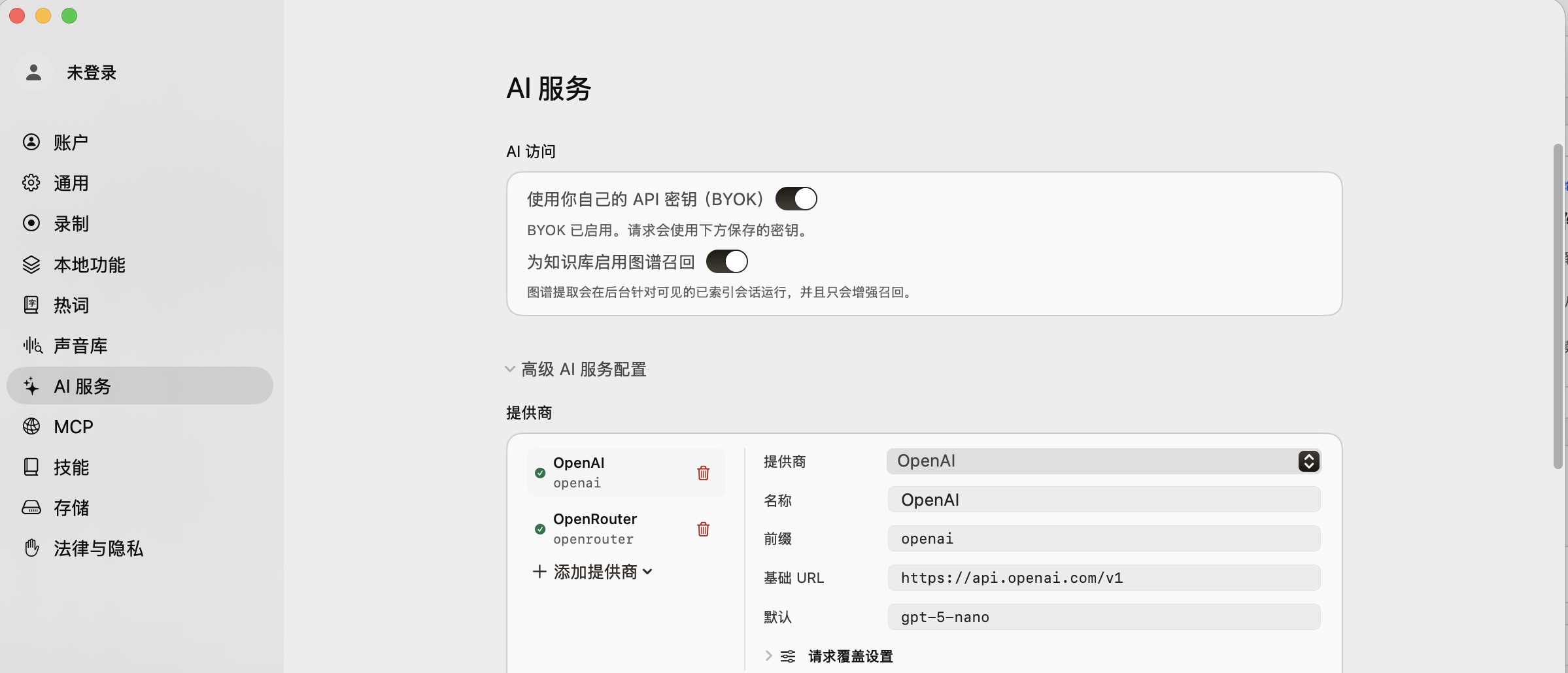
Set up a local OpenAI-compatible provider
Example with Ollama
- 1. Start the server and prepare a model — Install and start Ollama on the same Mac, download or prepare a local model, and note the model ID the server reports. Confirm it is a local model and not a cloud model reached through a local endpoint.
- 2. Add the provider in VoxStudio — Open Settings > AI Service, turn on “Use your own API key (BYOK)”, and expand the advanced AI service configuration. Choose Add provider and pick Ollama. The preset base URL is http://localhost:11434/v1; change it if your server uses another port.
- 3. Enter the model and credential — Keep the prefix ollama and enter the full local model ID in the default field, for example qwen3:8b (a format example only). The connection test can pass with an empty key, but text generation in the current code still needs a non-empty saved credential for the provider. Ollama’s local endpoint ignores the key value, so a placeholder such as ollama works; use the real key if another service enforces one.
- 4. Test the connection and set the task model — Choose Test connection. “Connected” only means the model-list endpoint answered; it does not prove generation or meeting features work. Then open the task models, set the primary Subtitle cleanup model to prefix/model-id such as ollama/qwen3:8b, and remove any remote fallback models you do not want used. Live Enhance and Live Q&A text generation currently use this task model.
- 5. Verify with non-sensitive content — Start Live Assistant with note enhancement on, record a short test you have permission to use, type one cue and wait for the enhanced note. Compare it with the transcript and the audio. Test Live Q&A separately. Check your local server log, the task models and the fallbacks rather than inferring from the connection status that every request stayed on this Mac.
Local provider presets in the app
| Provider | Default base URL | What to check |
|---|---|---|
| Ollama | http://localhost:11434/v1 | Make sure the model runs locally, not a cloud model. |
| LM Studio | http://localhost:1234/v1 | Start the local server and enter the model ID it shows. |
| llama.cpp / LocalAI | http://localhost:8080/v1 | Both default to the same port; use the service you actually run. |
| vLLM / Jan / LiteLLM | localhost:8000/v1, 127.0.0.1:1337/v1, localhost:4000/v1 | LiteLLM is a proxy and may forward to a remote service; check its routing. A preset does not mean every deployment was tested. |
You can also choose a custom provider and enter a compatible base URL, name, prefix and model. In the current code, plain HTTP is only allowed for the loopback addresses localhost, 127.0.0.1 and ::1; other addresses need HTTPS, and a LAN or remote HTTPS address is not local processing. The server must support the model-list and Chat Completions endpoints. Speed, context length and output quality vary by model.
Check Live Q&A, knowledge and fallbacks separately
Live Q&A answers and Live Enhance use the Subtitle cleanup task model. Automatic question detection can also call a separate Decision Model or its LLM fallback. If you need everything local, check the Decision Model’s primary and fallback models and its LLM fallback so nothing falls back to a remote provider. Knowledge graph extraction and queries have their own task models; turn them off if you do not need them.
Cross-session Knowledge Q&A is a different path: the current code enables its tool calling only for some providers, and the generic local OpenAI-compatible presets do not automatically qualify. A successful connection or working live note enhancement therefore does not mean Knowledge Q&A can use a local model. If Live Q&A pulls in knowledge-base content, verify that route on its own too.
When the connection or generation fails
- Cannot connect — Confirm the local server is running and the port and /v1 path are correct, then check that the server’s model-list endpoint is reachable. VoxStudio and a localhost server must be on the same Mac.
- Connected but nothing is generated — Check the saved non-empty credential, the actual model ID, and that the primary Subtitle cleanup model uses the right prefix/model format. Confirm the server has the model loaded and read any message in the app.
- Slow or inaccurate results — Check your Mac’s resources and the model’s context size, and validate with a short test first. Generated notes and answers can miss or misread content, so go back to the transcript and recording.
Official provider documentation
- Ollama: OpenAI compatibility
Local endpoint, model IDs and what is supported.
- LM Studio: OpenAI compatibility
Local server, model list and Chat Completions endpoint.
Confirm where your data goes before you start
Check each stage in turn: the recording source, how it is transcribed, which AI model provider handles notes and questions, and whether cloud sync is on. When you share notes, also check what the exported file contains and who receives it.
FAQ
Does using AI meeting notes mean my recording leaves my Mac?
Not necessarily. Local capture, speech recognition and AI note enhancement can use different processing paths. With local recording and supported on-device speech recognition, the recording and transcription workflow can stay on your Mac.
What may be sent if I use a remote text model?
The relevant text and prompts may be sent to that provider. Check the configured model before enabling Live Enhance or AI questions, and review cloud sync, exports and provider settings separately.
Does BYOK always need a cloud API?
No. You can choose a local OpenAI-compatible server, but check the local model, each task and the fallback routes. The current code requires a non-empty saved credential for text generation even if the local server ignores it.
If my local server connects, can it answer every question?
Do not assume so. The connection test only checks the model-list endpoint. Live Enhance, Live Q&A and Knowledge tool-based Q&A use different paths, and the generic local presets do not automatically support the last one.
Explore the Mac workflows
- Meeting Recorder for Mac, Without a Bot
Record meetings locally on your Mac without a bot joining the call. Transcribe recordings, follow live speech and review notes in VoxStudio.
- AI Knowledge Base for Recordings & MCP
Search across meeting recordings and ask questions with cited sources. Use VoxStudio knowledge in the app, ChatGPT or Claude through Mac and Cloud MCP.
Try VoxStudio for Mac
Start with a short test recording you have permission to make. Download for Mac · Compare plans & trial
VoxStudio Team — We build VoxStudio. This guide records our own tests, their limits and the files needed to reproduce them.