Blog · Knowledge & research
Ask Claude and ChatGPT About Everything You Have Recorded
Turn meetings, interviews and videos into a knowledge base you can question. See a real podcast-team example in VoxStudio, then ask the same library from Claude or ChatGPT through the VoxStudio connector, with citations back to the transcript.
By David, Product Specialist at VoxStudio · · 6 min read
Key takeaways
- Every transcribed meeting, interview, video or voiceover in VoxStudio becomes part of one knowledge base you can ask in plain language.
- Answers are built from the original passages and cite the session and time, so you can open the exact moment instead of trusting a summary.
- Ask inside VoxStudio, or connect VoxStudio to ChatGPT, Codex, Claude or Cursor through MCP and ask from the assistant you already use.
- VoxStudio Cloud MCP works with one URL and an OAuth sign-in; the Mac app also runs a local MCP server for clients on the same Mac.
A real scenario: three meetings, one moving plan
A small podcast team is planning season two of "Field Notes". Over three meetings the plan keeps moving. At the kickoff it is eight episodes, launching October 20, on a $12,000 budget. At the sponsor review a coffee sponsor offers money in exchange for more episodes. By launch readiness the dates have changed again.
A week later the producer is asked a simple question: what did we actually agree, and why did it change? Without a knowledge base that means replaying about an hour of audio. With VoxStudio, it is one question.
Two places to ask
The same knowledge base answers in both places. Pick the one that fits how you work.
In VoxStudio: Ask the knowledge assistant
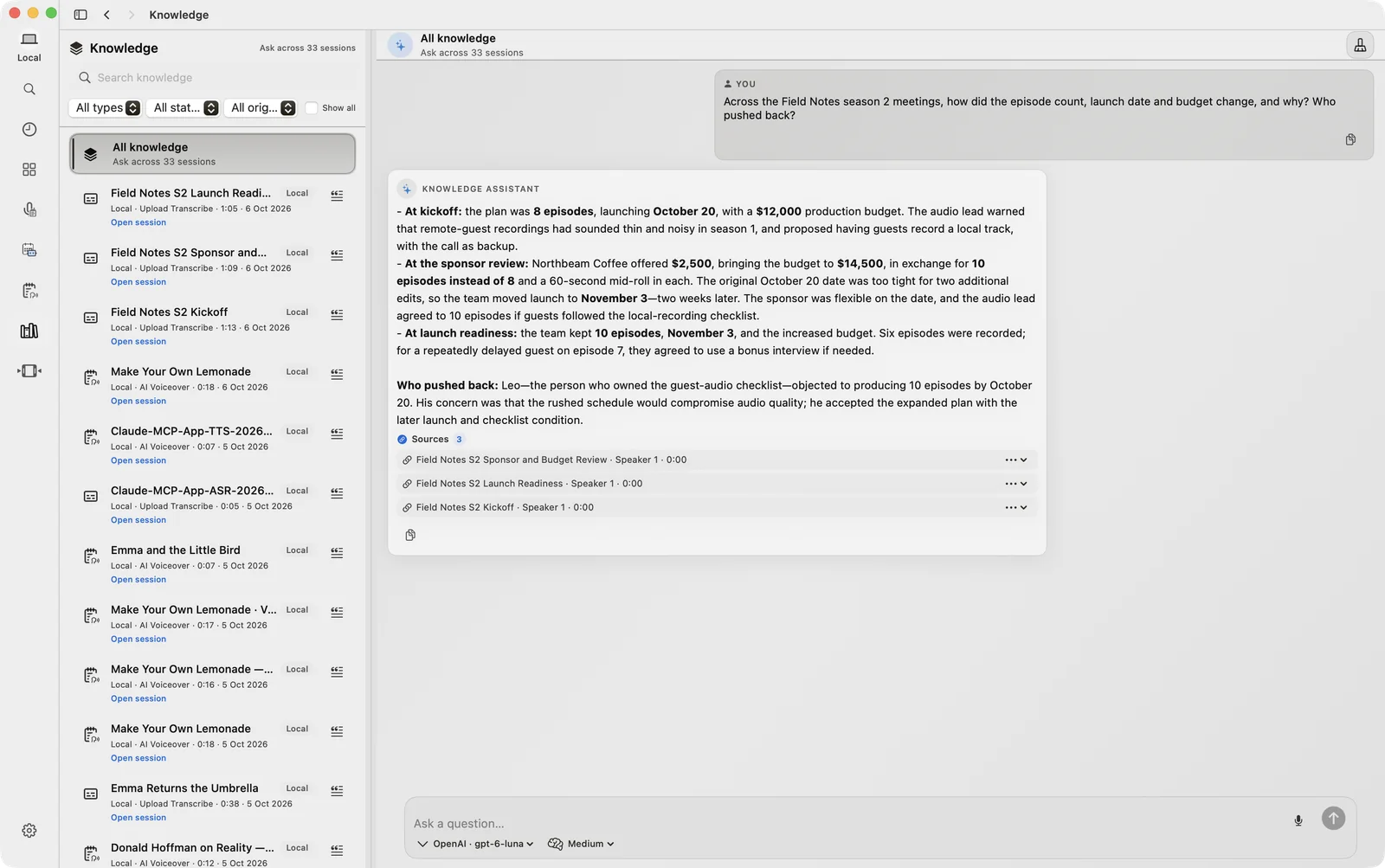
Open Knowledge, keep All knowledge selected to search every session, and type your question.
Best for: Working in the app, browsing sources, opening transcripts and media side by side. Result: A cited answer with a Sources list you can expand or open.
Open Knowledge
Choose Knowledge in the sidebar. All knowledge asks across every session; pick a single session in the list to narrow the scope.
Ask across meetings
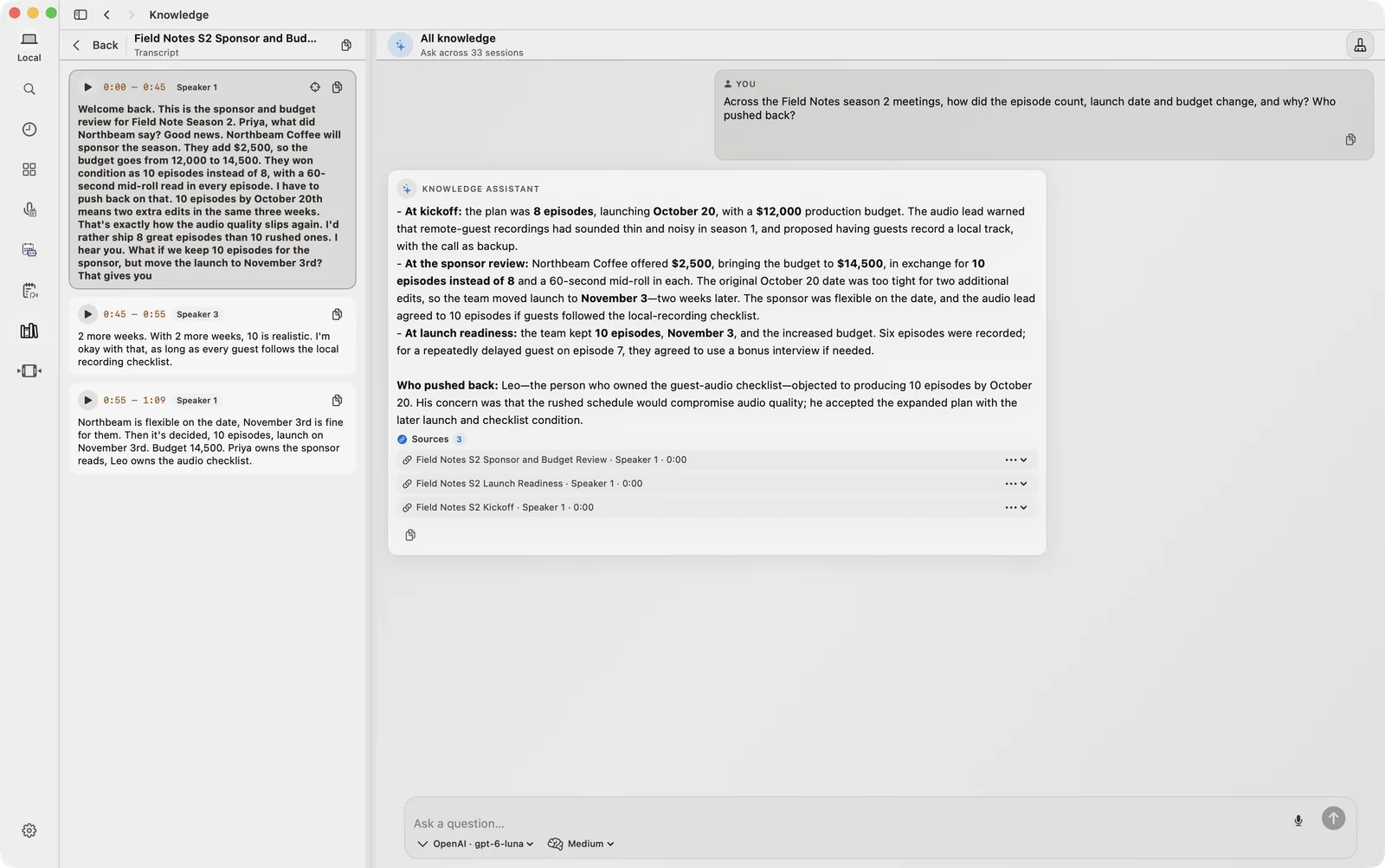
Ask a question that needs more than one meeting, for example: "Across the Field Notes season 2 meetings, how did the episode count, launch date and budget change, and why? Who pushed back?"
Check the sources
The answer lists the sessions it used. Open a source to read the original passage, or play it from that point.
Screen recording: one question answered across three meetings, with cited sources.
In Claude or ChatGPT: Ask through the VoxStudio connector
Add VoxStudio to Claude, ChatGPT, Codex or Cursor once, then ask about your recordings in the chat you already use.
Best for: People who live in Claude or ChatGPT and want their recordings available there. Result: Cited answers, timestamps you can open, and the source session right inside the chat.
Connect VoxStudio once
In VoxStudio on the web, open Settings → MCP. Copy the server URL https://voxstudio.me/cloud/mcp and follow the tab for your assistant: ChatGPT / Codex, Claude Code, Claude Desktop or Cursor. Sign in with OAuth once.
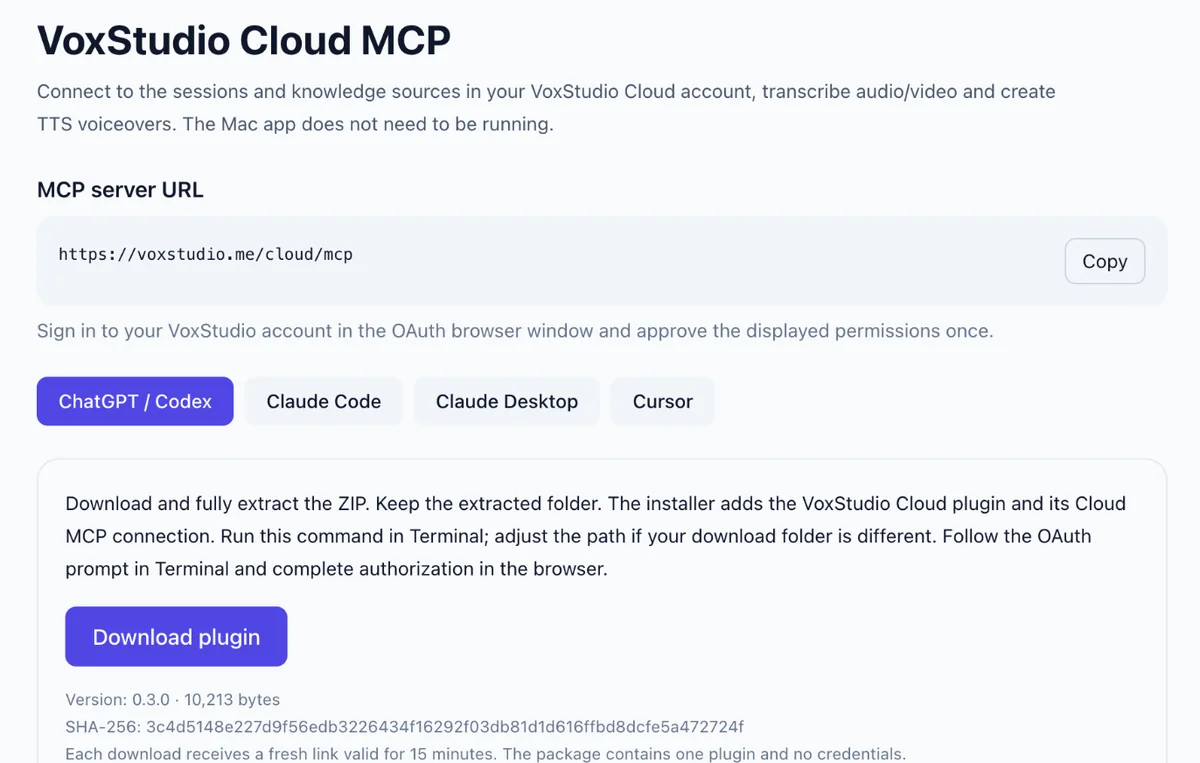
Settings → MCP lists the server URL and a setup guide for each assistant. Ask across meetings
With the VoxStudio connector turned on in Claude, ask: "Across the Field Notes season two meetings, what changed between the kickoff and the budget review, and why?" The first time, Claude asks for permission to search VoxStudio.
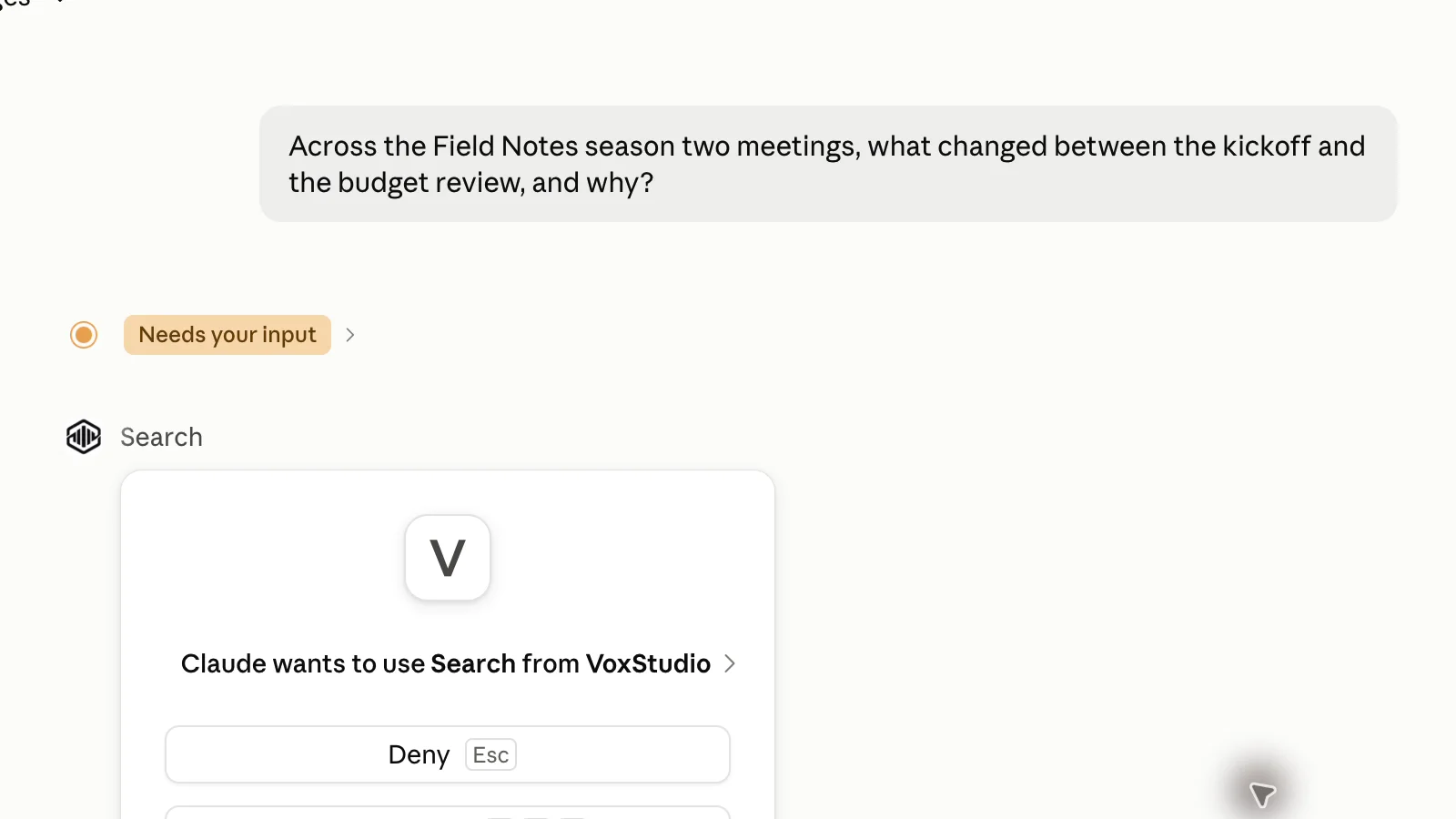
You stay in control: Claude asks before it searches your VoxStudio library. Get a cited comparison
Claude searches both sessions and lays out what changed: 8 episodes became 10, the launch moved from October 20 to November 3, and the budget grew from $12,000 to $14,500 once the sponsor confirmed.
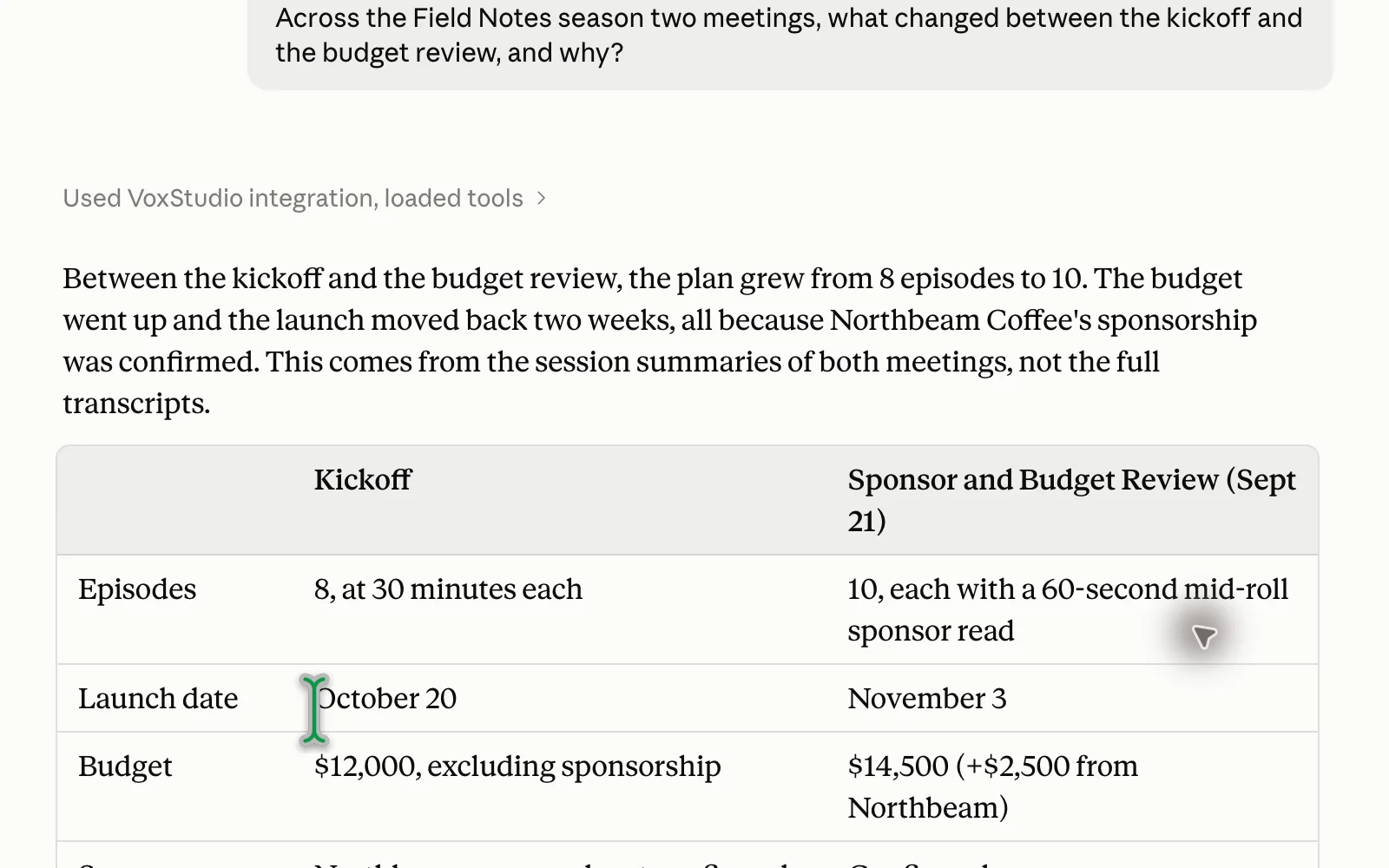
A side-by-side table built from the two meetings. Ask for the evidence
Follow up with "fetch the full transcripts and give the comparison with source citations". Each point now carries the meeting and the time range, for example [K, 0:00–0:45] for the kickoff.
![Claude answer about the audio-quality concern with citations such as [K, 0:00-0:45] and [R, 0:00-0:45] pointing to the kickoff and the review.](https://assets.voxstudio.me/static/img/blog/20261007/kb-claude-citations.webp)
Every claim points to a meeting and a time range. Open the source inside Claude
Ask Claude to open the session at the original passage. The VoxStudio panel appears in the chat with the transcript, subtitles and summary, and you can load the preview and play that exact moment.
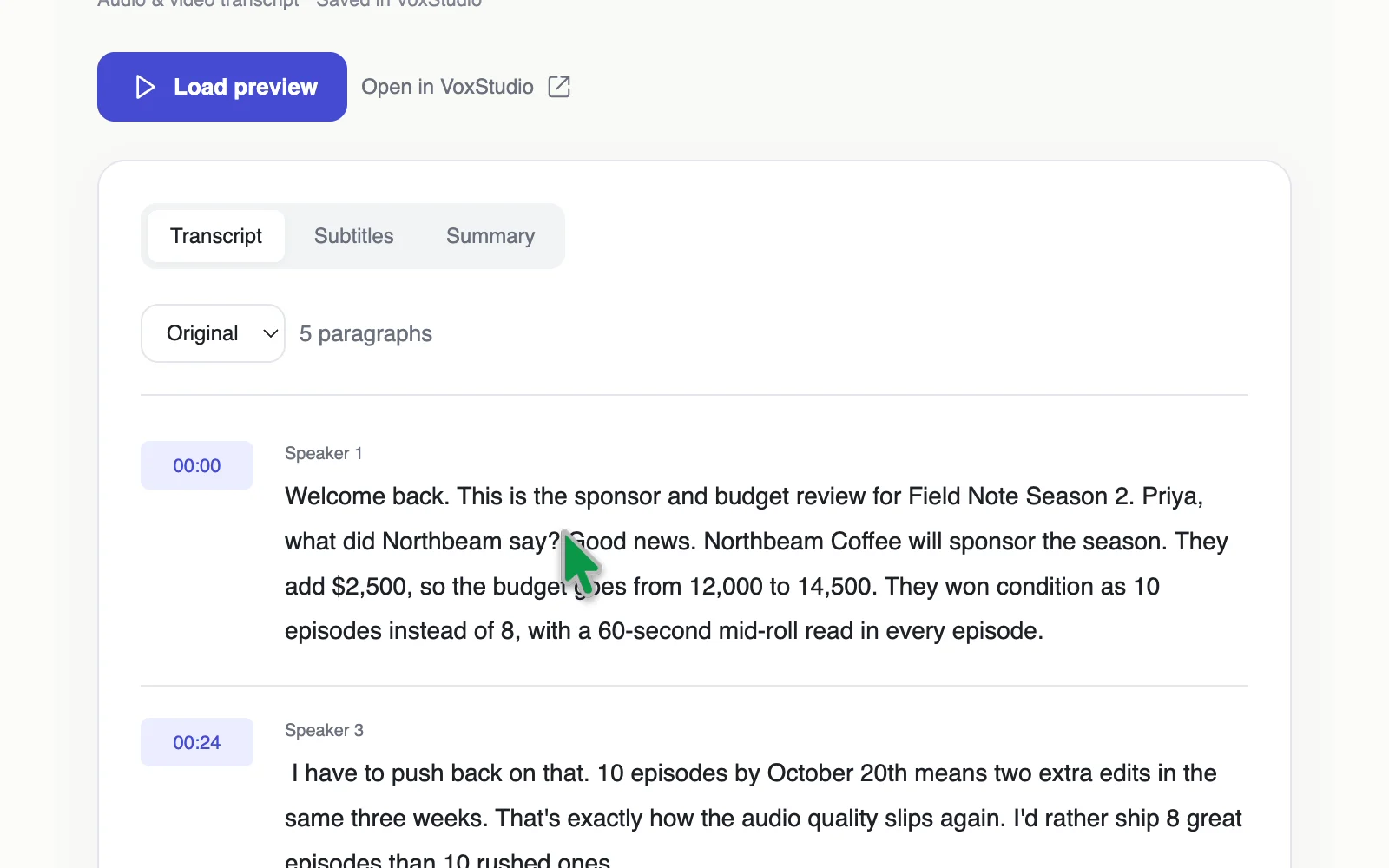
The source session, opened without leaving Claude. Turn it into action items
Ask "List every action item with owner and due date." Claude returns a table with owners, dates and the source time range for each task.
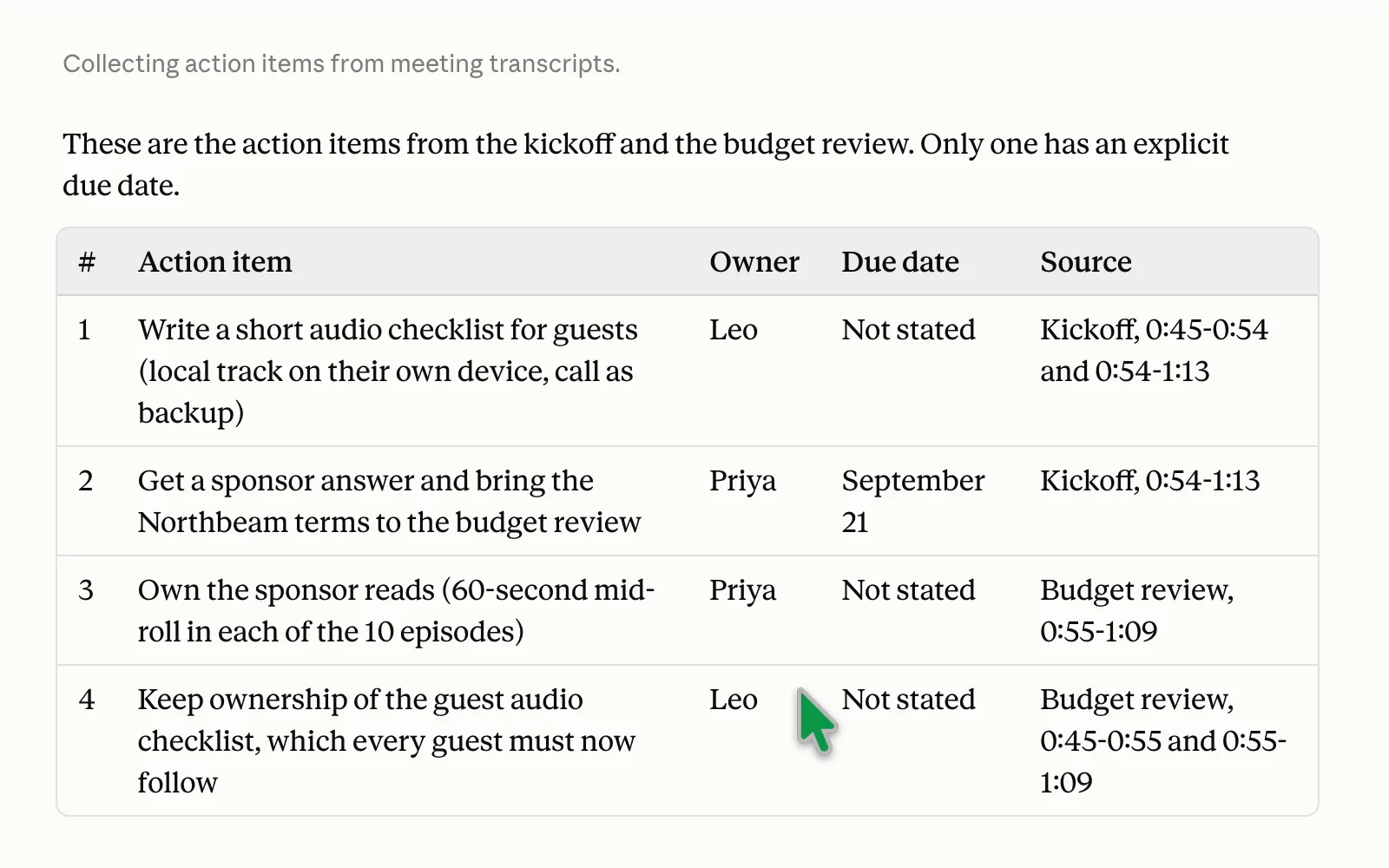
Owners and dates, each traceable to the meeting where it was agreed.
Screen recording in Claude (waiting sped up): ask across meetings, cite the transcript, open the source, list action items.
The same connector works in ChatGPT. Mention VoxStudio in the chat and ask; the VoxStudio panel opens beside the answer with the cited session.
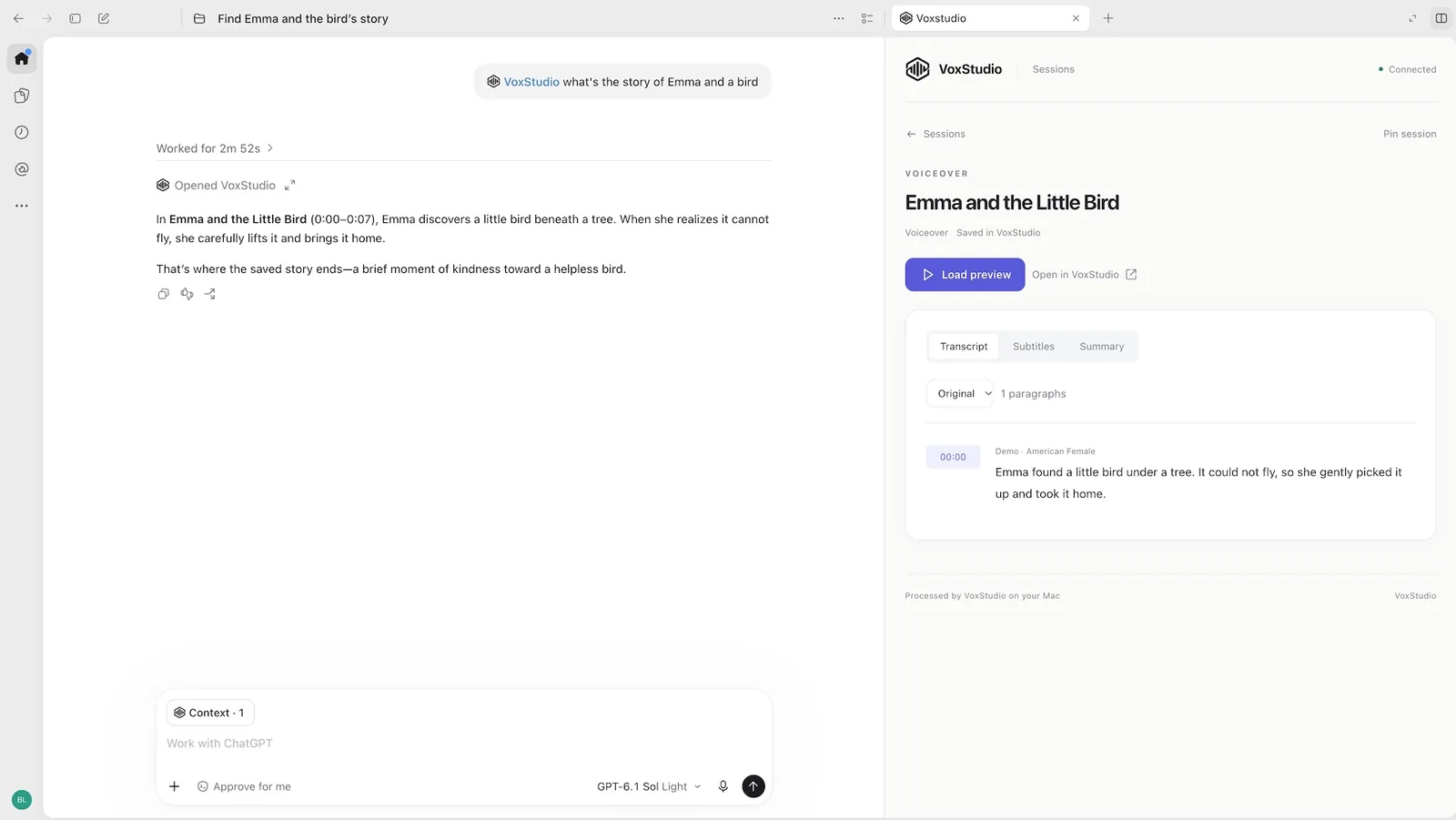
Cloud MCP or Mac MCP?
| VoxStudio Cloud MCP | Mac MCP server | |
|---|---|---|
| Searches | Sessions in your VoxStudio Cloud account | Your local library on the Mac |
| Connect with | One URL and an OAuth sign-in | MCP clients on the same Mac (127.0.0.1) |
| Mac app running | Not required | Required |
| Works with | ChatGPT, Codex, Claude Desktop, Claude Code, Cursor | Local MCP clients such as Claude Desktop, Claude Code and Cursor |
Questions that work well
- What changed, and why? — "How did the launch date change between the kickoff and the launch review, and who asked for it?"
- Who owns what? — "List every action item from the Field Notes meetings with owner and due date."
- Find the moment — "Where did Leo explain his concern about remote-guest audio?" Then open the source to play it.
- Narrow the scope — Select one session, or name it in the question, when you only care about a single meeting.
FAQ
Can ChatGPT or Claude answer questions about my VoxStudio recordings?
Yes. Connect VoxStudio Cloud MCP (https://voxstudio.me/cloud/mcp) to ChatGPT, Codex, Claude or Cursor and sign in with OAuth once. The assistant searches your sessions and answers with citations to the original transcript.
Do I need the Mac app running to use Cloud MCP?
No. VoxStudio Cloud MCP works with the sessions in your cloud account without the Mac app running. The Mac app separately runs a local MCP server for clients on the same Mac.
How do I know an answer is correct?
VoxStudio returns the original passages with session and time, and the assistant cites them. Open a source to read or play the exact passage.
Can I ask about one meeting only?
Yes. Select that session in Knowledge, or name it in your question, to narrow the scope. All knowledge searches every session.
Ask your recordings anything
VoxStudio turns meetings, interviews and videos into a knowledge base you can ask in the app, ChatGPT or Claude. Download VoxStudio for Mac
David — David works on the VoxStudio product team and spends most days inside the video editor, turning real customer workflows into faster ones.