How to Name Known Speakers Automatically in a Mac Transcript with a Voice Library
Save a clear sample of one person once, then let VoxStudio name that voice in later transcripts on your Mac. Setup steps, what happens to unknown voices, and a held-out test with three speakers.
By VoxStudio Team, Product team · · 8 min read
Key takeaways
- Save 15–30 seconds of one person’s clear speech as a reference, then tick that person under Recognize people.
- Only the people you select can be named. Other voices stay anonymous, including voices that sound close to more than one person.
- In our held-out test, all five utterances of the enrolled voice were named and none of the ten utterances from two unknown voices were.
Can VoxStudio name known people automatically on a Mac?
Yes, for transcripts made with local transcription. Save a clear reference sample of a person once, then choose that person under Recognize people in the processing options. VoxStudio names a speaker only when that voice clearly matches a person you selected. Every other voice stays Speaker 2, Speaker 3 and so on.
This is a second step after speaker labels. Labels separate the voices in a recording; the voice library attaches a name to one of them. If you have not yet checked labels on your own recordings, start with the speaker-label guide.
1. Save a reference voice from a transcript
Open a transcript in which the person speaks alone for long enough. Click that speaker’s label, choose Save voice to library, and create a new person. The dialog shows how much clear speech is available; for the speaker we enrolled it showed 30.0 seconds. The app asks for at least 3 seconds of single-speaker speech and recommends 15–30 seconds for reliable recognition.
Save voices only from people who have agreed to it. A person’s name and reference voice stay in the app’s library on this Mac, and you can rename or delete the person later.
2. Choose the people before you transcribe
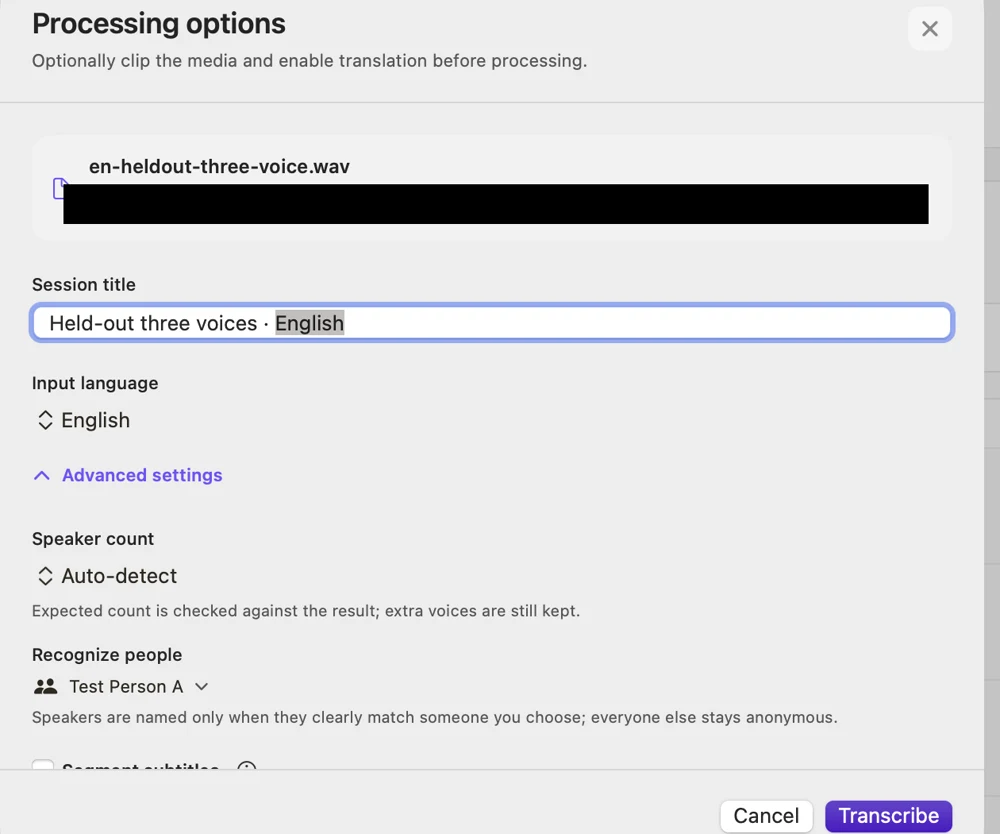
In the processing options, open Recognize people and tick the people you expect in this recording. Each person shows a voiceprint status; in our test the enrolled person showed Voiceprint ready. Only ticked people are candidates for naming, so leave out anyone who is not in the recording.
3. Held-out test: one enrolled voice and two unknown voices
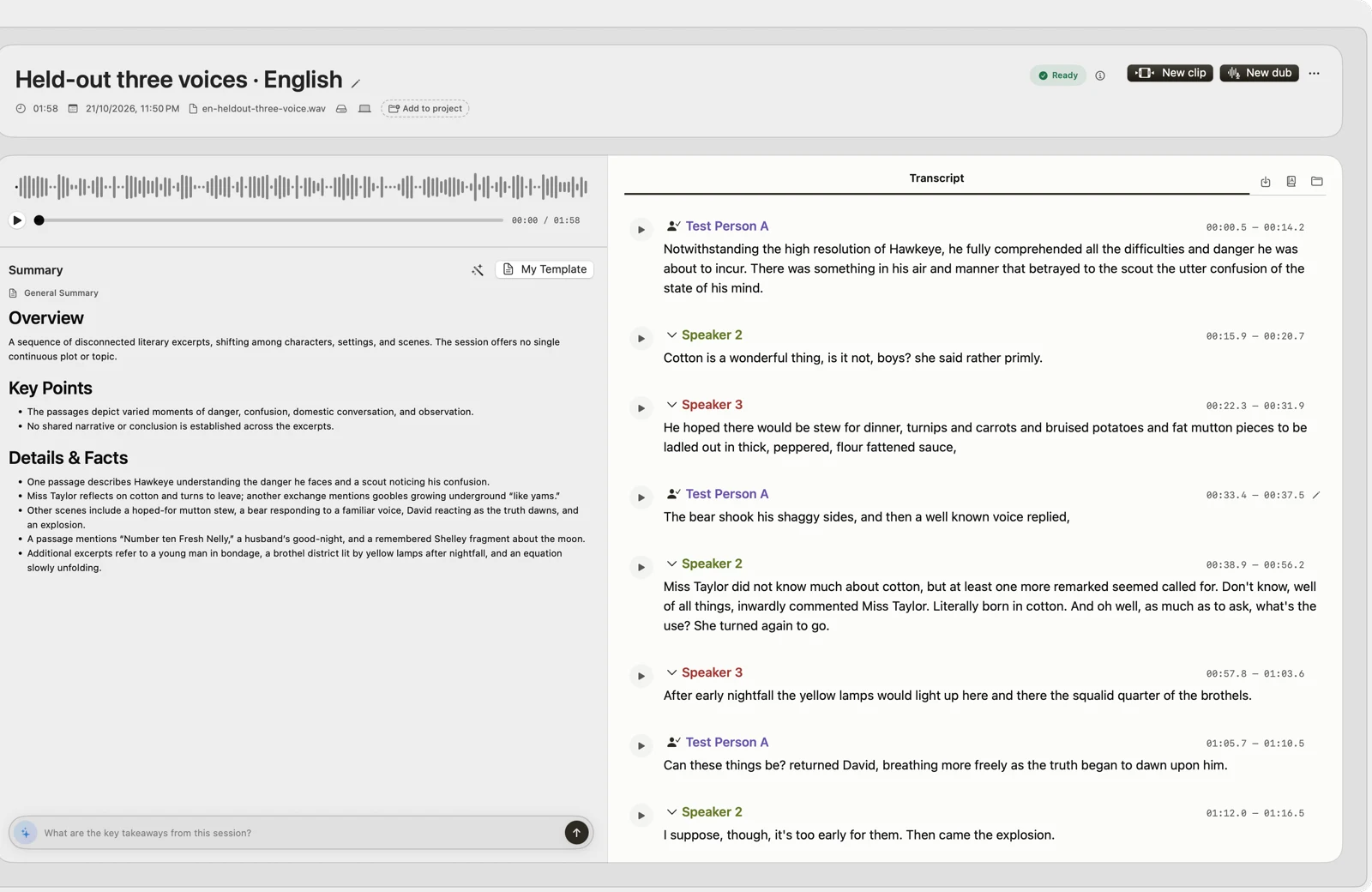
We enrolled one speaker from an earlier session, then tested a new 118.7-second file made from three LibriSpeech voices: 15 utterances in 12 turns. The enrolled speaker read sentences that were not in the enrollment clip. The other two speakers were never enrolled.
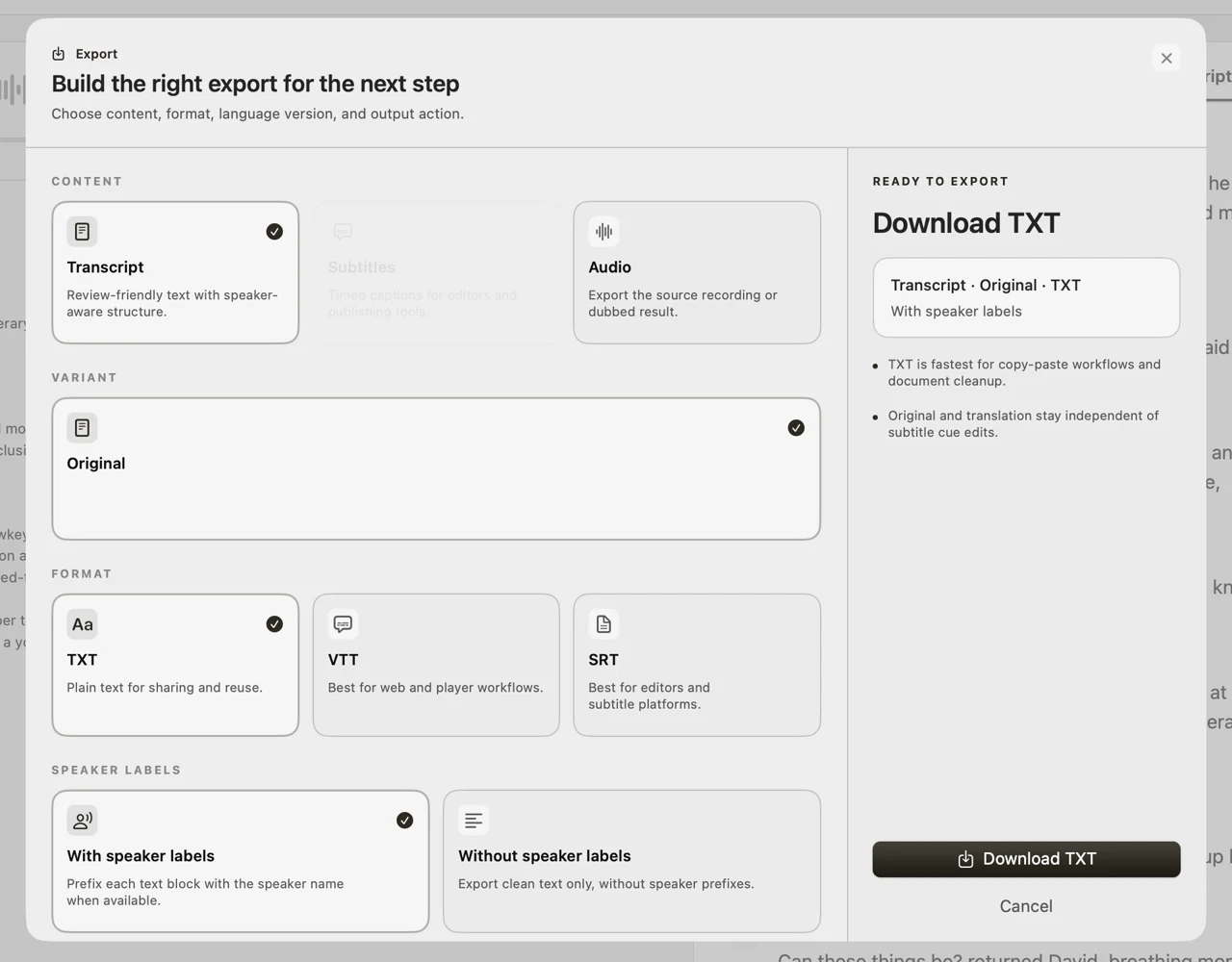
All five utterances from the enrolled voice were named Test Person A. None of the ten utterances from the two unknown voices received a person name, and each unknown voice kept one label across all of its turns. The TXT export keeps the same names.
What this result does and does not show
- One worked example, not an accuracy rate — The test used one file, one enrolled person and two unknown voices. Run your own recordings, with people you have enrolled, before you rely on names.
- Unknown is the safe default — When a voice does not clearly match, the app keeps it anonymous. Check every named block by ear before you quote a name.
- Voices that sound alike — Similar voices, a poor microphone or overlapping speech may be left anonymous or named wrongly. We did not test these cases.
- Provisional matching — The matching rules in this build are provisional. We have not measured error rates across many people.
- Local transcription only — In this build automatic naming applies to local transcription. Names from the library do not appear in cloud transcripts.
Reproduce this test
Sources and next steps
FAQ
Can VoxStudio name someone who is not in the library?
No. A voice that is not in the library stays anonymous. Save that person’s reference voice first, then transcribe again with the person ticked under Recognize people.
How much audio does a reference voice need?
The app asks for at least 3 seconds of clear single-speaker speech and recommends 15–30 seconds for more reliable recognition. Our enrolled sample had 30.0 seconds.
Does the library sync to other Macs?
We did not test syncing. The library we used is stored in the app’s folder on this Mac.
Explore the Mac workflows
- AI Knowledge Base for Recordings & MCP
Search across meeting recordings and ask questions with cited sources. Use VoxStudio knowledge in the app, ChatGPT or Claude through Mac and Cloud MCP.
Start with one person you record often
Save a clear 15–30 second sample of someone who has agreed to it, then check the first transcript by ear. See the current pricing page for access and trial terms. Download for Mac · Compare plans & trial
VoxStudio Team — We build VoxStudio. This guide records our own tests, their limits and the files needed to reproduce them.