How to Mix, Merge and Trim Audio and Video Online
Join recordings, add music to video, remove pauses and fade audio with VoxStudio’s browser tools. Follow practical examples and check export requirements.
By VoxStudio Team, Product team · · 8 min read
Key takeaways
- Use the audio editor to arrange recordings, mix tracks and export audio locally; supported browsers can also export a timeline containing video as MP4.
- For titles, captions and more visual composition, use the video editor. Editing is free to start; web rendering requires an account and a plan with video rendering.
- The examples below are illustrative. Check the transitions and the downloaded file with your own media.
Choose the right editor
Start with the audio editor when the job is primarily sound: a podcast, a voiceover with music, an audio extraction, or a simple video sequence with a mixed soundtrack. It reads and renders locally without an account. When you need text, subtitles, images or a chosen aspect ratio, use the separate video editor. Its browser preview is local, but web rendering uploads media and requires sign-in and an eligible plan; the Mac app offers offline rendering with a trial.
Open a tool
- Audio editor
Mix and export audio on your device; MP4 availability depends on browser support.
- Video editor
Arrange visual layers and captions; check render requirements before starting.
Join recordings and remove a pause
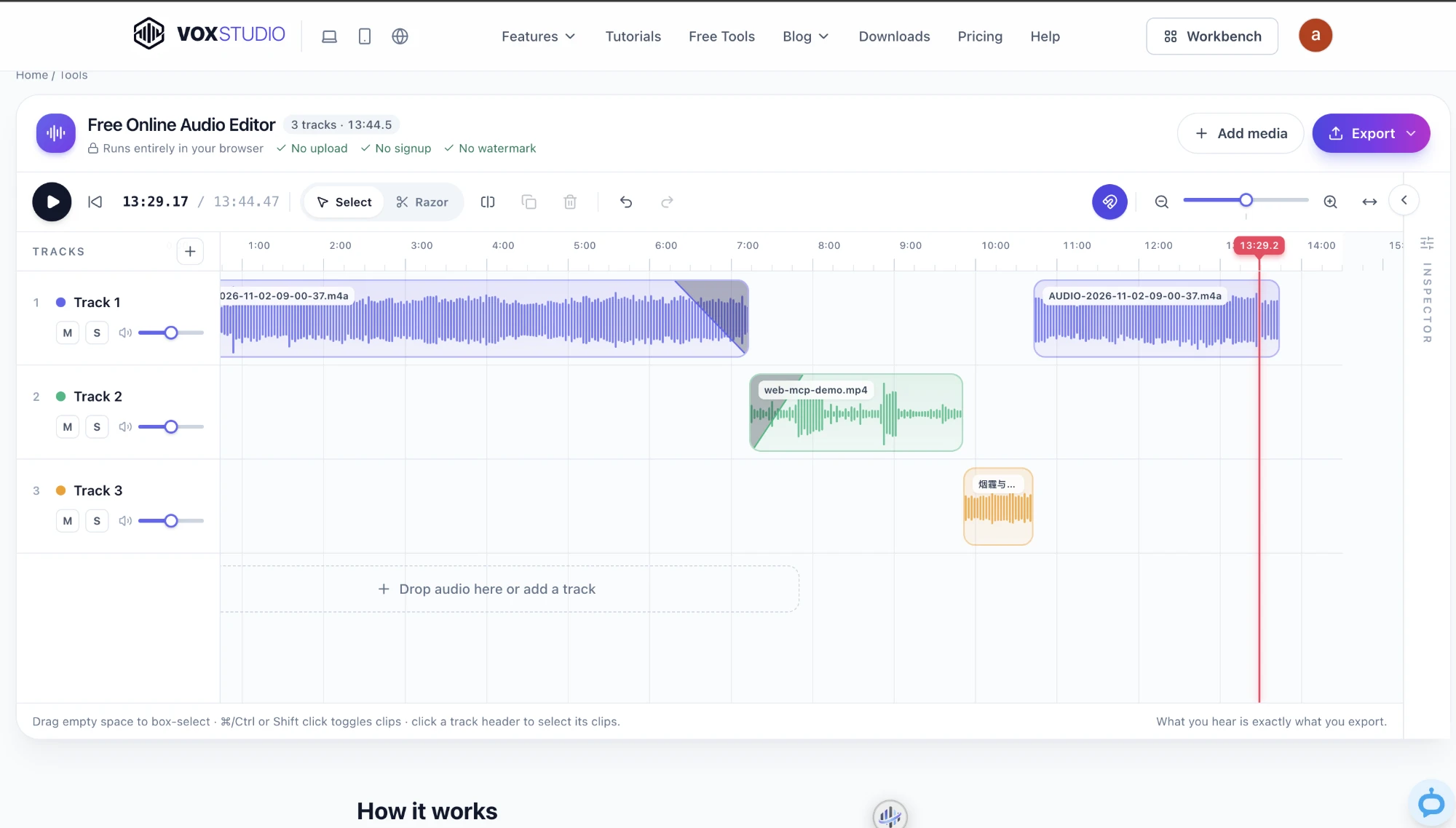
Example: combine an introduction and two interview recordings into one episode. Add the files, drag the clips into the desired order, and place each next clip directly after the previous one. Drag the outer edges to trim unwanted starts or ends. To remove a pause in the middle, use the razor at both ends, switch back to selection, delete the unwanted section and drag the following clip left to close the gap. Listen across every join, then export MP3 for sharing or WAV for further editing.
Mix narration with background music
Example: place a 60-second voice recording on one track and music on a second track, starting at the same point. Select the music clip and lower its volume until the words remain clear; adjust track volume as needed. Drag the round handles at the clip’s upper corners, or use Fade in and Fade out on the Audio tab, to soften the music at the beginning and end. Preview the loudest speech and the ending, export, and listen again on headphones or speakers. Use music you have permission to use.
Join video clips or add a soundtrack
Example: add two short video files and a music file to the audio editor. Place the videos end to end and the music on another track. Trim their edges, balance the original sound against the music, and preview each cut. If MP4 appears in Export, select it to render the picture and mixed audio on your device. MP4 is offered only when the timeline has decodable video and the browser can encode the required video and audio. If it is absent, try a supported, up-to-date browser or use the video editor and check its render requirements.
In this simple MP4 workflow, overlapping video clips do not create a split screen: the uppermost visible video wins. A gap with no video is black, and footage with different shapes may be fitted inside the output frame with empty margins. Fades and volume shape the sound, not a visual transition. Watch the downloaded MP4 from beginning to end, especially around joins and gaps.
Extract a section of sound from video
Example: keep a 30-second answer from an interview video. Add the video to the audio editor, trim to the answer or split around it and delete the rest, then choose MP3 or WAV rather than MP4. Listen to the exported file to confirm that the first and last words are intact. MP3 is compressed; WAV is useful if you plan to edit again. Available formats depend on the browser.
Make a captioned social clip
For a vertical product demonstration with a title and subtitles, open the video editor, add the video and audio, trim and arrange them, then add text or import SRT/VTT captions. Choose a 9:16 output preset and preview the framing and timing. Before rendering on the web, sign in and check that your plan includes video rendering; alternatively check the Mac trial. Verify the final video and subtitle readability after rendering.
Before closing the tab
Keep your original files. The audio editor attempts to autosave its draft and source files in this browser. Storage can fail or be cleared, so check the saved indicator, keep the originals and export a copy before closing. Long media can require substantial device memory. Video imports also need a decodable audio track. If a file does not open, check that it plays normally and try a current browser or a compatible format. Speed changes also change pitch. Audio editing is local; separate web transcription or cloud video rendering has its own account and upload requirements.
FAQ
Can I combine MP3 and video?
Yes. Add both to the audio editor, put the music on another track and balance the levels. If a video clip is present and the browser supports MP4 encoding, export a video with the mixed soundtrack.
Can I crossfade two songs?
Place them on separate tracks with an overlap, fade out the first and fade in the second, then listen to the overlap and adjust the timing and levels.
Does audio editing upload my files?
The audio editor decodes, mixes and exports on your device. Web video rendering and other cloud services are separate workflows.
Explore the Mac workflows
Start a mix
Add your own recordings and preview the result in your browser. Open the audio editor · Compare plans & trial
VoxStudio Team — We build VoxStudio. This guide records our own tests, their limits and the files needed to reproduce them.