From a video or recording to searchable text · Lesson 1 of 3
Free Online Audio Editor: Trim, Fade and Merge Audio Without Uploading
Trim, split, merge and fade audio in your browser, then export MP3, WAV, FLAC, M4A or Opus. A step-by-step guide to a free audio editor that never uploads your files.
By VoxStudio Team, Product team · · Updated · 6 min read
Key takeaways
- The free audio editor runs entirely in your browser: decoding, editing and encoding happen on your device, so your file is never uploaded.
- You can trim, split, merge, fade, change volume, pan and speed, then export MP3, WAV, FLAC, M4A or Opus.
- There is no signup, watermark or time limit. Very long files are limited by your device memory.
What you will finish
A clean audio file: silence trimmed from the ends, clips arranged in the order you want, fades applied, and the result saved as MP3 or another format. Allow about five minutes for a short recording.
Open the editor
- Free Online Audio Editor
Runs in your browser. No upload, no signup, no watermark.
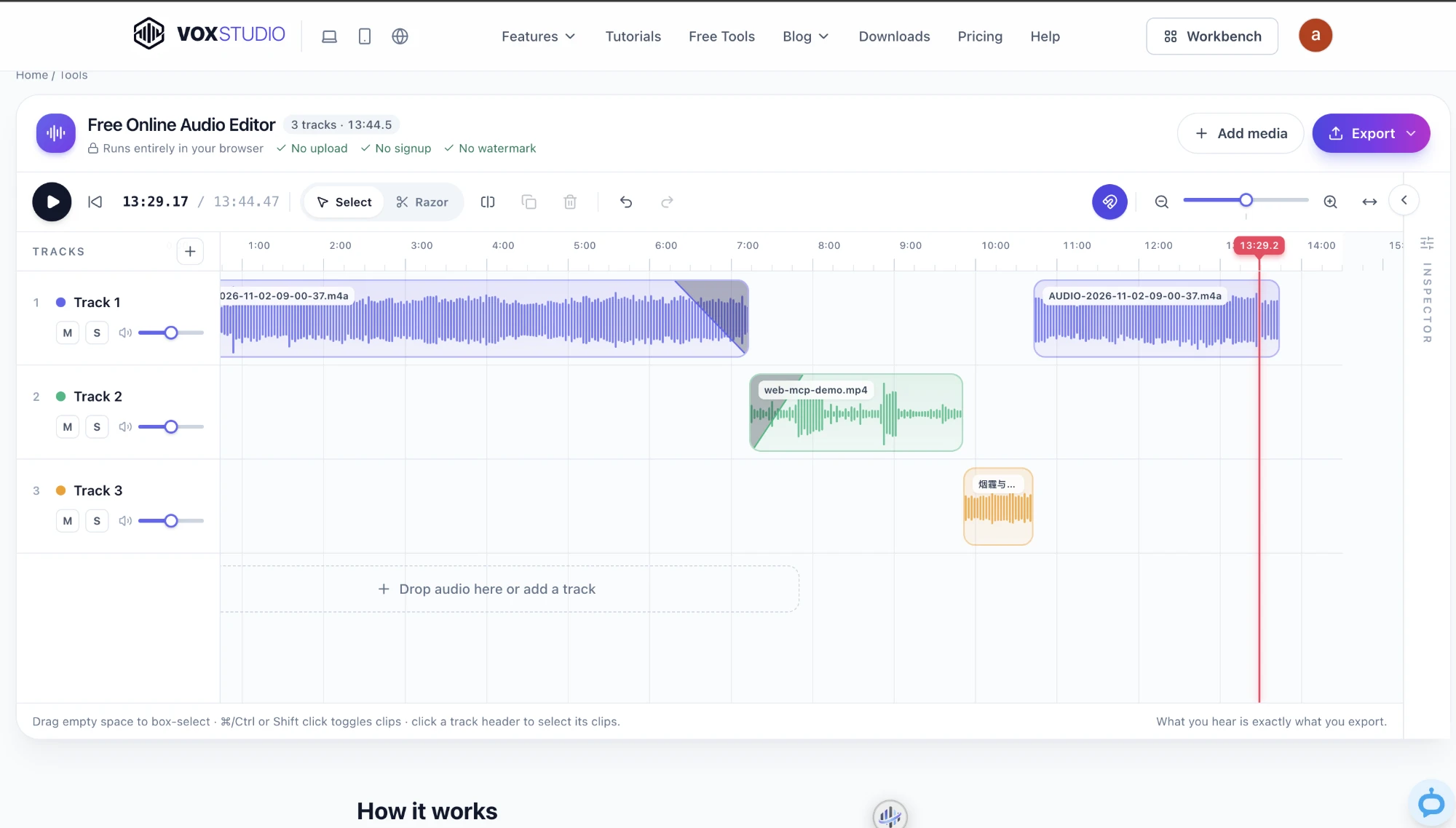
1. Add your audio or video
Drag files onto the timeline or choose them from your device. Audio files load as clips. A video file contributes its audio track, so you can also use the editor to pull the sound out of an MP4 or MOV. Each file lands on a track; add more tracks when you want clips to play at the same time, such as a voice over music.
2. Trim and split
Drag the edge of a clip to trim silence or a false start. To remove a section from the middle, split the clip at the start and end of the section, then delete the piece between them. Playback uses the same audio engine as the export, so what you hear is what you save.
3. Join recordings or mix voice with background music
For a single recording made from several takes, place clips end to end. For music under narration, align the two clips on separate tracks and lower the music until the voice is clear. Select a clip to set its volume, pan and speed, and add a fade in or fade out so cuts do not click. Speed uses resampling, so pitch changes together with speed.
4. Choose a format and export
Open Export, pick a format and quality, and render. The file is built on your device and offered as a download. Normalize raises the loudest peak to a consistent level when a recording is quiet.
Which format should you export?
| Best for | Trade-off | |
|---|---|---|
| MP3 | Sharing, podcasts and any player | Lossy, but small and compatible everywhere |
| M4A (AAC) | Apple devices and compact files | Lossy; usually sounds better than MP3 at the same bitrate |
| WAV | More editing and archiving | Uncompressed, so files are large |
| FLAC | Lossless storage | Roughly half the size of WAV |
| Opus | Speech at low bitrates | Not every older player supports it |
Common problems
- A format is missing from the export list — Formats are checked against what your browser can encode. Update the browser, or choose another format such as WAV or MP3.
- A file will not open — Some containers need codecs your browser lacks. Try a current version of Chrome, Edge, Safari or Firefox, or convert the file to WAV or MP3 first.
- The page slows down on a long recording — Everything runs on your device, so an hour-long file needs memory. Close other heavy tabs, or trim the recording into parts.
Need text, not just audio?
Once the audio is clean, VoxStudio can transcribe it with speaker labels, translate it and dub it. Start on the web for free, or use VoxStudio for Mac when you want transcription to run on your own computer.
FAQ
Is the audio editor really free?
Yes. There is no account, watermark or time limit for editing and exporting.
Does my audio leave my device?
No. Decoding, editing, mixing and encoding happen in your browser, so the file is not uploaded to a server.
Can I merge two audio files?
Yes. Add both files, place them one after another on a track, and export a single file.
Can I export MP3?
Yes. MP3 is in the export menu alongside WAV, FLAC, M4A and Opus.
Explore the Mac workflows
Edit your audio now
Open the free editor in your browser. No upload, no signup, no watermark. Open the free audio editor · Compare plans & trial
VoxStudio Team — We build VoxStudio. This guide records our own tests, their limits and the files needed to reproduce them.