Record Your Screen and Camera on Mac as Separate Video Tracks
Record a display or region and webcam together on Mac, then crop, resize and move the camera independently for tutorials and lessons.
By VoxStudio Team, Product team · · 5 min read
Key takeaways
- Capture screen and webcam as separate video tracks.
- Reframe the camera after creating a clip.
- Use camera and microphone alone for a talking-head recording.
A tutorial can show your face beside the screen without locking the camera into one corner. VoxStudio for Mac records the display or selected region and camera as two video tracks. Create a clip from the recording to arrange the camera separately over the screen.
Choose your sources
Choose Screen in New recording, select Display or Region, and turn on Camera under Inputs. Open the camera controls to choose the device, resolution and frame rate. Select a microphone for narration and system audio if the lesson needs it. Grant macOS screen, camera and microphone access when prompted.
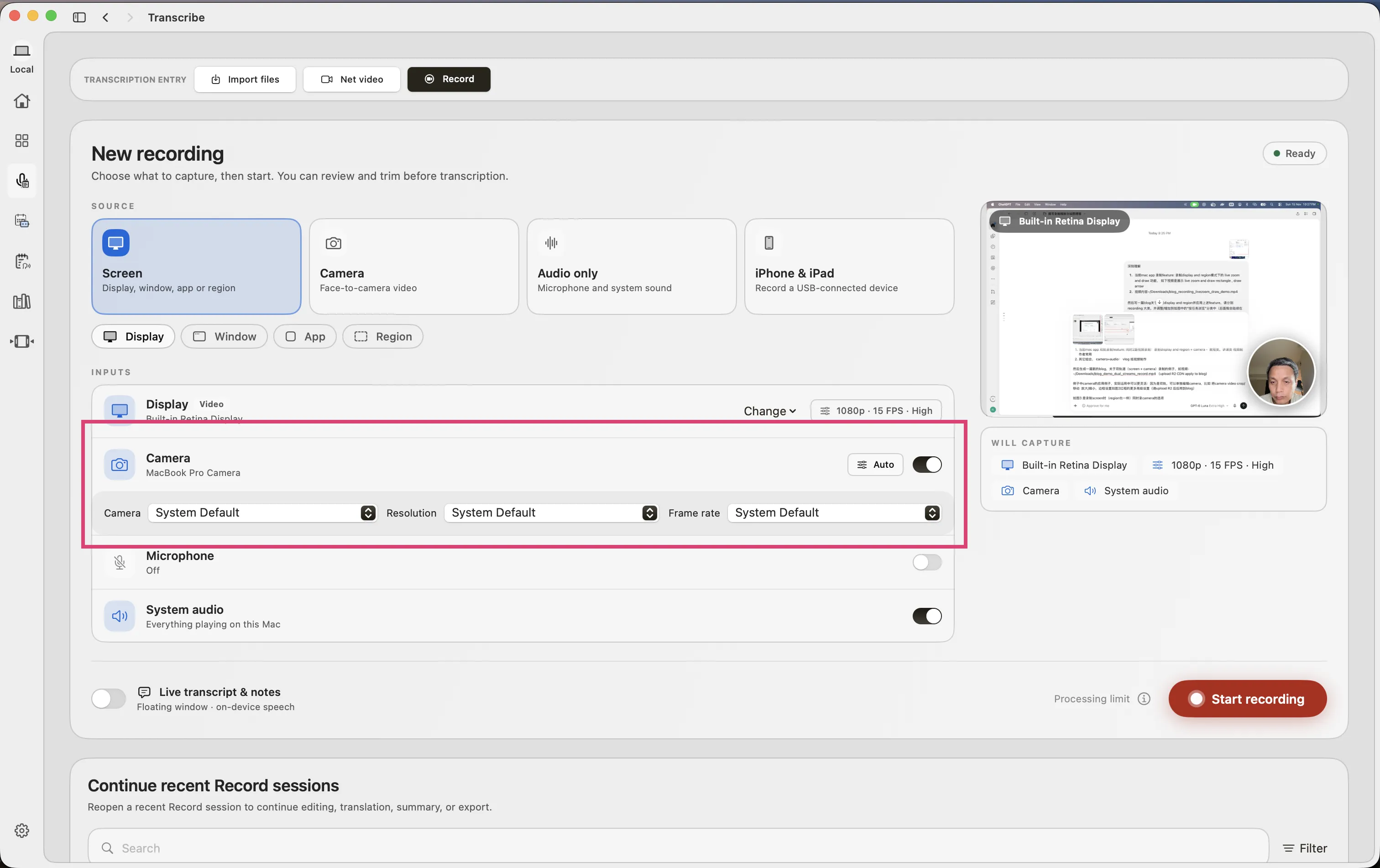
Record the lesson
Start recording, choose the display in the macOS picker or drag and confirm the region, then demonstrate the lesson. Stop and review the recording; check that the screen, camera and intended audio are present.
Edit the camera independently
Process the recording and choose Create Clip. The editor places the screen and camera on separate video tracks. Select the camera clip to move, scale or crop it, adjust its corners and border, and keep it clear of the teaching material. The Adjust tab also offers exposure, contrast, white balance and other color controls.
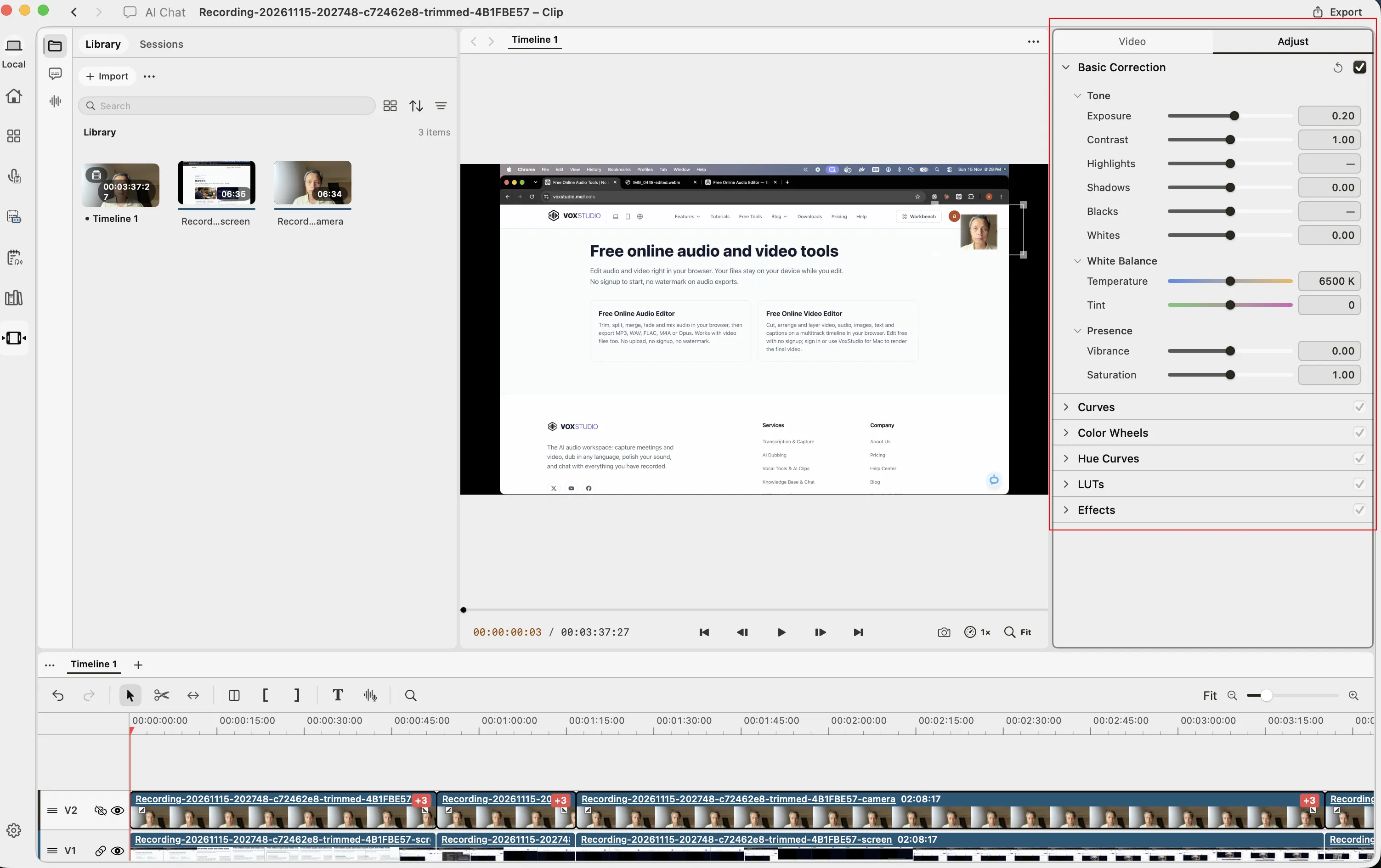
Keep the lesson readable
Place the camera away from the menu you are about to open. When the lesson moves elsewhere, split the camera clip and adjust that section, then check the preview.
Camera and audio for a vlog
For a face-to-camera vlog, choose Camera as the source and enable the microphone. Camera plus audio is a different setup: it does not create a second screen video track. Review your sound and framing before sharing.
FAQ
How do I record my screen and webcam at the same time on Mac?
Choose Screen, select Display or Region, turn on Camera and your desired audio sources, then start recording.
Can I move the webcam after recording?
Yes. Create a clip from a recording containing both sources, select the camera video track, and adjust its position, scale and crop.
Explore the Mac workflows
Record your next lesson with screen and camera
Record a display or region and webcam together on Mac, then crop, resize and move the camera independently for tutorials and lessons. Download for Mac · Compare plans & trial
VoxStudio Team — We build VoxStudio. This guide records our own tests, their limits and the files needed to reproduce them.