How to Split Video Subtitles Naturally: Line Breaks, Length and AI Segmentation
Subtitles that break in the middle of a phrase or run too long are hard to read. In VoxStudio for Mac, turn on Segment subtitles, choose local captions or AI refinement with your own key, and tune the length preferences.
By David, Product Specialist at VoxStudio · · Updated · 7 min read
Key takeaways
- Turn on Segment subtitles in the transcription options. Local captions need no key; LLM refinement needs your own API key (BYOK) and a connected subtitle model.
- The model suggests where a phrase should end. The timing solver then chooses the final cut points from word timestamps, so the text and timing stay the recognized ones.
- Set the length preferences once in Settings > Subtitle Segmentation, then check the cuts at the seams before you export.
Automatic subtitles usually come out in one of two shapes. Either a sentence is cut in the middle of a phrase, so the reader meets "the work a leg does in" on one line and "one push" on the next, or a long run of speech sits on a single line that is hard to finish in time. Both problems come from the same place: the cut points were chosen by a rule that does not know where the meaning turns.
This guide shows how to get natural breaks and a comfortable length in VoxStudio for Mac. It covers the options in the transcription window, what each one does, how the AI option works in plain terms, and how to tune the result. The steps assume you already have a recording or video open in the app.
Before you start: choose how segmentation runs
Segmentation has two modes. The mode is chosen automatically, based on your settings, when you start the job. You do not pick an engine for it.
Local captions or LLM refinement
| Local captions | LLM refinement | |
|---|---|---|
| When it runs | Segment subtitles is on, and BYOK is off or no subtitle model is connected | BYOK is on, the subtitle provider has passed its connection test, and the Subtitle cleanup model is configured |
| What you need | Nothing extra. It runs on your Mac. | Your own API key for a provider you set up in Settings > AI Service |
| Cost | No API key or AI credits | Your provider charges for the tokens it reads and writes |
| Where the text goes | Stays on your Mac | The transcript is sent to the provider you chose |
| Wording | Keeps the recognized text | Keeps the recognized text; the model only proposes break points |
| Best for | Quick cuts, offline work, and recordings where the default length is fine | Long speech where the break should follow the meaning, and punctuation-light transcripts |
Signing in to VoxStudio (hosted AI, uses credits) does not switch segmentation to LLM refinement. Hosted credits do cover other AI steps, such as restoring punctuation in Chinese transcripts from some engines and translation. If you want the LLM break refinement, set up BYOK.
Set up segmentation: two ways
Pick the path that fits your key situation. You can switch later; the setting applies to subtitles created from then on.
Path A: No API key: use local captions
Keep Segment subtitles on and leave BYOK off. The subtitles are split on your Mac with the same algorithm as Generate Local Captions in the video editor.
Best for: Quick work, offline use, or when you do not want any text sent to a model. Result: Subtitles split by punctuation, readable length and word timestamps, with the recognized wording.
Open the transcription options
Add the file, then open Options. Choose the Input language if you know it; the automatic choice is fine for most recordings.
Turn on Segment subtitles
It is off by default. Turn it on, and the info button beside it shows which mode will run on this Mac.
Start and review
When the job finishes, play the cut points you care about. If the length is off, change the preferences in Settings > Subtitle Segmentation and run the job again.
Path B: Your own key: use LLM refinement
Turn on BYOK in Settings > AI Service, add your provider key, run the connection test, and make sure the Subtitle cleanup model is set. Then Segment subtitles uses the model for break points.
Best for: Long talks, interviews and lectures where a phrase should not be split by a length rule alone. Result: The same timing and wording as local captions, with break points that follow the meaning.
Turn on BYOK
Open Settings > AI Service and enable "Use your own API key (BYOK)". Add the key for the provider you want to use.
Test the connection
The provider must show as Connected. If it does not, the app keeps using local captions rather than failing the job.
Check the subtitle model
Make sure the Subtitle cleanup model is configured. Then open the transcription options and turn on Segment subtitles. The info button now reads "When enabled: LLM refinement".
The options in the transcription window
Here is what each control in the transcription options does for subtitles. Labels match the app.
Input language, Hotwords, Segment subtitles and Advanced settings
- Input language — Sets the spoken language for recognition. Automatic detects it from the audio. If you know the language, choose it: the segmentation rules for dense scripts such as Chinese and Japanese depend on it.
- Hotwords — Names and terms the recognizer should expect. They are applied to on-device transcription and are passed to AI correction as spelling hints, so mis-heard names are less likely to split across lines.
- Segment subtitles — Off by default. When it is on, subtitles are segmented after recognition. The info button explains which mode runs: LLM refinement when BYOK is connected, otherwise local captions. Translation also prepares subtitle cues.
- Advanced settings > AI correction — Off by default and only available with your own key. After recognition, your model proofreads the whole transcript for homophones, names and terms, without rewriting, translating or adding content. Transcript text is sent to your provider, which may charge for it. Not available for VoxStudio Cloud transcription.
- Advanced settings > Speaker count — Expected number of speakers. Speaker changes always start a new subtitle, so getting this right keeps interview cues from crossing between people.
- Advanced settings > Clip and Translation — Clip limits the job to a time range. Enable translation translates the transcript to the target language you choose; translation also prepares subtitle cues, so it works with the same timing.
Set the length preferences once
Length is controlled in Settings > Subtitle Segmentation. These are preferences, not hard caps: a line may run a little past them, and the renderer still enforces the real safe width on screen. The changes apply to subtitles created from now on, so run the job again after you change them.
The preferences and their defaults
| Default | Allowed range | Effect | |
|---|---|---|---|
| Preferred characters per line (Chinese, Japanese, Korean) | 24 | 12 to 40 | Target width of one line for dense scripts. Lower it for vertical video. |
| Preferred characters per line (other languages) | 50 | 24 to 80 | Target width for Latin-script text. Counted in half-width units, so it is roughly twice the CJK number. |
| Float range | 35% | 0% to 100% | How far past the preference a cut may drift to land on a better break. 0% is strict. |
| Preferred longest subtitle | 5.0 s | 2.0 to 10.0 s | Duration after which the cue is penalised. Shorter values make more, shorter cues. |
| Prefer breaking at commas | On | On or off | Treats commas, semicolons and colons as good places to cut. Turn it off if commas split lists you want kept together. |
How LLM segmentation works, in plain terms
Think of it as a two-step job with a clear division of labour. The model is good at reading meaning. The solver is good at arithmetic on timestamps. VoxStudio gives each one only the part it is good at.
The four steps
- 1. Clean up punctuation, if needed — Some recognizers, such as Whisper, return text with little punctuation. For those, the model first adds punctuation and fixes obvious slips. Engines that already punctuate skip this step.
- 2. Suggest phrase breaks — The model reads the transcript in batches with a little context from before and after. It returns the same words split into lines, and may name tightly bound phrases such as names or "a leg" that should not be separated. It may not change, translate or summarise a word.
- 3. Check the suggestion — The app verifies that the text is unchanged, that no line is too long, and that the batch is not empty. If a check fails, the model is asked again; if it still fails, that batch falls back to local rules. Other batches are unaffected.
- 4. Solve the final cuts with timing — The local solver scores candidate cut points with the word timestamps: pauses reward a cut, very long or very short cues are penalised, and the length preferences set the target. The model's line breaks are the starting proposal, and the solver decides where each cut really goes. Every word then gets its time from the recognizer, not from the model.
That split explains the design. The model can never move a subtitle to a time it invented, and the timing never depends on how the model happened to count characters. If the model is unavailable, the local path still gives you a complete, timed set of subtitles.
Tune the result: symptom, then setting
What to change when the cuts look wrong
| What you see | Try first |
|---|---|
| Lines are too long for the frame | Lower the preferred characters per line, then run the job again. |
| Lines are short fragments | Raise the preferred characters per line, or lower the float range so the length is kept closer to the target. |
| Cues drag on for many seconds | Lower Preferred longest subtitle. |
| Commas split a list you want together | Turn off Prefer breaking at commas. |
| A phrase is cut in the middle, and you use local captions | Check the timing first. Cuts follow word timestamps, so a noisy or overlapping part can move a boundary. Try LLM refinement with BYOK for long, meaning-heavy speech. |
| Chinese or Japanese text looks like it has no punctuation | Use a connected AI model (hosted or BYOK), because some engines do not add punctuation. Set Input language to the right language. |
When the settings are not enough: split a cue by hand
The preferences move the average toward your target, but a single cue can still run long or break in a place you do not like. You do not need to run the whole job again for that: cut the cue where it is. There are two places to do it, depending on where you are working.
Option 1: split in the session's Subtitles tab
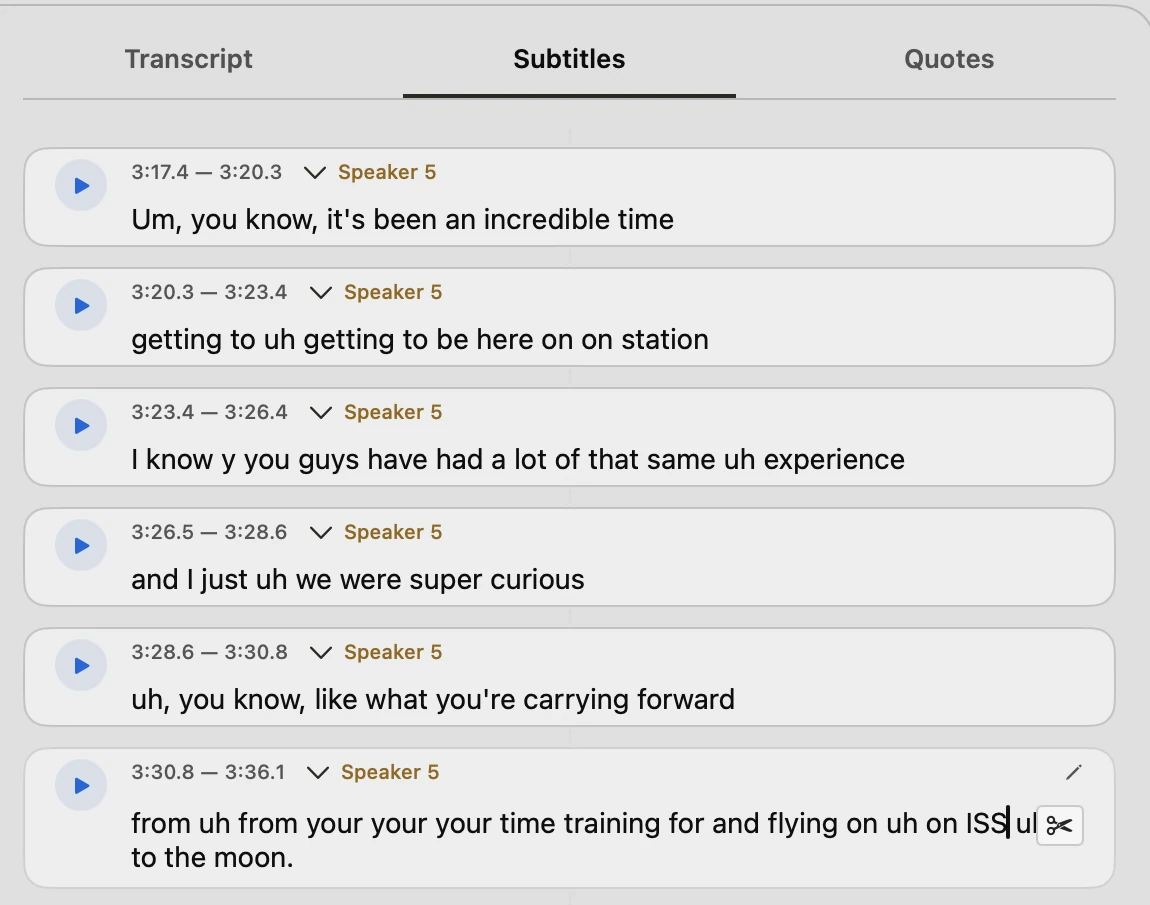
Open the session and switch to the Subtitles tab. Click in the text of the long cue and place the cursor where the new cue should start. A scissors button appears at the right edge of the cue; click it to split the cue at the cursor. Play both halves afterwards to check that the break sounds natural.
Option 2: split on the subtitle track in the video editor
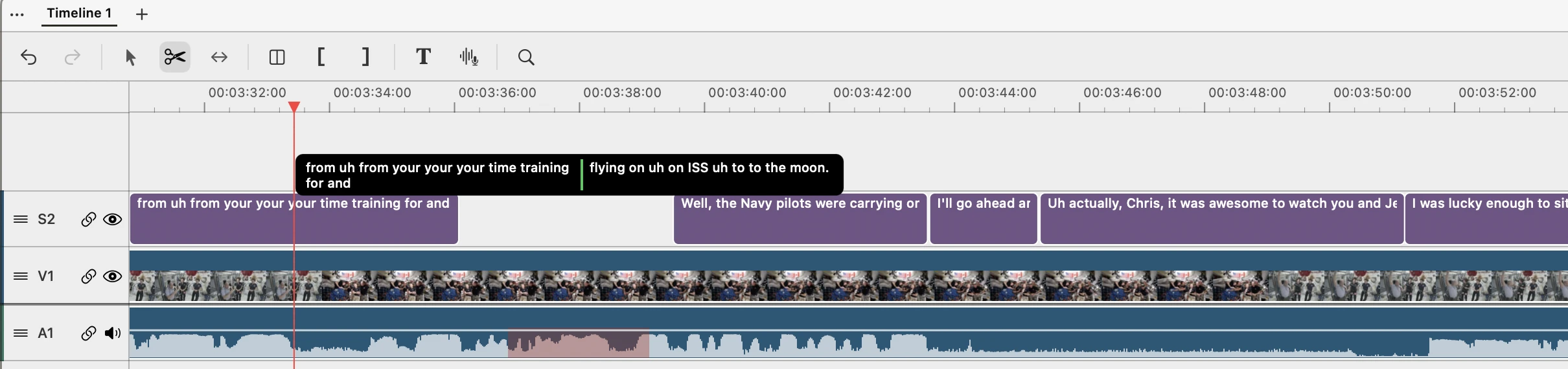
If you have already imported the session into the video editor, work on the timeline instead. Select the scissors tool in the toolbar and move the pointer over the subtitle you want to cut. A preview shows the two texts the cue would become, with a green line at the cut. Click to cut there.
Check the cuts before you export
A short review
- Play every seam you care about — Start a few seconds before a cut and play through it. Listen for a clipped syllable, a repeated word or an unnatural breath.
- Read the cue, not the waveform — Read each subtitle aloud at the speaker's pace. If you run out of breath, or the sentence sounds broken, split or merge it.
- Check the names and numbers — Segmentation does not change spelling. A name that the recognizer heard wrongly will stay wrong, so use Hotwords or AI correction for those.
- Re-run after changing settings — The length preferences apply to subtitles created from then on. Re-run the job rather than expecting old subtitles to update.
What this guide does not cover
This guide covers segmentation in the Mac app. VoxStudio Cloud prepares subtitles on the server, so the mode choice above applies when processing on your Mac. Platform rules for caption length or reading speed differ, so check the requirements of the platform you publish to.
FAQ
How do I get natural subtitle line breaks in VoxStudio for Mac?
In the transcription options, turn on Segment subtitles. Without an API key it uses local captions, which split by punctuation, readable length and word timestamps. With BYOK and a connected subtitle model it uses LLM refinement, which proposes breaks by meaning and then keeps the timing from the recognizer. Check the seams before export.
What is the difference between local captions and LLM refinement?
Local captions run on your Mac with no API key or AI credits. LLM refinement sends the transcript to the provider you set up with BYOK, which may charge for the tokens. Both keep the recognized wording and both take their timing from word timestamps.
Does signing in to VoxStudio turn on LLM refinement?
No. LLM refinement for segmentation needs BYOK with a connected subtitle provider. Signed-in hosted AI uses credits for other AI steps, such as punctuation for some Chinese transcripts and translation.
Can the AI change my words when it splits the subtitles?
Segmentation is not supposed to. The model returns the same words split into lines, and the app rejects an answer that changes the text. AI correction is a separate, opt-in option that may fix homophones and names; it is off by default and never changes timing.
What line length should I use?
Start with the defaults: 24 characters per line for Chinese, Japanese and Korean, and 50 for other languages. Lower the CJK value for vertical or phone video and raise it for wide landscape frames. Check the result on the screen you will publish to.
Why did my existing subtitles not change after I edited the settings?
Preferences apply to subtitles created from then on. Run the segmentation again on the transcript to apply the new length.
Explore the Mac workflows
- Edit Video from the Transcript on Mac
Cut talking-head video on whole words, search a Mac timeline by what was said or shown, turn a long recording into short clips, and review captions before export.
Split subtitles where people pause.
Open VoxStudio for Mac, turn on Segment subtitles in the transcription options, and check the cuts at the seams before you export. Download for Mac · Compare plans & trial
David — David works on the VoxStudio product team and spends most days inside the video editor, turning real customer workflows into faster ones.